

MultiProbe 26.06 helps NOC and MCR operators investigate incidents faster, assess signal health in fewer clicks, and build monitoring workspaces with far less manual setup.
Video and audio parameters can now be shown directly on the multiviewer mosaic, and the alarm tables and widgets operators rely on most need much less configuration before they are ready to use.
For NOC and MCR teams, this means faster incident response and fewer escalations to senior engineers. The sooner an operator can isolate the source of a problem, the lower the risk of service degradation reaching viewers or turning into an SLA breach.
Faster alarm triage and incident investigation
During an incident, every second counts. Operators need to find the relevant event quickly, even in the middle of an alarm storm.
MultiProbe 26.06 cuts the clicks and repetitive actions needed to locate and investigate an issue.
What's changed
-
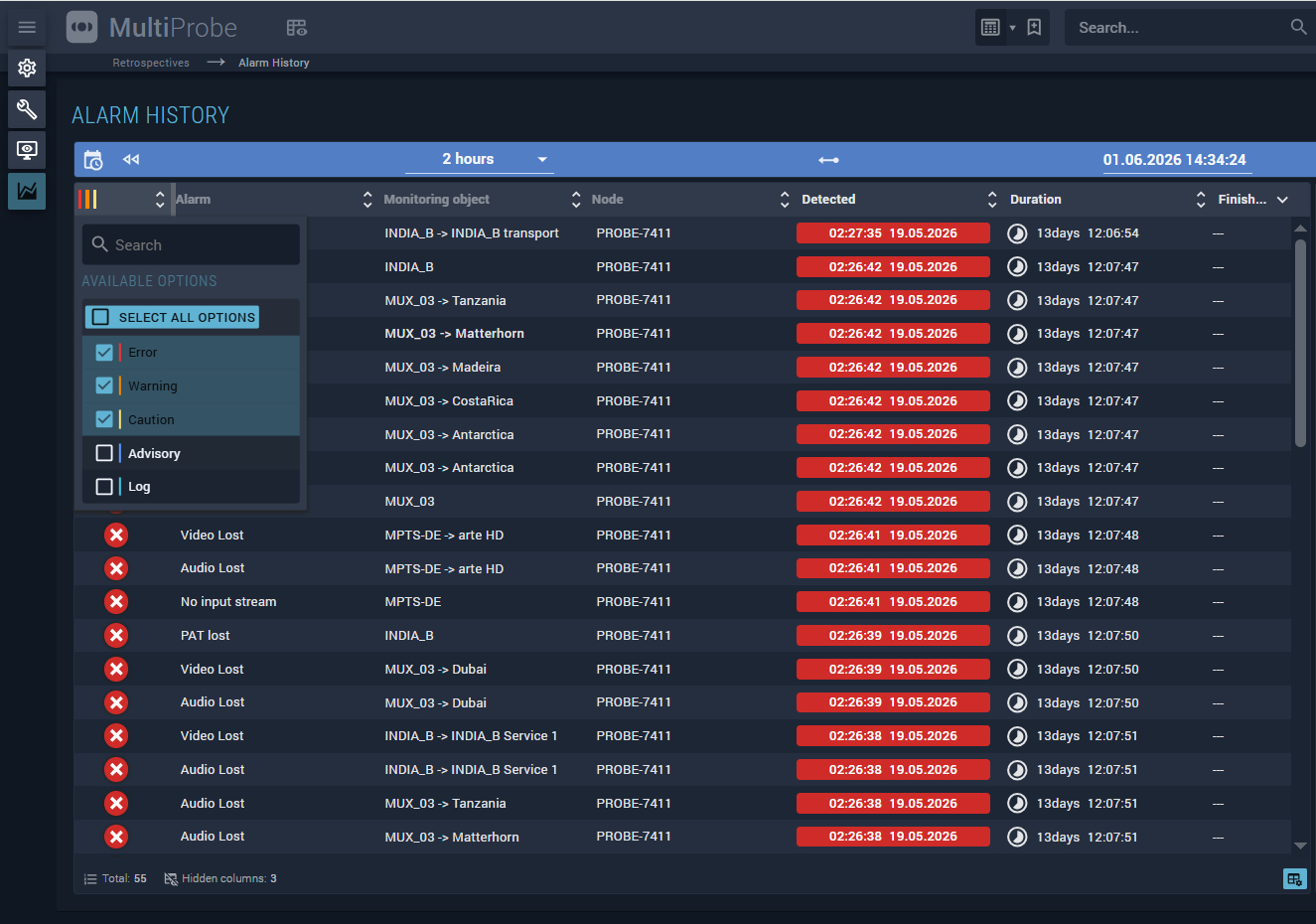
Alarm Table: filtering by priority. Critical events can be separated from lower-priority alarms instead of being buried in the overall event stream.
-
Alarm History: persistent settings. Column selection, column widths, and sorting are retained, so operators return to a familiar layout instead of rebuilding it every session.
-
Alarm Table: ready-to-use widgets. A new Alarm Table added to a dashboard now opens with sensible defaults, with no setup from scratch.
-
State Panel: an expanded context menu. Common actions are available straight from the panel in a single click.
In practice, alarm tables are already organized, filtered, and ready for investigation by the time the operator opens them.
Video and audio parameters directly on the mosaic
When an operator is watching dozens of services on a multiviewer, the picture alone isn't enough. They also need immediate access to technical details such as resolution, codec, frame rate, audio status, and audio levels.
Until now, checking these parameters meant opening the service card or keeping a separate Service Info widget on the workspace, which pulled the operator's attention away from the mosaic.
MultiProbe 26.06 can now display video and audio parameters as overlays, directly on the relevant multiviewer tile.
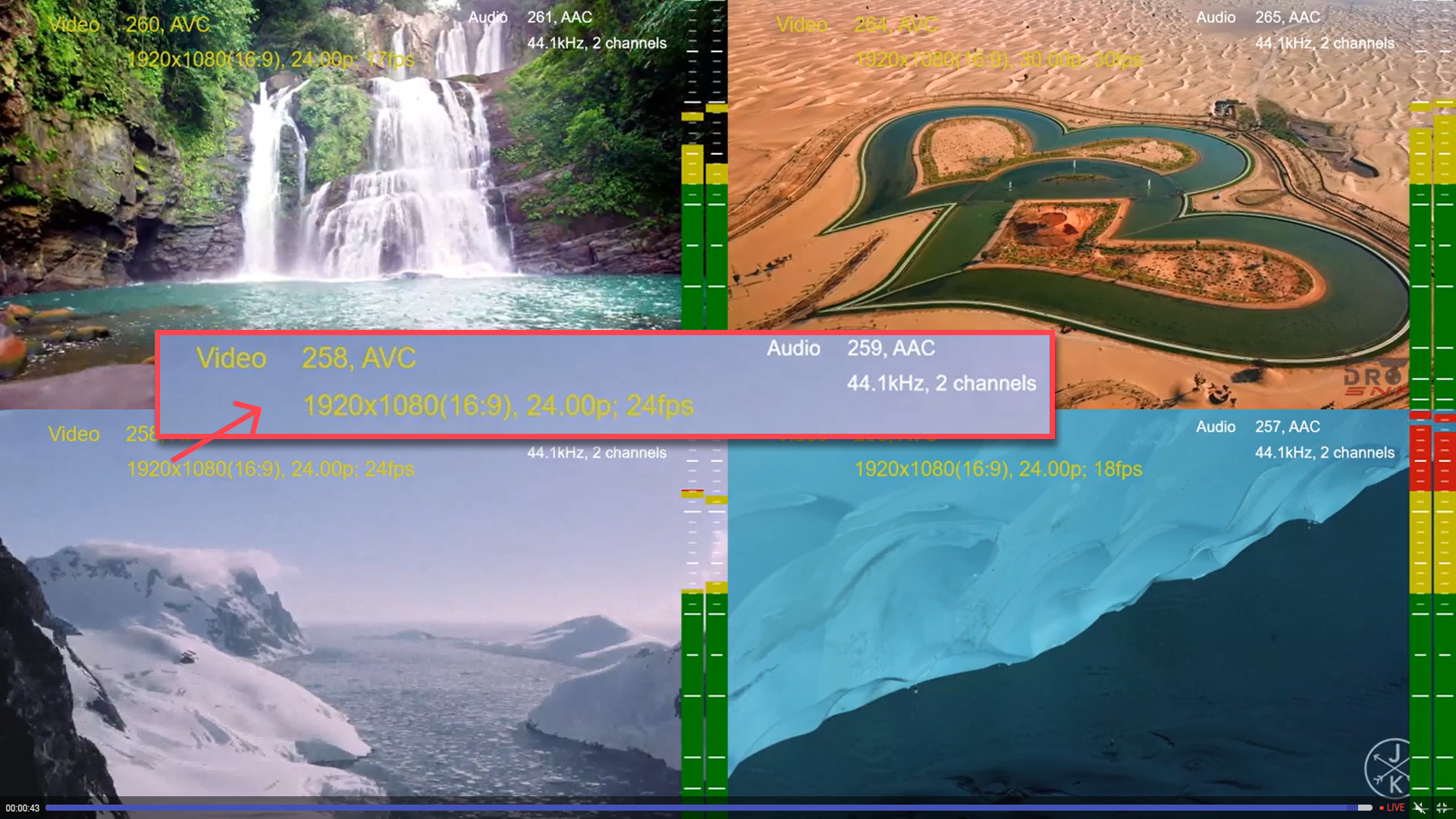
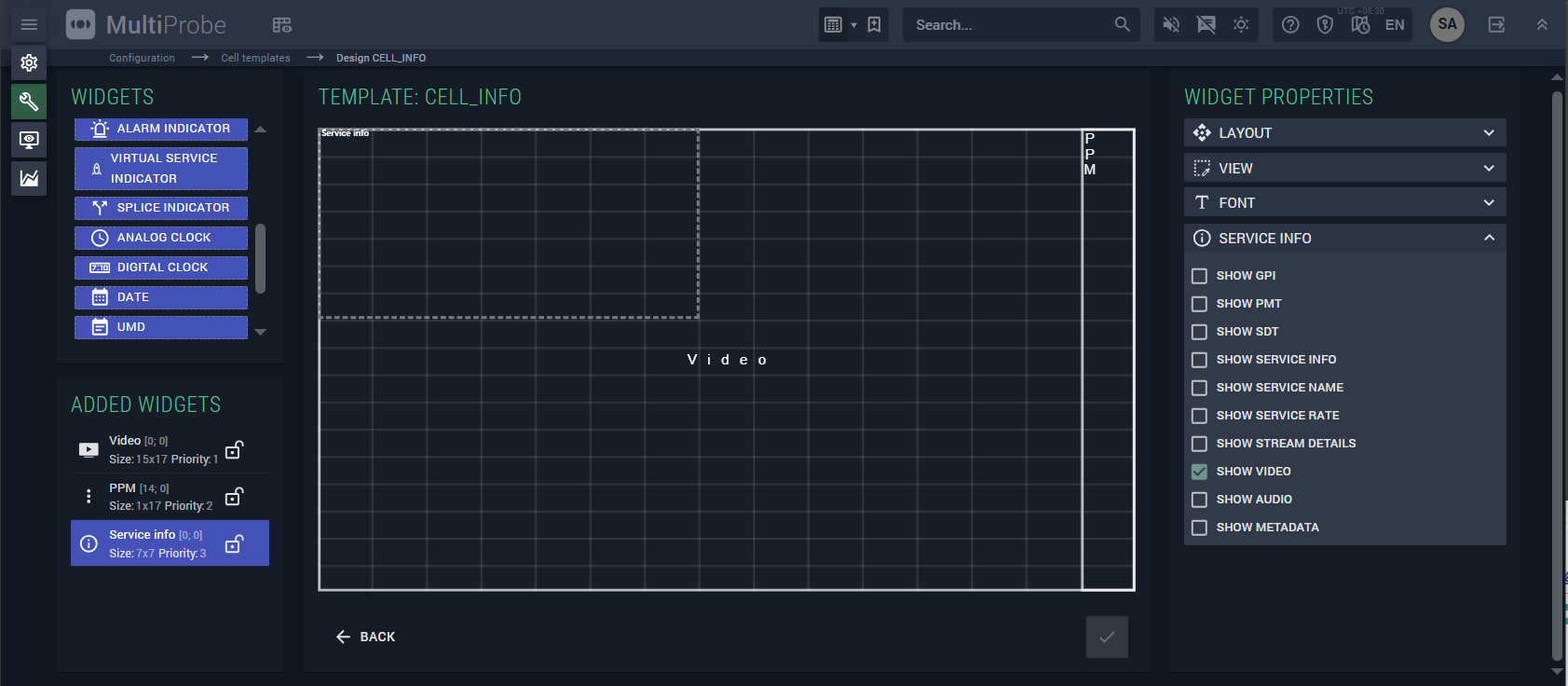
Video and audio overlays are configured as two independent components. Operators can enable each one separately and position it anywhere on the tile.
The most important signal information stays visible alongside the content being monitored. If a service suddenly changes resolution or drops an audio track, the operator sees it on the mosaic, without switching screens.
Fewer repetitive actions across the interface
More flexible monitoring widgets
The PSI/SI and MediaInfo widgets now support source switching, so there's no need to create a separate widget for every monitored service.
The Current Value widget gains a table view that makes long lists of metrics easier to scan, and sorting preferences in the Measures section are now saved correctly.
Fewer errors during source configuration
MultiProbe now validates RTSP URLs and checks node IDs in NDI workflows. Invalid source details can no longer be saved unnoticed, so configuration errors surface during setup rather than after the source goes live.
We've also refined the Time Range widget in NOW mode and fixed graph rendering in 5-NOW mode when a range longer than five minutes is selected.
Greater stability under sustained load
Release 26.06 also includes improvements built for continuous 24/7 operation and high-density monitoring environments:
-
updated ST 2110 transmission for better performance under high load;
-
refactored signal-reception components for more stable continuous operation;
-
faster real-time updates in Current Info;
-
improved State Panel loading on heavily loaded operator workstations.
Upgrade to MultiProbe 26.06
MultiProbe 26.06 takes the manual setup out of everyday monitoring and makes alarm tables, widgets, and multiviewer mosaics faster to work with.
For operations teams, that means shorter incident response times, fewer escalations to senior engineers, and a lower risk of service degradation reaching the audience.
Talk to our engineers about upgrading your MultiProbe to 26.06.