Device Settings
Time synchronization
Accurate time is required for correct UTC error detection, EPG validation, and timestamped event logs. The TS Analyzer compares the time embedded in incoming transport streams against its own clock — if the device clock is wrong, UTC deviation readings will be meaningless.
NTP (recommended)
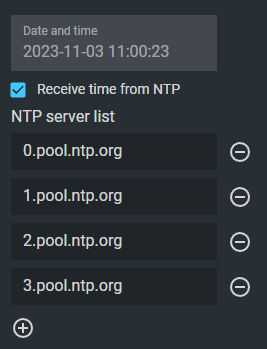
By default, the device synchronizes time automatically using the following NTP servers:
0.pool.ntp.org1.pool.ntp.org2.pool.ntp.org3.pool.ntp.org
To verify or adjust NTP settings:
-
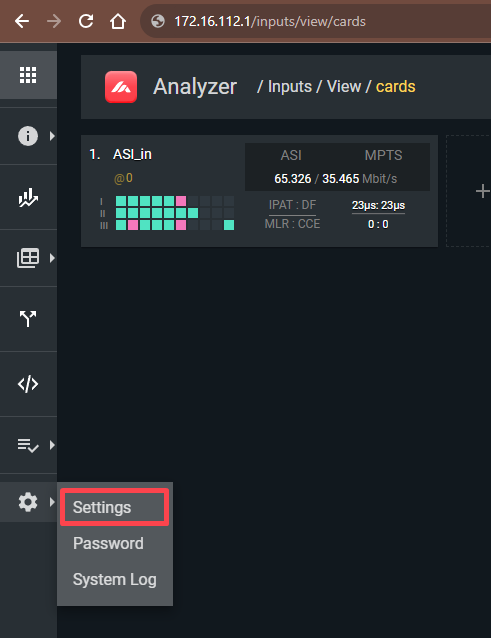
Go to Settings.
-
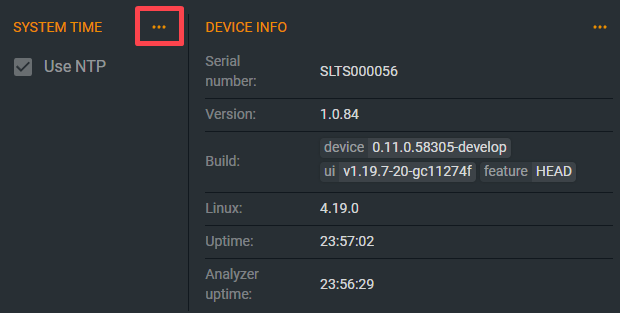
In the System Time panel, click the ··· button.
-
Confirm that Receive time from NTP is checked.
-
Add or remove NTP servers using the + and − controls.
- Click Save Settings.
The device must have internet access (or access to a reachable NTP server on your LAN) for synchronization to work.
Timezone
NTP provides UTC time. To display local time correctly in logs and the web interface:
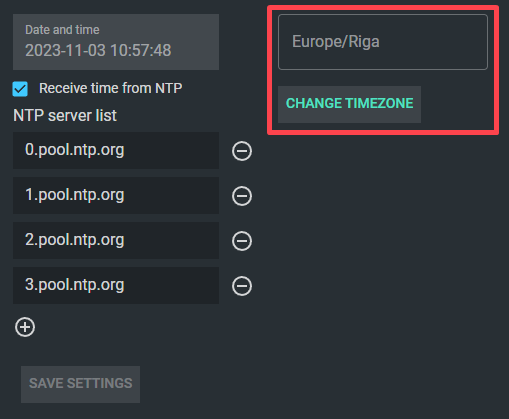
- In the System Time panel, click Change Timezone.
-
Select your timezone from the list.
-
Click Save Settings.
Manual time (not recommended)
If NTP is unavailable, you can enter the time manually. This is not recommended for production use because the internal clock will drift over time.
Changing the password
- Click the Settings gear icon and choose Password.
- Enter the current password, then the new password twice.
- Click Save.
Danger
The default password is admin. Change it before placing the device on any shared or accessible network.
Factory reset
If you lose access to the device — for example after setting an incorrect IP address — you can restore the factory default network settings using the physical reset button.
Default settings after reset:
| Setting | Value |
|---|---|
| IP address | 172.16.112.1 |
| Subnet mask | 255.255.255.0 |
| Mode | Static |
To perform a reset:
- Ensure the device is powered on.
-
Locate the reset button hole on the back panel — it sits between the USB and power inputs.
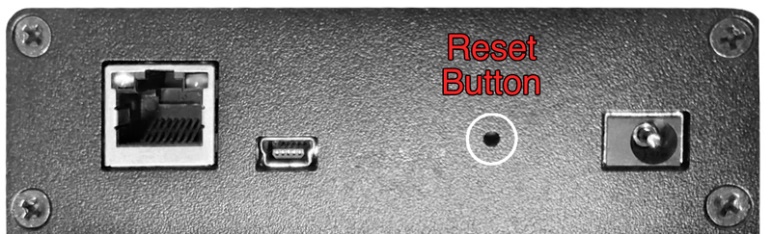
-
Insert a slim, non-metallic tool (such as a straightened paper clip) into the hole.
- Press and hold for 5 seconds until the device begins to restart.
After the reset, configure your computer's network interface to the 172.16.112.x subnet and reconnect at http://172.16.112.1. See Installation if you need a reminder of how to set a static IP.
Viewing system information
In Settings → System Time, the Device Info panel on the right shows:
| Field | Description |
|---|---|
| Serial number | Unique device identifier — needed for support requests |
| Version | Firmware version |
| Build | Detailed build string |
| Linux | Kernel version |
| Uptime | Time since last boot |
| Analyzer uptime | Time since the analyzer process last started |
System log
The system log is accessible at Settings → System Log. Use it to review device events, error history, and startup messages when troubleshooting.