Network Configuration
The TS Analyzer has two Ethernet ports with different roles:
- eth0 (management) — used for web interface access and device configuration. Connects to port 3 (LAN).
- eth1 (data) — used for monitoring IP transport streams. Connects to port 7 (LAN DATA).
This page covers configuration of eth0 only. eth1 does not require manual configuration — streams are assigned to it through the web interface input configuration.
Static IP (default)
The device ships with a static IP of 172.16.112.1 on eth0. If this address is compatible with your management network, you can keep it and simply add the device to your network with appropriate routing.
To change the static address:
-
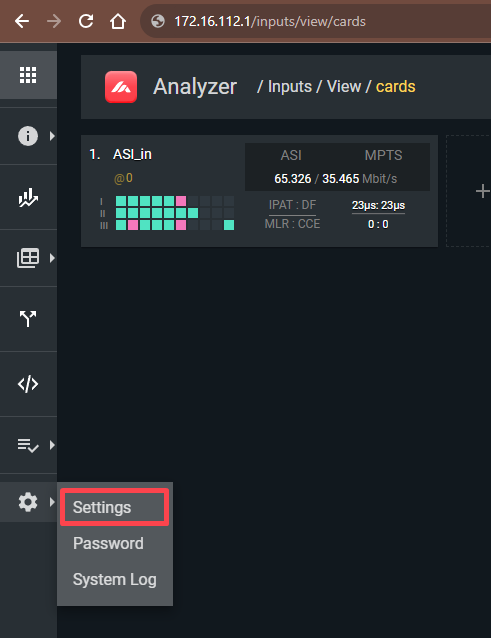
Log in to the web interface and go to Settings → Network.
-
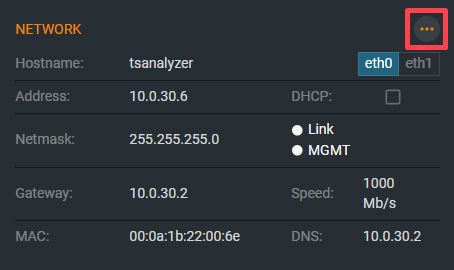
In the Network panel, click the ··· (three-dot) button.
-
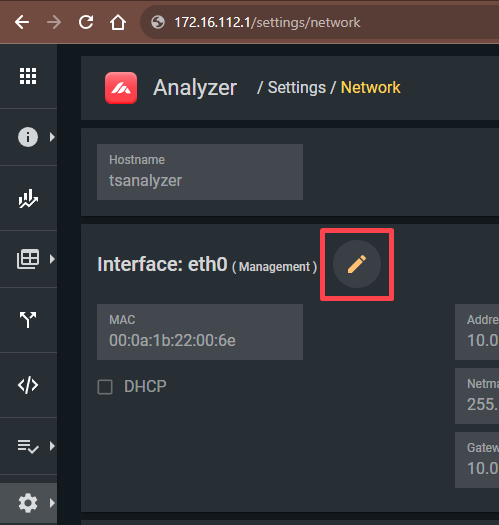
Click the pencil icon next to Interface: eth0 (Management).
-
Enter the new Address, Netmask, and Gateway.
- Click Save.
Warning
After saving new network settings, the device will be unreachable at its old address. Reconnect using the new IP.
DHCP mode
To have the device obtain its IP address automatically from a DHCP server:
- Go to Settings → Network and click the ··· button.
- Click the pencil icon next to Interface: eth0 (Management).
-
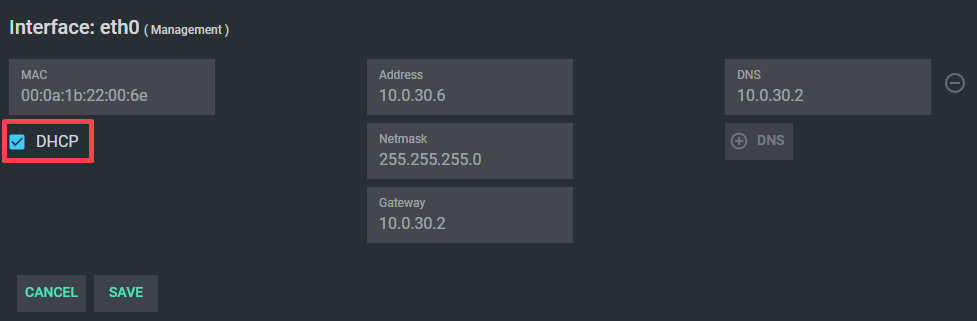
Check the DHCP checkbox.
-
Click Save.
-
Power off the TS Analyzer and reconnect it to your network switch or router.
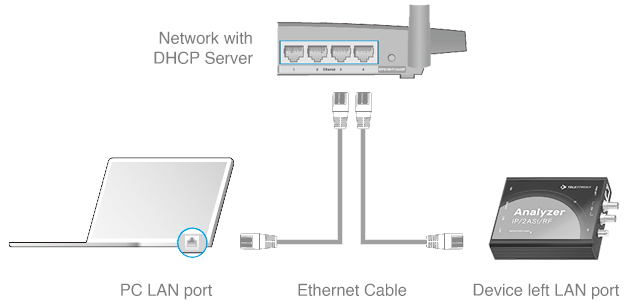
After the device boots, it will request an address from your DHCP server. To find the assigned address:
- Check your DHCP server's lease table — look for the device's MAC address, which is shown in the Network settings panel.
- On Windows, run
arp -ain a command prompt to list nearby devices by MAC address. - On Linux/macOS, run
arp -nor check your router's admin interface.
Tip
Note down the device's MAC address before enabling DHCP — it is shown in Settings → Network and printed on the device label.
Hostname
The default hostname is tsanalyzer. You can change it in Settings → Network by editing the Hostname field and saving. The hostname is used in system logs and can help identify the device on a shared network.