Channel Manager
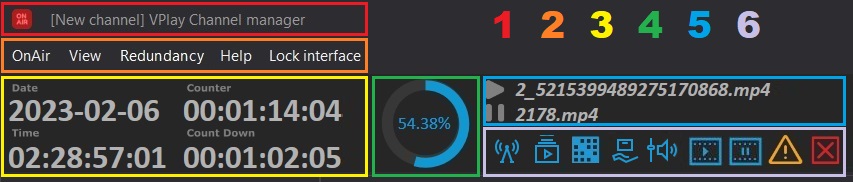
Channel Manager is the main operator application in the VPlay system.
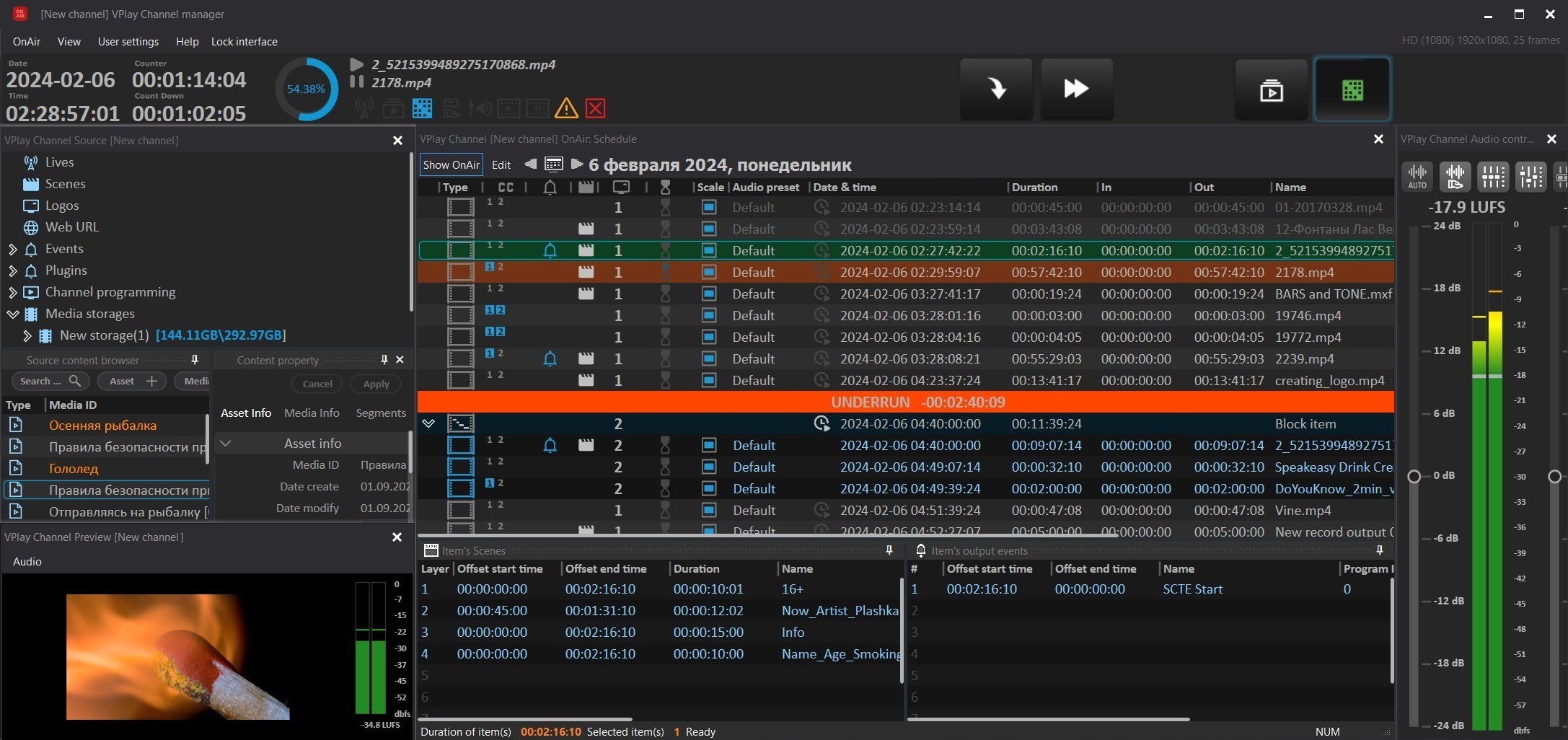 Use it to build schedules, control the broadcast in real time, overlay graphics, and switch live sources.
Launch it from VPlay Launcher after selecting a channel.
Interface: windows overview
Channel Manager is a multi-window application. Operators can arrange the layout to suit their tasks.
 is a multi-window application. Operators can arrange the layout to suit their tasks. The available windows are:
| Window | Purpose |
|---|---|
| Channel OnAir | Channel playlist or schedule — the main working window |
| Channel Source | Content storages and files |
| Source Content Browser | Storage content browser |
| Content Property | Properties of the selected file or schedule item |
| Channel Preview | Preview of the channel output signal |
| Channel Player | Video player showing the current playback |
| OnAir Options | Current on-air parameters: volume, speed |
| Channel Audio Ctrl | Channel audio settings |
| Channel Logo Slot | Logo slots |
| Channel Manual GFX Ctrl | Manual control of GFX scenes |
| Channel Auto GFX Ctrl | Control of automatic GFX |
| Item's Scenes | Graphics for a schedule item |
| Item's Output Events | Output control signals of an item |
| Schedule Editor | Editor for playlists and templates |
| Manual Events Ctrl | Manual triggering of external control signals |
| Command Control | Quick command panel |
| Countdown | Countdown window |
| Search | Advanced schedule search |
Creating a custom layout
You can open, close, drag, and dock any window anywhere on the screen. The layout is saved automatically for each user.
To open a window: select View → Windows and choose the window you need.
Main window: Channel OnAir
The on-air control center. It displays the playback queue in Playlist mode or the schedule grid in Schedule mode.
Item statuses (color coding)
| Color | Status |
|---|---|
| 🟢 Green | Current item (on air now) |
| 🔵 Blue | Next item (ready to play) |
| ⬜ White | Waiting in the queue |
| 🟡 Yellow | Warning: file not found or not indexed |
| 🔴 Red | Error: file unavailable |
| ⬛ Gray | Skipped / disabled |
Status navigation
The quick-jump buttons next error, next warning, and current on air help you quickly find problem items in a large schedule.
Main controls
| Button | Action |
|---|---|
| ▶ Play | Start broadcasting |
| ⏸ Pause | Pause (silent pause on the output) |
| ⏹ Stop | Stop playback |
| ⏭ Next | Go to the next item |
| ⏮ Prev | Return to the previous item |
| Take | Immediately switch to the selected item (hot switch) |
Take — immediate switch
Take is a key function for live operation. It lets you instantly switch to any schedule item or live source without interrupting the stream.
Content browser
The Source Content Browser window displays the contents of connected storages. It supports:
- Browsing by folders and as a flat list
- Search by file name and metadata
- Clip preview before adding it to the schedule
- Drag and drop of files into the OnAir queue
File properties (Content Property)
When you select a file in the browser, the Content Property window opens and shows:
- Duration, format, codec, and resolution
- In/Out points (segmentation)
- Custom metadata (author, rating, description)
- Indexing status
On-air graphics
Logos (Logo Slots)
Each channel has slots for permanent logos. Assign a logo in Channel Logo Slot; it is displayed over the entire broadcast regardless of the current schedule item.
Auto GFX — automatic graphics
Graphic objects linked to the schedule are overlaid automatically when an item plays. Configure them in the Item's Scenes window for each schedule item.
Up to 8 GFX layers can be active simultaneously on a channel.
Manual GFX — manual control
The Channel Manual GFX Ctrl window lets the operator start and remove any GFX scene manually in real time. Typical use cases:
- Lower thirds during interviews
- Breaking news banners
- Partner logos during live broadcasts
Audio control
The Channel Audio Ctrl window provides:
- Real-time monitoring of input and output audio levels
- Manual channel volume adjustment
- Enabling/disabling Loudness normalization (EBU R128 / ATSC A/85)
- Audio preset management
Preview
The Channel Preview window displays the decoded channel output signal directly in the Channel Manager interface. The preview runs with a delay of 1–2 seconds relative to the actual output signal.
Channel Player is a separate window with extended playback features: timecode, audio levels, and stream information.