Creating a broadcast channel
Before you create a channel, it helps to understand three basic concepts of the VPlay architecture:
- Live source (Live) — an input signal received in real time (SDI, NDI, IP)
- Broadcast channel — a software channel on the server that processes content. It is not a file or an output stream
- Output signal — the resulting stream with its own individual settings. You can add several outputs with different parameters to a single channel
GPU performance calculation
Before you create channels, make sure you have enough hardware resources.
Distribution rule: all live sources, the broadcast channel, and its output streams must be on the same GPU.
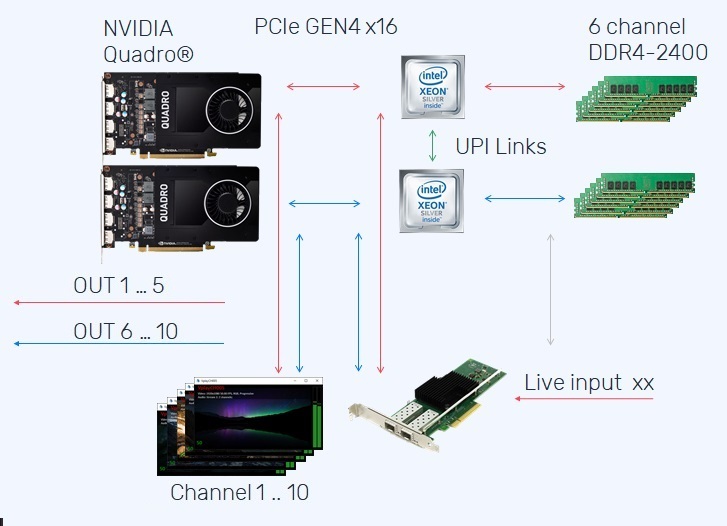
If you have several GPUs, enable Allow Usage On Other Video Adapters and distribute the channels between the adapters.
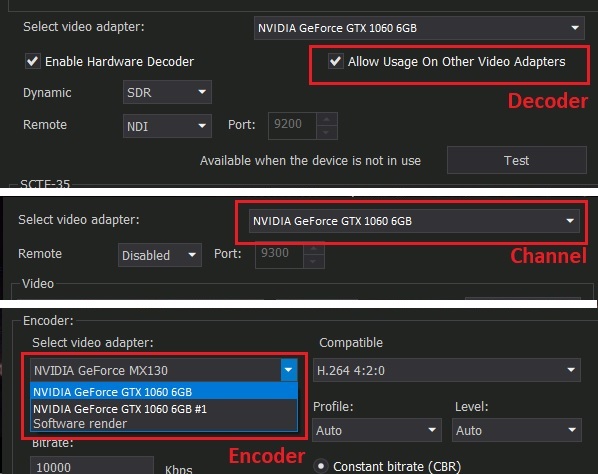
Performance table (test: 1 input + 1 UDP H.264 output, simple graphics, 2.0 audio):
| GPU | SD channels | HD channels | UHD channels |
|---|---|---|---|
| NVIDIA GeForce GTX 1060 6 GB | 6 | 4 | — |
| NVIDIA Quadro P2200 | 5 | 3 | — |
| NVIDIA GeForce RTX 3080 | 10 | 6 | 1 |
| NVIDIA Quadro RTX 4000 | 7 | 5 | 1 |
| NVIDIA Quadro RTX A4000 | 10 | 7 | 1 |
| NVIDIA Quadro P5000 | 10 | 7 | 2 |
| NVIDIA RTX 4060 | 10 | 5 | 1 |
| NVIDIA RTX 4000 SFF Ada | 10–12 | 8 | 2 |
Creating a channel
In vpControl, go to Playout Channels → right-click → Add channel → select a working folder.
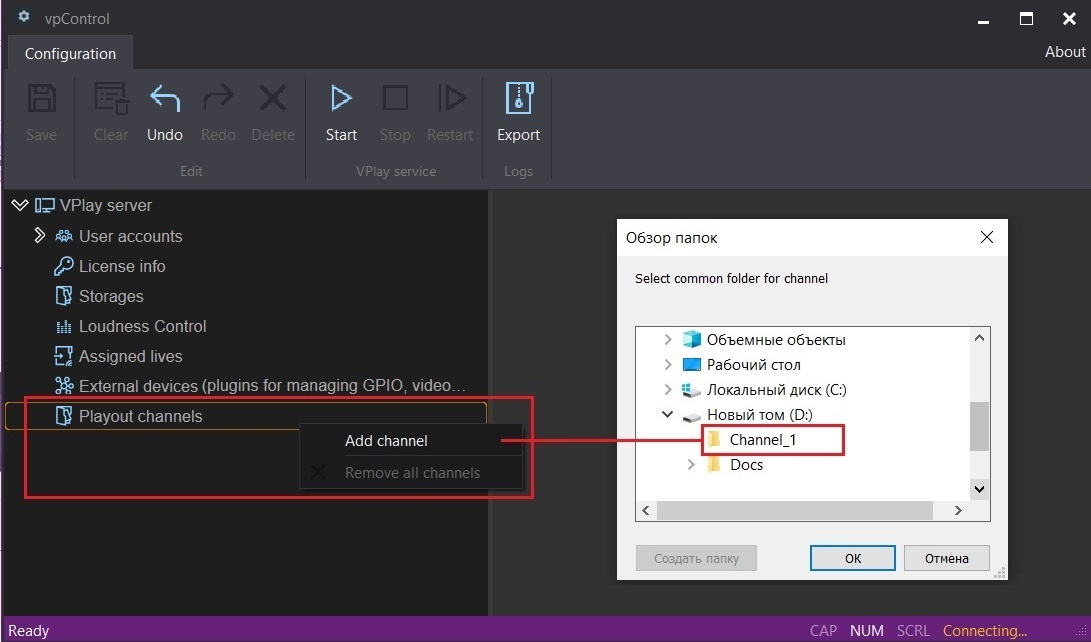
Channel folder
The channel working folder must not be located on the system drive. A RAID array is recommended.
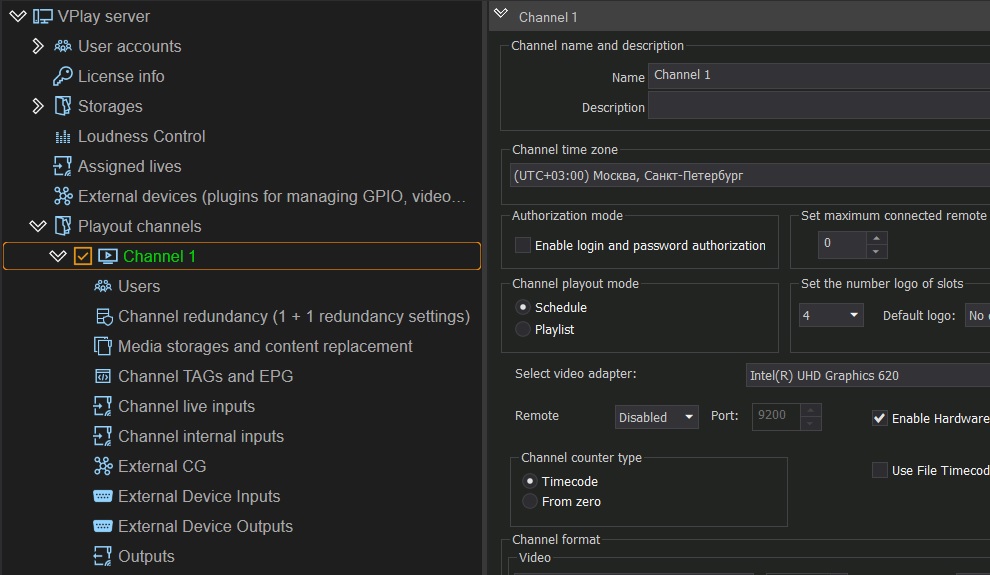
After the channel is created, the settings panel opens:
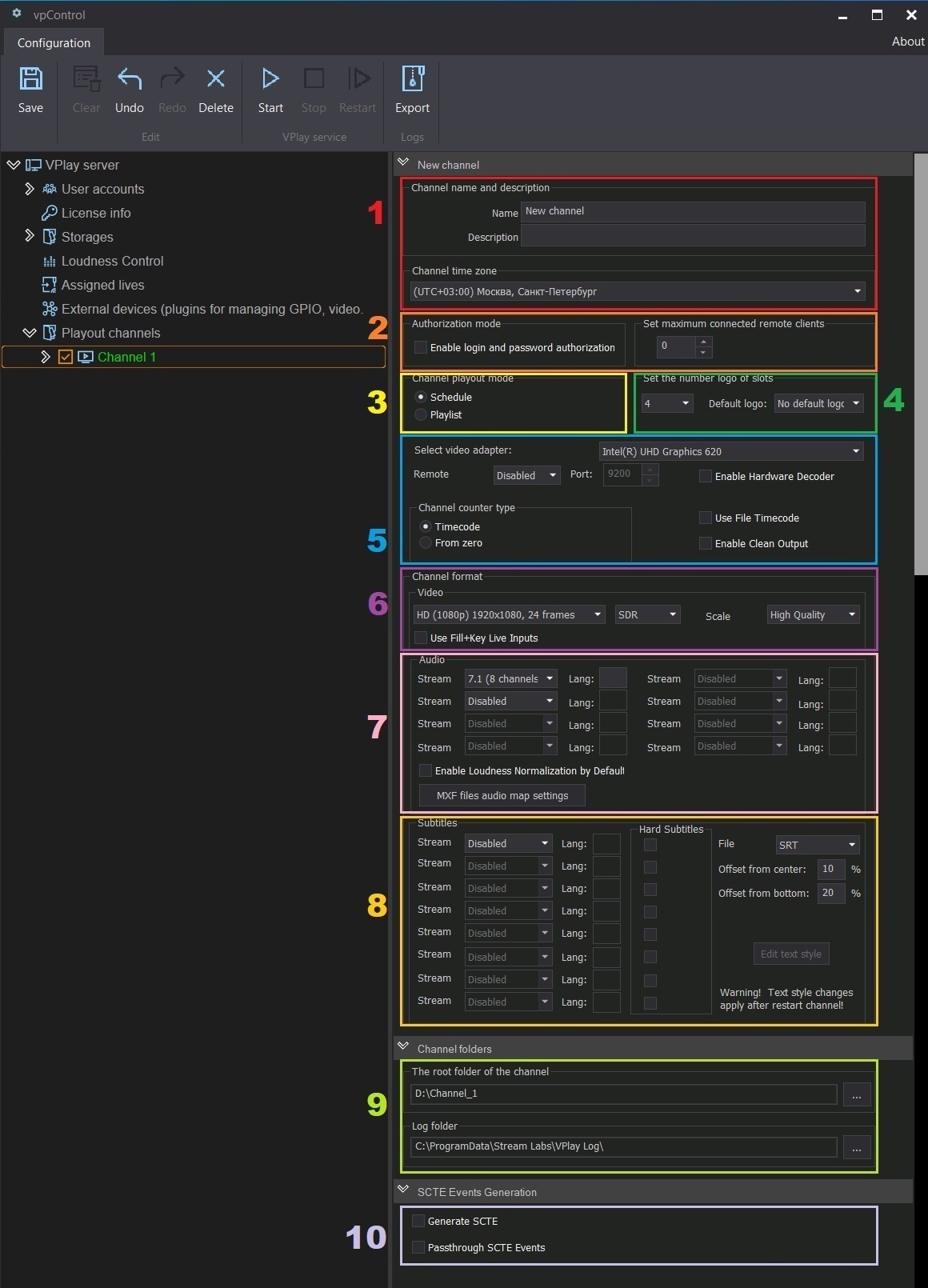
Channel parameters
1. Channel name and description
- Name — required field (default: "New channel")
- Description — description (optional)
- Time zone — the channel time zone
2. Authorization mode
Enables the user access control system.
Set maximum connected remote clients — the number of client workstations that can be connected at the same time (each requires a separate license).
Required condition
The channel will not work with user profiles until Authorization mode is enabled.
3. Channel playout mode
- Schedule — plays by a chronologically timed schedule
- Playlist — plays a looped playlist
4. Logos (Logo slots)
Set the number logo of slots — the number of logo slots (up to 16).
Default logo — the slot that is active by default: - Select a slot → the logo is always displayed unless the schedule specifies otherwise - No default logo → the logo is displayed only where the schedule explicitly specifies it
5. Select Video Adapter
The GPU for the channel. Use a hardware adapter, not the Software renderer.
Additional parameters:
| Parameter | Description |
|---|---|
| Remote (NDI/SRT) | Remote preview via NDI or SRT + port |
| Enable Hardware Decoder | Hardware decoding of files and Live — reduces CPU load |
| Use File Timecode | Use the file timecode (for MXF files with VTR timecodes) |
| Channel counter type | Timecode — counts from the file start timecode; From zero — counts from zero |
| Enable Clean Output | Output signal without the graphics overlay |
| Use Fill+Key Live Inputs | Live sources with an alpha channel in GFX graphics |
6. Channel format
Color space: SDR or HDR HLG
Scale (Software Renderer): High Quality (Simulcast) or Speed (technical preview)
Supported formats
SD:
| Format | Resolution | FPS |
|---|---|---|
| SD PAL 4:3 | 720×576 | 25, 23.98, 24 |
| SD PAL 16:9 Wide | 720×576 | 25, 23.98, 24 |
| SD NTSC 4:3 | 720×480 | 29.97, 23.98, 24 |
| SD NTSC 16:9 Wide | 720×480 | 29.97, 23.98, 24 |
HD:
| Format | Resolution | FPS |
|---|---|---|
| HD 720p | 1280×720 | 23.98, 24, 50, 59.94, 60 |
| HD 1080i | 1920×1080 | 25, 29.97, 30 |
| HD 1080p | 1920×1080 | 23.98, 24, 25, 29.97, 30, 50, 59.94 |
UHD/4K:
| Format | Resolution | FPS |
|---|---|---|
| UHD 2160p | 3840×2160 | 23.98, 24, 25, 29.97, 30, 50, 59.94 |
7. Audio
| Parameter | Description |
|---|---|
| Number of tracks | Enabled sequentially (default: Disabled) |
| Channels per track | 2.0 (stereo), 4.0, 5.1, 7.1 |
| Lang | Track language (eng, deu) |
| Enable Loudness Normalization by Default | Loudness normalization (requires an ALC license) |
| MXF files audio map settings | Audio matrix for MXF files |
8. Subtitles
| Parameter | Description |
|---|---|
| Stream | Disabled / Enabled for each of the 8 tracks |
| Lang | Track language (eng, deu) |
| Hard Subtitles | Burn the subtitles into the video |
| File | File type: SRT, SRT+STL, SRT+TSB4, SRT+TTML |
| Offset from center | Horizontal offset (%, since VPlay 5.11) |
| Offset from bottom | Offset from the bottom edge (%, since VPlay 5.11) |
Subtitle licensing
Each subtitle language for each output stream requires a separate license.
9. Channel folders
The channel working folder and the log folder. The folder must not be on the system drive.
10. SCTE Events Generation
| Parameter | Description |
|---|---|
| Generate SCTE | Allow SCTE marker generation in the output stream |
| Passthrough SCTE Events | Duplicate incoming SCTE markers from Live to the output streams |
Working with SCTE markers requires a separate license for each channel.
Channel resource tree
After you save, the channel appears in the resource tree. Expand it to access the configuration sections:
Saving and starting
After configuring the channel, click Save in the top bar of vpControl.
- First save — starts the channel services (the color changes from orange to green)
- Subsequent changes — click Save → Restart
Deactivating without deleting: clear the check box next to the channel name — the channel is ignored by the services until you activate it again.