Live sources (Live Inputs)
Adding live sources to VPlay is a two-step process:
- The source is added to the server (Assigned Lives section in vpControl)
- The added sources are distributed across channels (Channel live inputs)
Each source can be added to any channel and/or to several channels at the same time. Live sources are not licensed separately.
Common parameters of all input streams
All source types share the following settings:
| Parameter | Description |
|---|---|
| Select video adapter | GPU used for decoding. Selecting a hardware decoder significantly offloads the CPU. The input, the channel, and the outputs of one channel must be on the same GPU |
| Allow Usage On Other Video Adapters | Allow the use of other GPUs' resources when resources are insufficient |
| Dynamic SDR/HDR HLG | Select the color space of the input stream |
| Remote preview | Remote viewing of the source in NDI or SRT format. You specify the port |
| Audio Mixing | Configuration of the input signal audio matrix. Supports quick switching without restarting services — the Update button applies changes on the fly |
| DTMF | Detection of tone markers in the audio track (requires a separate license) |
| Teletext / OP-47 | Decoding of teletext and subtitles from the stream (up to 8 tracks) |
| Time Shift | Input signal delay from 1 minute to 12 hours (requires a separate license) |
| Test | Visual diagnostics of the input signal. Available only while the channel is stopped |
DTMF settings
- Enable DTMF — enable detection
- Symbol duration — symbol duration
- Pause duration — pause between symbols
- Search in audio channels 1–8 — select the audio track to search for markers
- DTMF items — search mask (the value and order of symbols in a marker)
Teletext settings
- Subtitles Source — subtitle format
- Subtitle 1–8 Enable — enable decoding of the tracks
- Page — teletext page number
- Lang — language (format:
eng,deu)
UDP source
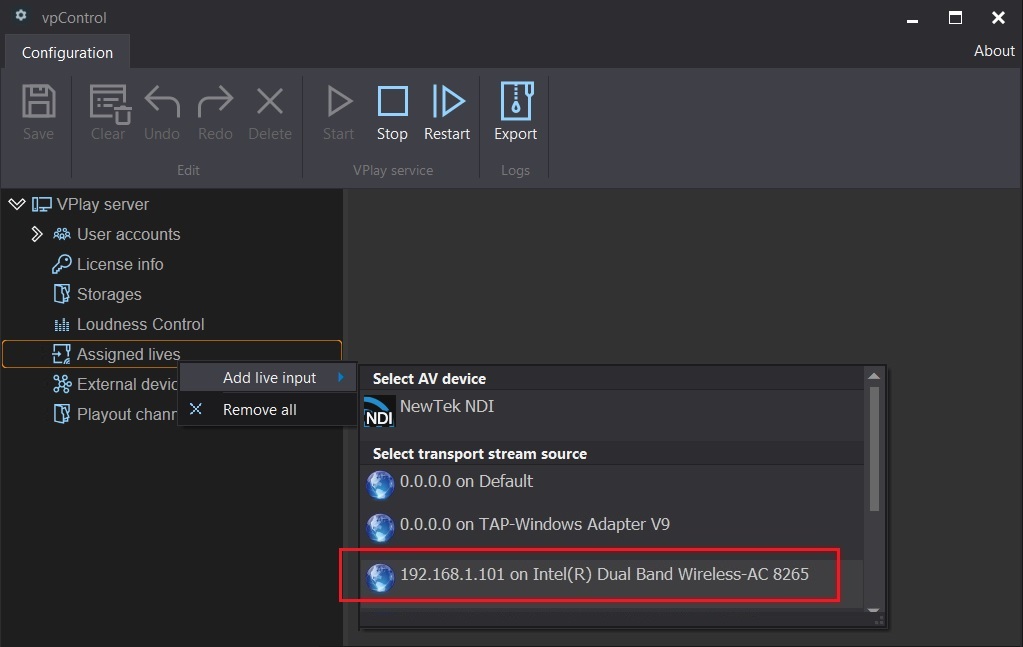
Adding:
- In vpControl → Assigned Lives → right-click → Add live input → UDP/IP Stream
- Add the IP address of the network card through the context menu
- Enter the IP address and port of the input stream (for example,
235.1.3.1:1234) - Click Search — the list of streams available at this address is displayed
- Select the required streams with the checkboxes → Save
Changing the IP without deleting the source: source context menu → Edit → enter the new address → OK → Search → Save.
UDP-specific parameters:
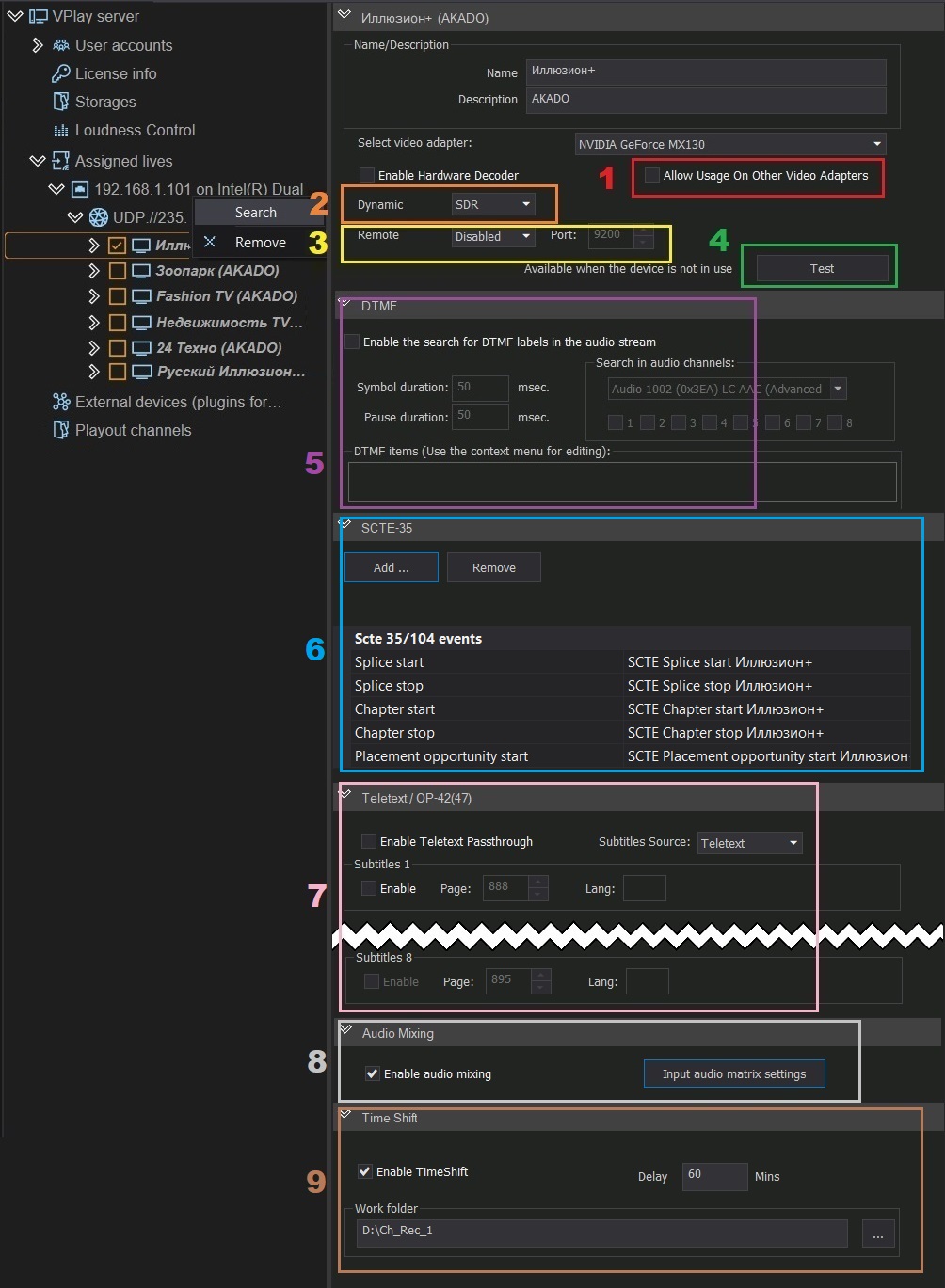
- SCTE-35 — detection of markers in the incoming IP TS stream. Supported types: SCTE splice (standard), SCTE Chapter (provider markers), SCTE Program placement opportunity (local/personalized)
NDI source
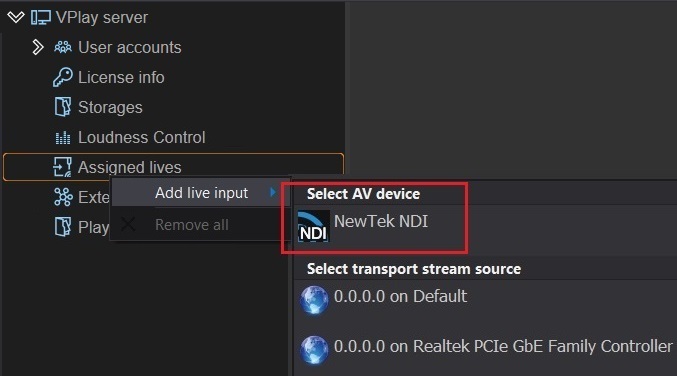
Adding:
- Assigned Lives → Add live input → NewTek NDI
- Click Search sources → in the window that opens, enter the NDI group name (or leave it empty to search all) → Start Search
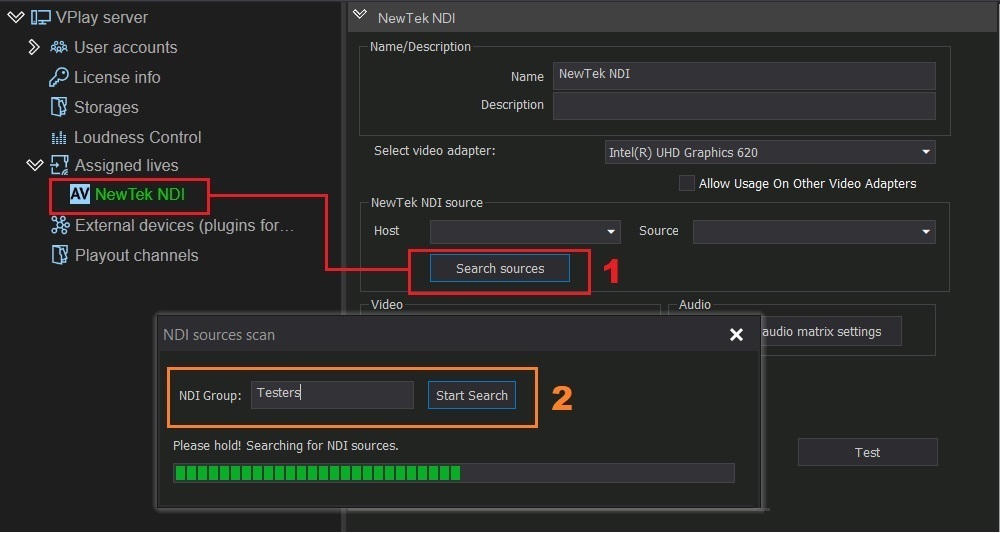
In the Host and Source fields, select the computer and the stream
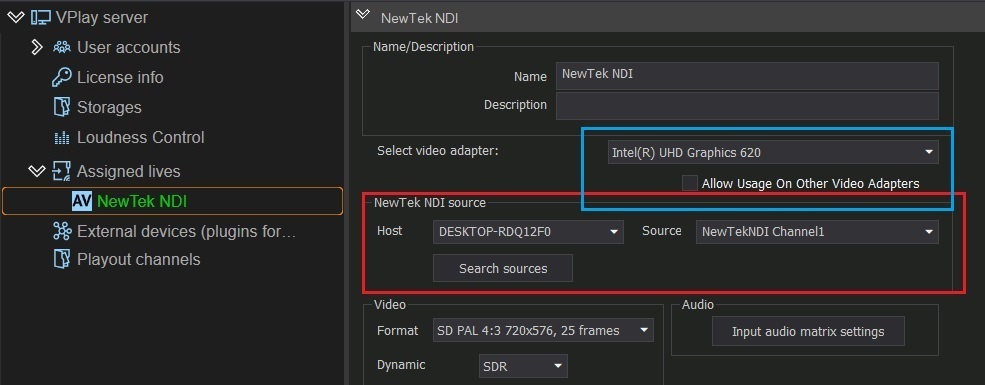 4. Save
NDI-specific parameters:
- SCTE-104 — detection of SCTE-104 markers in the NDI stream (similar to SCTE-35 for UDP)
SRT source
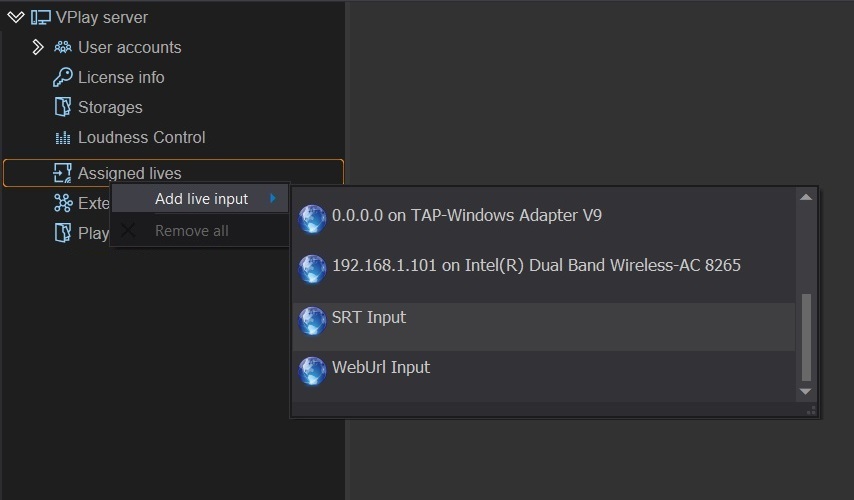
SRT (Secure Reliable Transport) is a UDP-based protocol with automatic error correction. It works in two modes:
| Mode | Description |
|---|---|
| Caller | VPlay initiates the connection to the receiver. Broadcasting does not start until a point-to-point connection with the Listener is established |
| Listener | VPlay waits for an incoming request. There can be several receiving points |
Adding:
-
Assigned Lives → Add live input → SRT Input
-
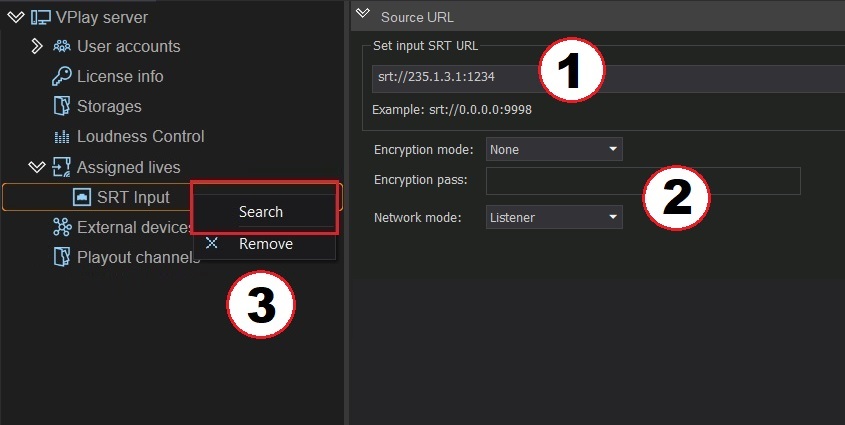
Enter the input stream address
- Select the connection type: Caller or Listener
- For an encrypted stream, select AES-128 or AES-256 and enter the key
- Right-click SRT Input → Search → Save
The settings are similar to those of the UDP source (decoder selection, DTMF, teletext).
GPU and SRT
Be sure to select a GPU decoder for the SRT source. The input, the channel, and the outputs of one channel must be configured on the same video adapter.
SDI source
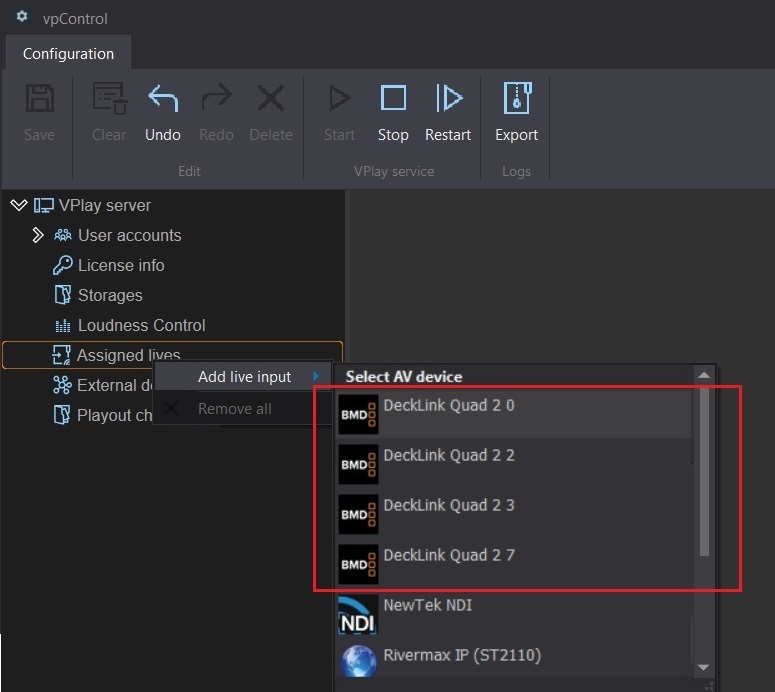
Adding:
- Assigned Lives → Add live input → SDI (the card is detected automatically)
- Select the board and the required input on it
Supported boards: Stream Labs MH4LM (ASI/SDI), DeckLink, AJA, DekTec, Softlab-NSK
SDI-specific parameters:
- Video / Audio — input signal parameter settings
- SCTE-104 — detection of markers in the SDI stream
- Teletext (OP-42/47) / Closed Captions — subtitle decoding
WEB source (WebUrl)
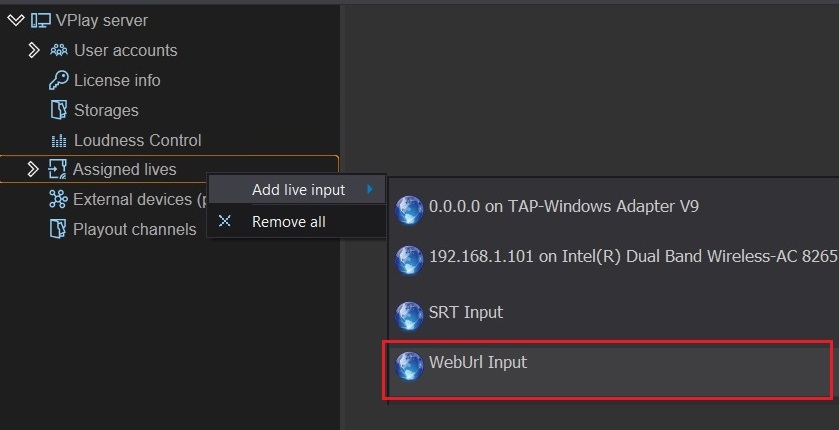
Reception of RTMP, HLS, RTSP, and other URL streams without constant background decoding.
Adding:
- Assigned Lives → Add live input → WebUrl Input
- In the URL field, enter the input stream address
- Save
The settings are similar to those of the UDP source.
HLS from Apple devices
Starting with VPlay 5.8, support was added for HLS formats specific to Apple devices. Specification: developer.apple.com/streaming
ST2110 (SMPTE ST 2110)
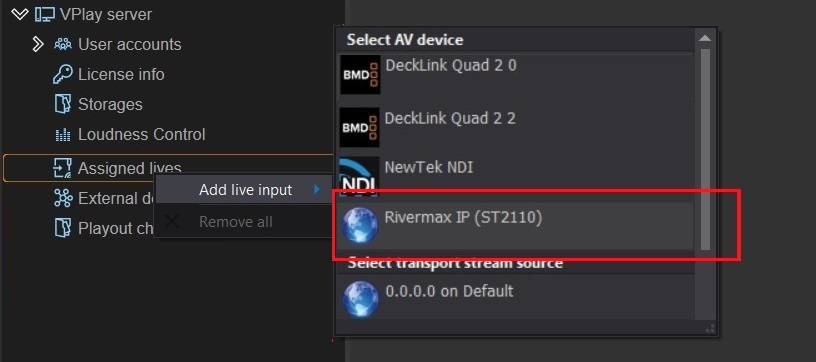
Reception of 4K UHD according to the SMPTE ST 2110 standard through Mellanox network cards.
Adding:
- Assigned Lives → Add live input → Rivermax IP (ST2110)
ST2110-specific parameters:
| Panel | Contents |
|---|---|
| Video | GPU decoder, color space, signal parameters, receive port, TPN |
| Audio | Audio signal parameters |
| Ancillary | Port for VANC data |
| Network | Network interface, source IP address |
| Import SDP Params | Loads an SDP file — automatically fills in Video, Audio, and Ancillary |
SDP file
The Import SDP Params button is key for ST2110. Obtain the SDP file from the signal source and import it — all parameters are filled in automatically.
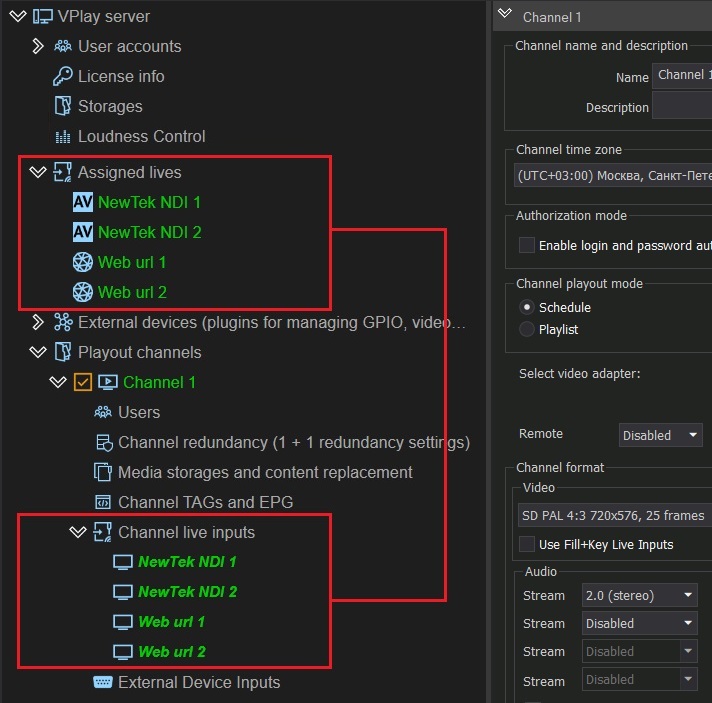
Two modes for working with a large number of sources
LIVE mode (recommended)
- Constant background decoding of each source
- Continuous monitoring of signal presence and quality
- On signal loss, an immediate notification (red highlighting in the Channel Manager schedule)
- The source is shown in light blue in the schedule when the signal is normal and in red on error
- Maximum: 8 HD streams on an NVIDIA Quadro RTX A4000
WEB URL mode (resource saving)
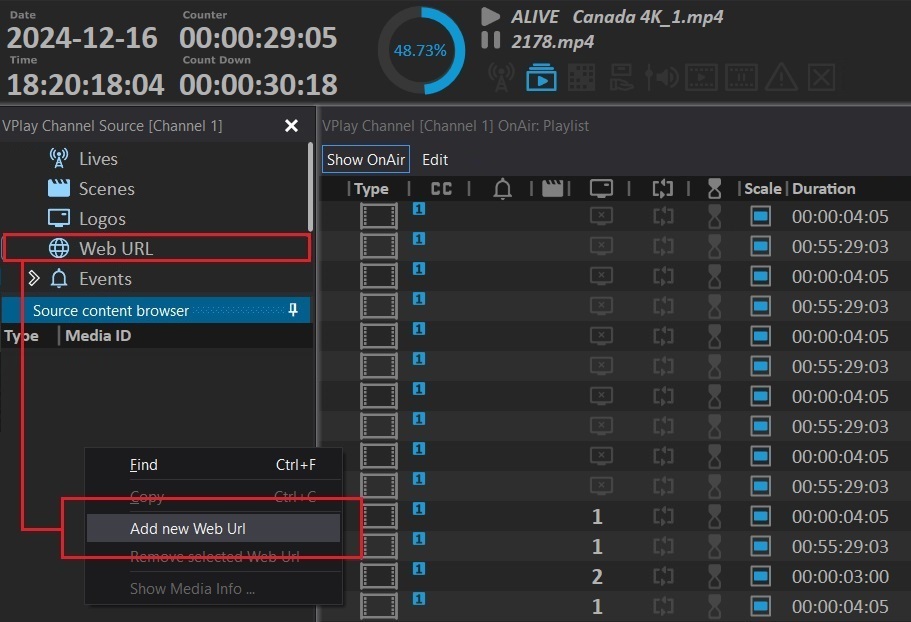
Sources are not added to the server through vpControl but directly from Channel Manager:
- Channel Manager → channel resources tree → Web URL → right-click → Add new Web Url
- Enter the URL → Verify → specify a name → OK
- Drag the source into the schedule (drag & drop)
Important: In Web URL mode, VPlay does not monitor the input stream. In case of any signal problems, the system does not notify the operator — the schedule row is not highlighted in color (unlike Live sources).
Input signal diagnostics
Visual diagnostics (Test button):
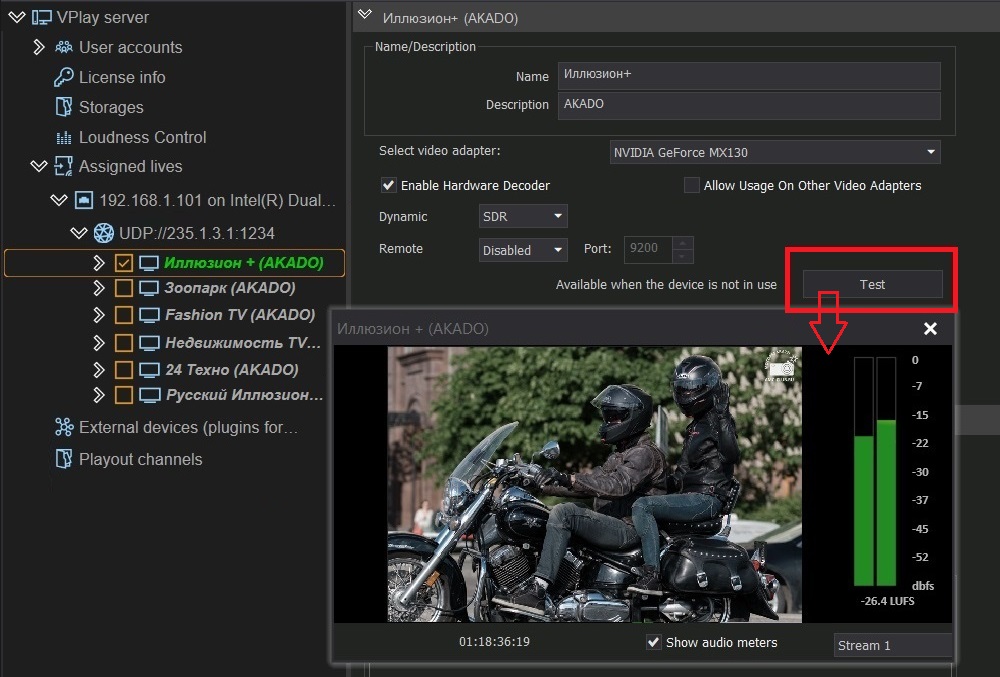
Available only while the channel is stopped. Opens a source preview showing the video and audio levels.
Dropped frame monitoring:
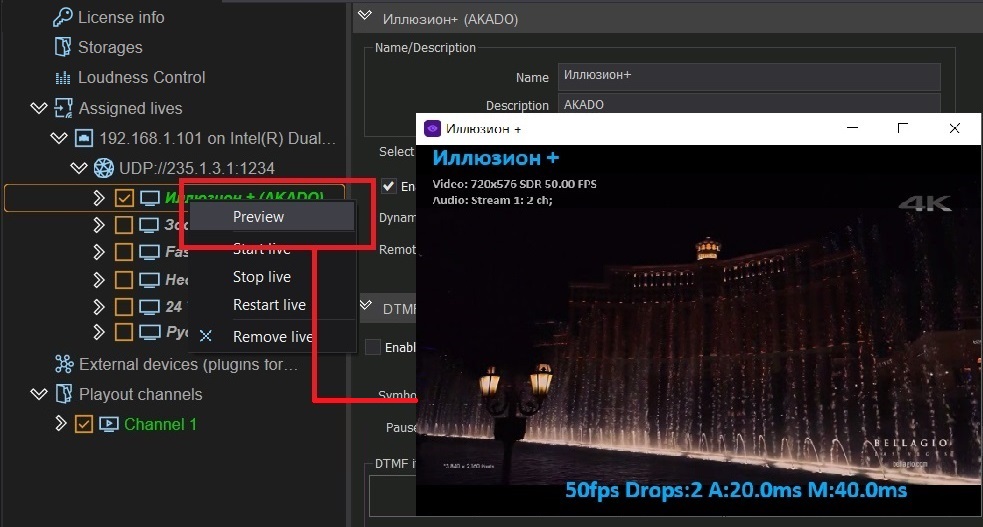
- In vpControl → right-click the source → Preview
- In the preview window, press
Ctrl+F7 - A dropped frame counter appears in the lower-right corner
- In the upper-left corner: name, format, fps, and number of audio tracks
Source color indication: - 🟢 Green — the source is connected and working normally - 🔴 Red — the signal is corrupted or missing
Distributing sources across channels
After the sources are added and tested:
- In vpControl, expand the resources tree of the required channel → Channel live inputs
- Right-click → select a source from the list of available sources
- Save
Channel connection settings of a source:
- Video — scaling: Letterbox, Anamorph, Pan & Scan; teletext resolution
- Map AV Audio — audio track mapping when there are many tracks
- Map AV Subtitles — subtitle track mapping
GPU performance calculation
Resource allocation rule: the input, the broadcast channel, and all outputs of one channel must be on the same GPU. This avoids copying between adapters and minimizes the load on the PCIe bus and the CPU.
Maximum tested number: 8 HD input streams on an NVIDIA Quadro RTX A4000.
If you need to process more sources, contact Stream Labs specialists to calculate the configuration.