Users and storages
Users (User Accounts)
Creating a user
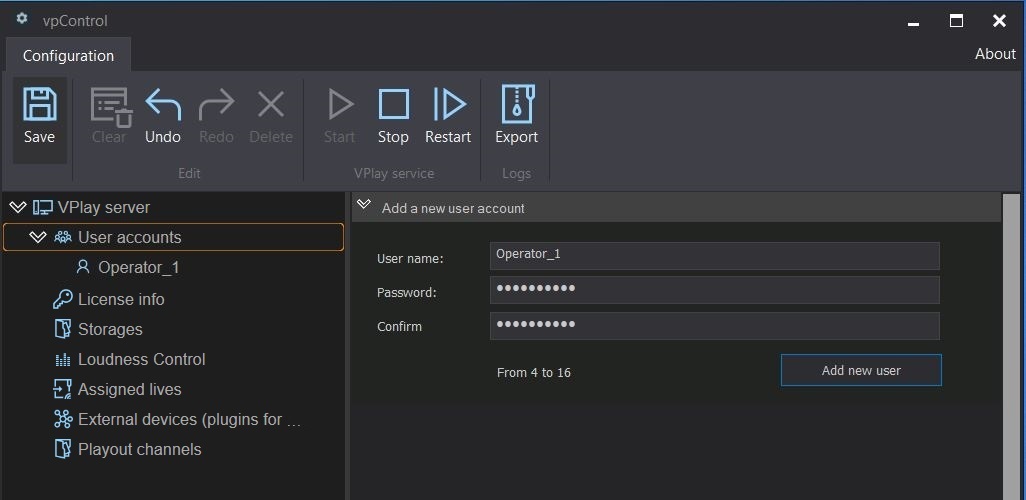
In vpControl → User Accounts section → enter a name and password → Add new user.
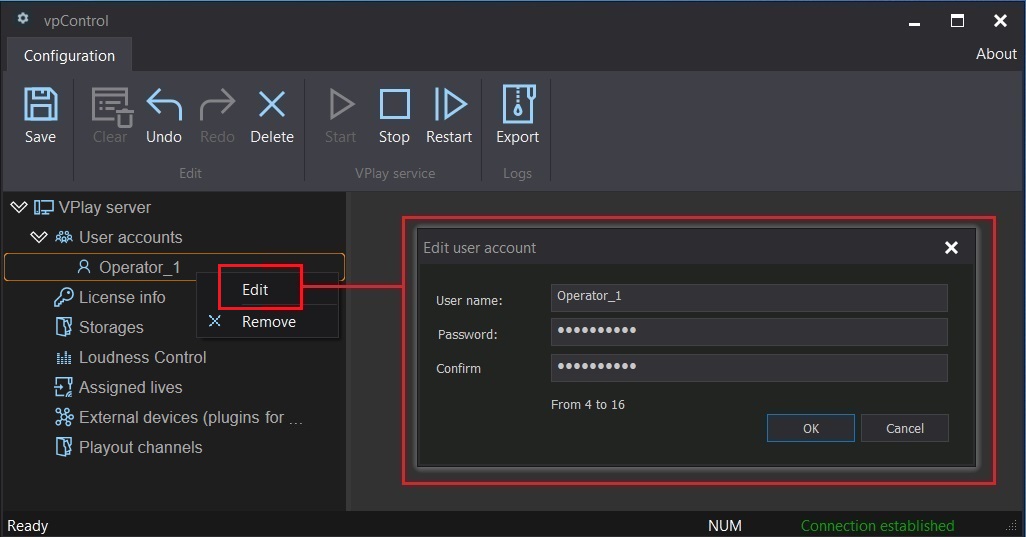
To edit, right-click the user name → Edit.
By default, there is a superuser Admin / 12345. We recommend changing the password after the first login.
User roles
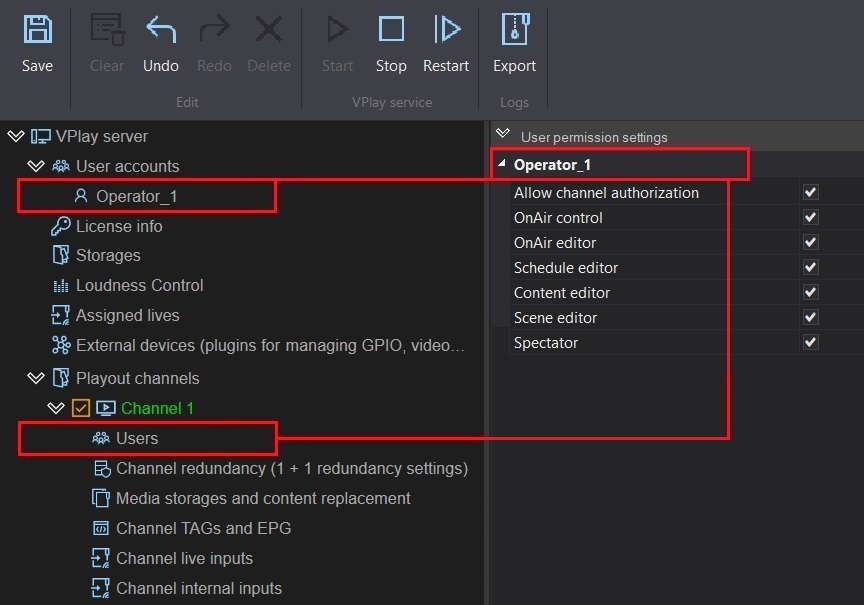
Roles are assigned in the channel settings → Users section.
| Role | Description |
|---|---|
| Allow channel authorization | Grant access to the channel |
| OnAir control | On-air control: start, forced position shift, switching between playlist and schedule |
| OnAir editor | Editing the active on-air schedule/playlist |
| Schedule editor | Editing saved schedules in Schedule Editor |
| Content editor | Working with media content (Content Property), creating scenes |
| Scene editor | Creating and editing scenes in Scene Editor |
| Spectator | View only; all actions are prohibited |
Permissions matrix:
| Action | OnAir ctrl | OnAir editor | Schedule editor | Content editor | Scene editor | Spectator |
|---|---|---|---|---|---|---|
| Everything + switching between playlist and schedule | ✅ | |||||
| Forced position shift | ✅ | ✅ | ||||
| Editing the on-air schedule | ✅ | ✅ | ||||
| Editing via Schedule Editor | ✅ | ✅ | ✅ | |||
| Working with media content | ✅ | ✅ | ✅ | ✅ | ||
| Creating and editing scenes | ✅ | ✅ | ✅ | ✅ | ✅ | |
| View only | ✅ |
Authorization mode
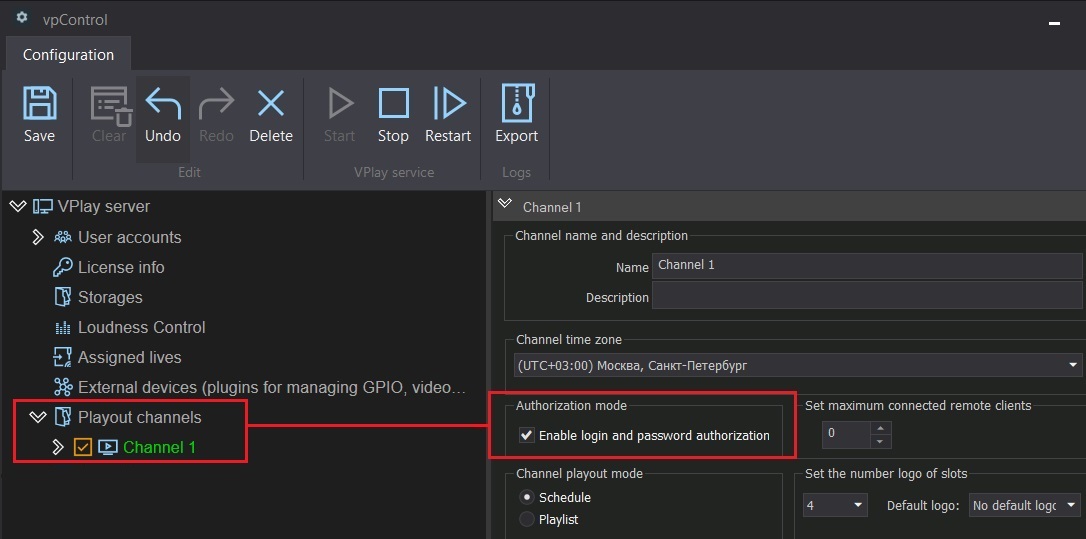
For user profiles to work on a channel, you must enable Authorization mode in the channel settings. Without it, permission separation does not work.
Storages — PAM configuration
A Storage is a media space that serves as an extended replacement for standard media folders. It is a directory with support for nesting and extended metadata.
Creating a Storage
In vpControl → Storage section → right-click → Add new storage → select a folder.
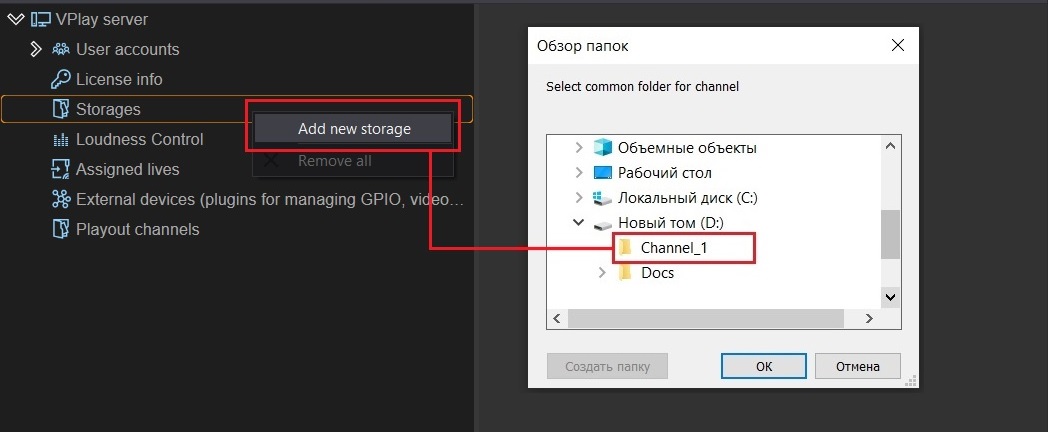
After you select a folder, the settings panel opens:
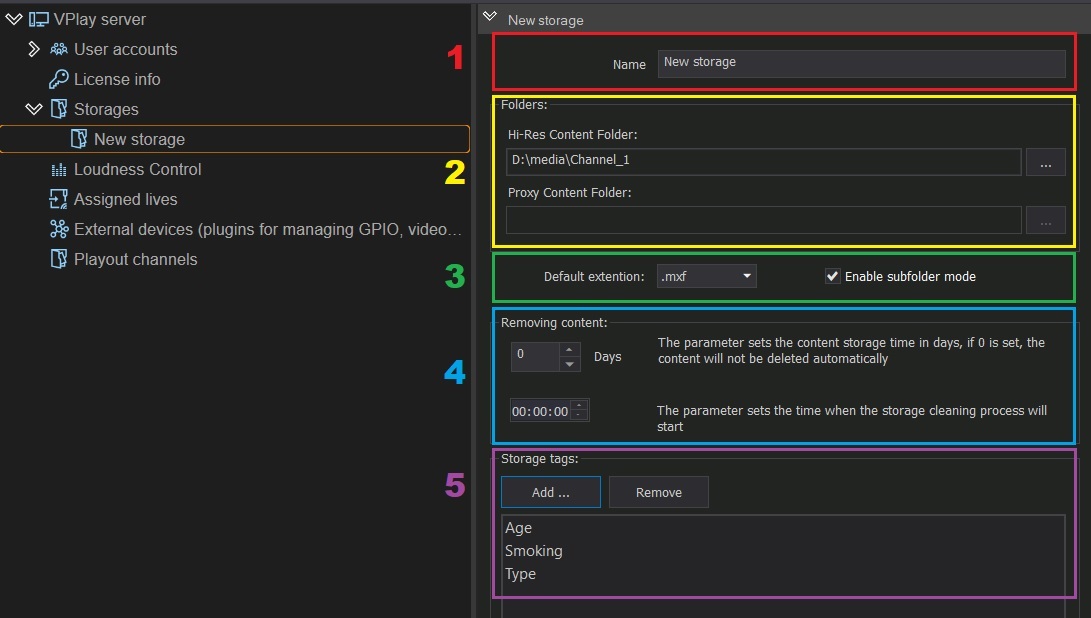
Storage contents
It is strictly prohibited to store installation packages, documentation, or any files that are not on-air media files in the Storage folder.
Storage parameters
| Parameter | Description |
|---|---|
| Name | Storage name |
| Hi-Res Content Folder | Path to the folder with original-resolution content |
| Proxy Content Folder | Path to the folder with reduced-resolution (Proxy) content |
| Default extension | Default media file extension |
| Enable subfolder mode | Allow nesting (subfolders) |
Removing content
Removing content section:
| Parameter | Description |
|---|---|
| Days | Number of days from the file's last modification until automatic removal. 0 = disabled |
| Time | Time of day when the automatic removal process starts |
Storage tags
Metadata tags used as columns in the schedule. A tag must be added in two places at the same time:
- Channel settings: Channel TAGs and EPG → Channel TAGs → Add
- Storage settings: Storage tags → Add
If a tag is specified in only one place, it does not work in the schedule.
After all Storages are created, click Save in the top panel of vpControl.
Exporting and importing the configuration
Export
vpControl → top menu → Export → select a path → the Config.xml file is saved.
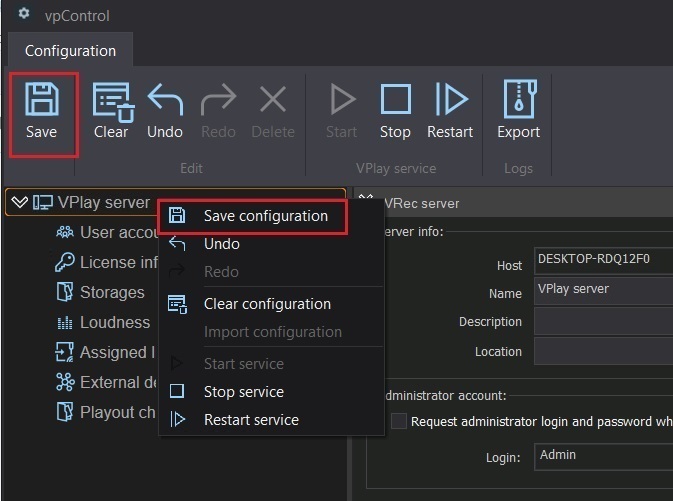
Import
- Stop the services: Stop button
- Right-click the configuration name → Import configuration
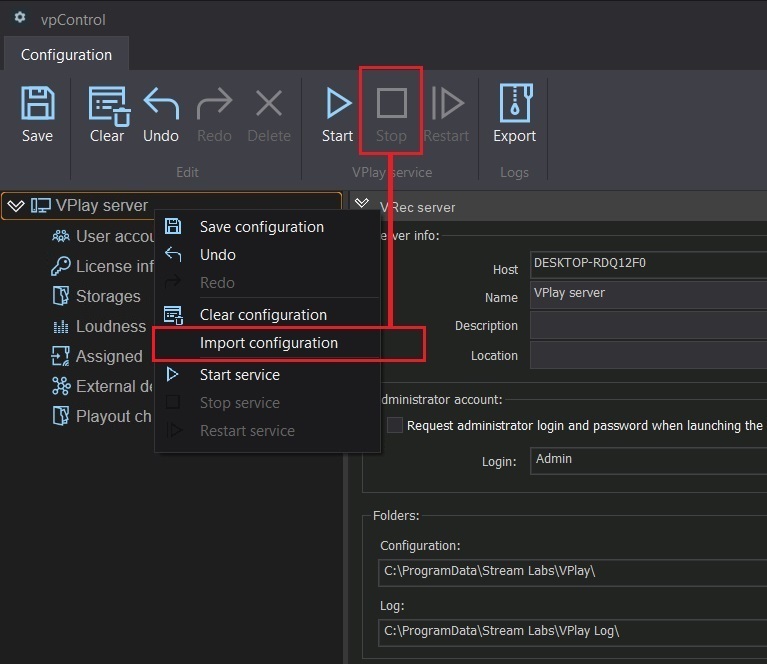
- Select the previously saved
Config.xml
Manual editing of Config.xml is prohibited
Manually modifying the configuration file may cause the software to work incorrectly.
System logs
By default: C:\ProgramData\Stream Labs\VPlay Log\
Exporting logs
vpControl top menu → Export button → specify the path and period.
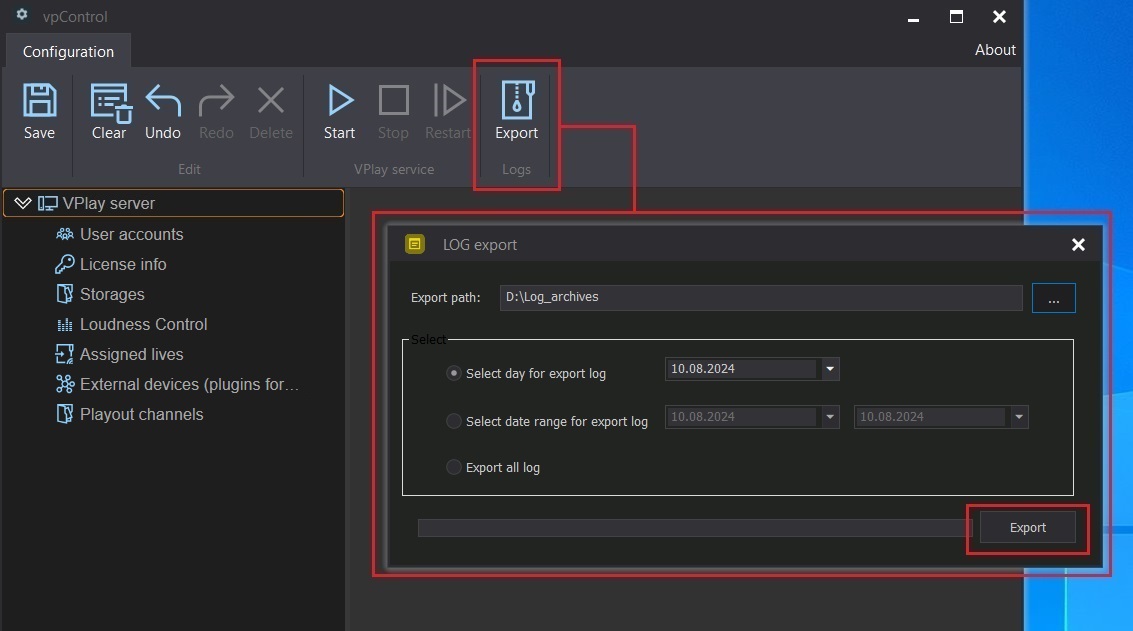
Available periods: current day / custom / all logs.
User action log
A separate file that records all operator actions. It is not included in the automatic export. If you have problems with the schedule, copy the file for the required date manually from C:\ProgramData\Stream Labs\VPlay\Log\.