Troubleshooting
Status color indication
In Server Settings (vpControl), channels and outputs are highlighted with colors:
| Color | Meaning | Action |
|---|---|---|
| 🟢 Green | Working normally | No action required |
| 🔴 Red | The channel is active but stopped | Check the configuration, right-click → Start |
| 🟡 Yellow | The channel is inactive or not saved | Click Save in vpControl, or select the channel checkbox |
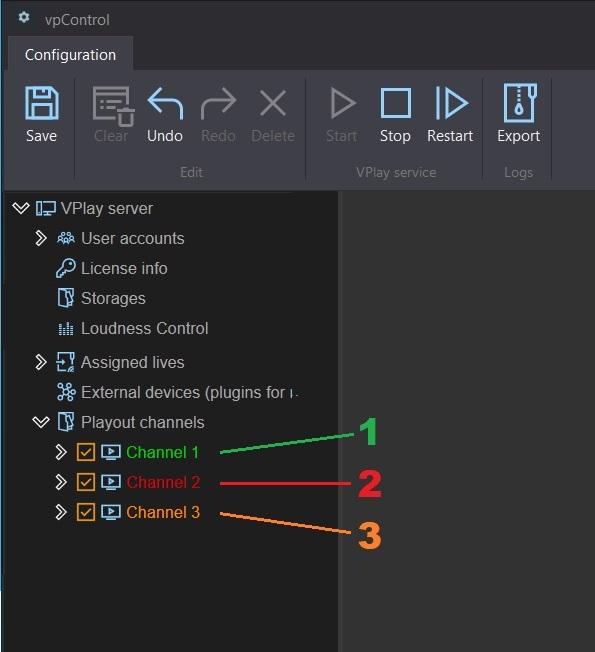
The same indication applies to output streams: green means the stream is running, red means a configuration error or no connection.
Diagnosing live sources
Checking the incoming signal
In Server Settings, select Live Input → right-click → Preview. In the window that opens:
- You see an image → the source is working
- Black screen → no signal or a decoding error
- Artifacts → a problem with the incoming stream (bitrate, codec, network)
Diagnostic mode (Ctrl+F7)
In the preview window, press Ctrl+F7 — a counter with the number of dropped frames appears in the lower-right corner. If the value is zero, the source is stable.
The upper-left corner of the preview shows the channel name, format, FPS, and number of audio tracks.
Common problems and solutions
The channel does not start
- Check the license: Server Settings → License — make sure the key is active and the number of channels is not exceeded
- Make sure the GPU driver is up to date (see driver requirements)
- Check that an active GPU is assigned to the channel in the settings
- Open the server logs:
C:\ProgramData\Stream Labs\VPlay\Log— look for the error
No picture on the output
- Check the output status (green/red in vpControl)
- Make sure the channel is running (green status)
- For UDP: check the IP address and port, and make sure the receiver is reachable
- For SDI: check the card driver, cable connection, and output format
- Check the Clean Output checkbox — if it is selected, graphics are not output
Dropped frames / artifacts
- Check CPU and GPU load in Windows Task Manager
- Make sure RAM is running in multi-channel mode
- Check the read speed of the content storage: HD requires at least 50 MB/s per channel
- Reduce the number of simultaneous IP outputs or lower the bitrate
The live source does not appear
UDP/IP: Check the following: - The firewall on the server (the port must be open) - Correct multicast routing (for multicast addresses 239.x.x.x) - The codec of the incoming stream (it must be in the list of supported codecs)
NDI: Make sure the source and the VPlay server are on the same subnet and NDI Discovery is working.
SDI: Check the source format (it must match the channel format or be convertible).
The schedule is not imported
- Check the schedule file format (XML/CSV)
- Make sure the content file paths in the schedule match the paths in PAM Storage
- Check the file encoding (it must be UTF-8)
- Open the import log: Server Settings → Logs → Import Log
Graphics are not displayed
- Check the license: License → CG Channels must be greater than zero
- Make sure the Clean Output checkboxes are cleared (in both the channel settings and the output settings)
- Check that the scene file (
*.vpScene) is accessible from the channel storage - Make sure the GFX layer is not covered by another layer with an opaque background
Collecting logs for technical support
Automatic export
In Server Settings → Logs → Export:
- Select the period: current day / custom period / all logs
- Click Export — a ZIP archive is created
- Attach the archive to your email to technical support
User action log
This log is not included in the automatic export. If you have schedule problems, copy it manually:
C:\ProgramData\Stream Labs\VPlay\Log\
Copy the file for the required date and attach it to your email.
Contacting technical support
Email: support@stream-labs.com Support page: https://www.stream-labs.com/support/ Phone: +371 66015710
When contacting support, provide the following:
- License key — in Server Settings → License
- Server number — the computer name (format
SL50055, visible in Windows System Properties) - Problem description — what happened, when, and under what conditions
- Screenshots — the state of the interface at the moment of the error
- LOG archive — exported from Server Settings
Be prepared to provide remote access to the server: RDP or AnyDesk.
Quick resolution
Many problems are resolved within minutes when remote access is available.