VRec — Recording Module
VRec is an optional VPlay software module for recording input streams. It is installed together with VPlay when the corresponding license is present and is managed through a separate client application, VRec Manager.
Supported Recording Sources
- SDI — HD/SD-SDI (Blackmagic, AJA, DekTec, StreamLabs MH4LM)
- NDI — NewTek NDI® streams on the local network
- IP TS — UDP/MPEG-TS, RTSP, SRT
- Any live source registered in Server Settings
- VPlay channel output — compliance recording (an archive of your own broadcast)
Installation
VRec is installed with the same installer as VPlay. During installation, select the following components:
- ✅ VRec services — the server part of recording
- ✅ VRec client components — the VRec Manager application
The VRec license is purchased separately or included in the VPlay+VRec bundle.
Creating a Recording Channel
- In Server Settings, right-click VRec Channels → Add Record Channel
- Specify:
- Name — the recording channel name
- Source — the input source (Live Input from the list)
- Output Path — the folder where recordings are saved
- Format — the recording file format (see below)
- Codec — the recording codec
Recording Formats and Codecs
| Format | Codecs |
|---|---|
| MXF | MPEG-2, DNxHD, IMX, XDCAM (professional archive) |
| MOV / MP4 | H.264, H.265, Apple ProRes |
| AVI | DVCAM, DVCPro |
| TS | MPEG-2 (stream archive) |
For professional archives, we recommend MXF + IMX or MXF + DNxHD — these formats provide frame-accurate access and minimal seek time when working with the archive.
Scheduled Recording
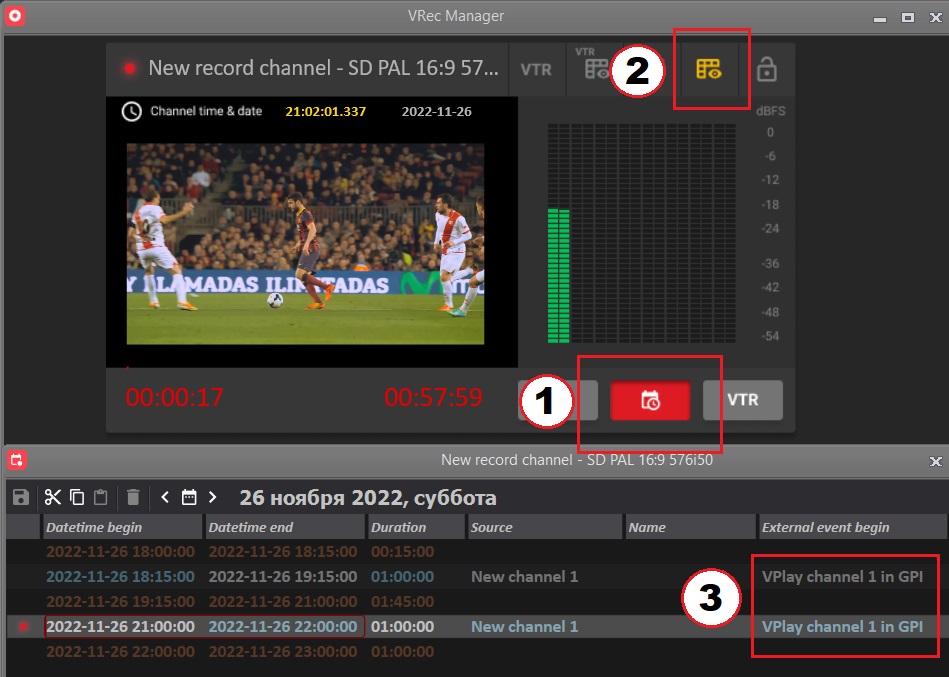
In VRec Manager:
- Select a recording channel
- Click Add Event (right-click in the schedule)
- Specify:
- Start date and time
- Duration or end time
- File name (or a template:
{channel}_{date}_{time}) - Click Save
VRec automatically starts and stops recording at the specified time. If the source is lost, recording is paused and resumes when the signal is restored.
Manual Recording
In VRec Manager, click Record (●) to start recording immediately. Click Stop (■) to stop.
For manual recording, the file name is generated automatically from the template or can be entered manually before you start.
Compliance Recording
Compliance recording is continuous recording of the output signal of a VPlay broadcast channel to an archive. It is used to keep proof that content was aired (a legal requirement in many countries).
Setup:
- As the VRec channel source, select VPlay Channel Output → specify the broadcast channel
- Configure continuous recording with automatic file rollover: hourly or daily
- Specify the archive storage path — a separate RAID array is recommended
Archive size
Compliance recording in HD (H.264, 8 Mbps) takes about 3.5 GB per hour, or ~85 GB per day. Plan your storage capacity in advance.
Recording Monitoring
VRec Manager displays:
- The status of each recording channel (active / stopped / error)
- Input signal levels (audio, video)
- The size of the current file and the recording rate
- A list of recorded files with names and durations
PAM Integration
Recorded files automatically appear in the PAM storage linked to the VRec channel. They are immediately available for adding to the Channel Manager schedule — no manual copying.