Operator modes
VPlay supports several typical television broadcasting scenarios. Each scenario uses the same Channel Manager tools, but in a different way.
Pre-recorded schedule
A pre-recorded schedule is an on-air plan that is prepared in advance and does not change during the broadcast. This is a typical scenario for music, thematic, and movie channels.
Building a schedule
- In Channel Manager → the channel resource tree → Channel Programming → Schedules
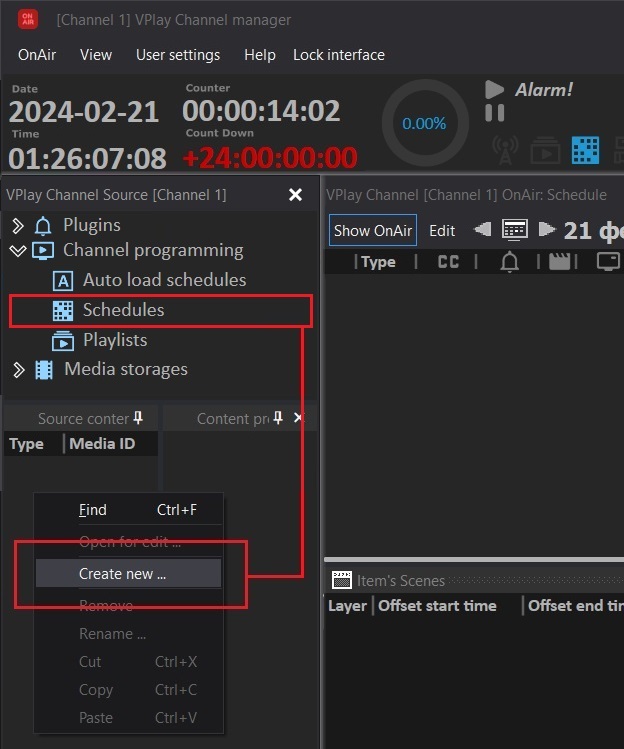 → right-click → Create new → enter a name
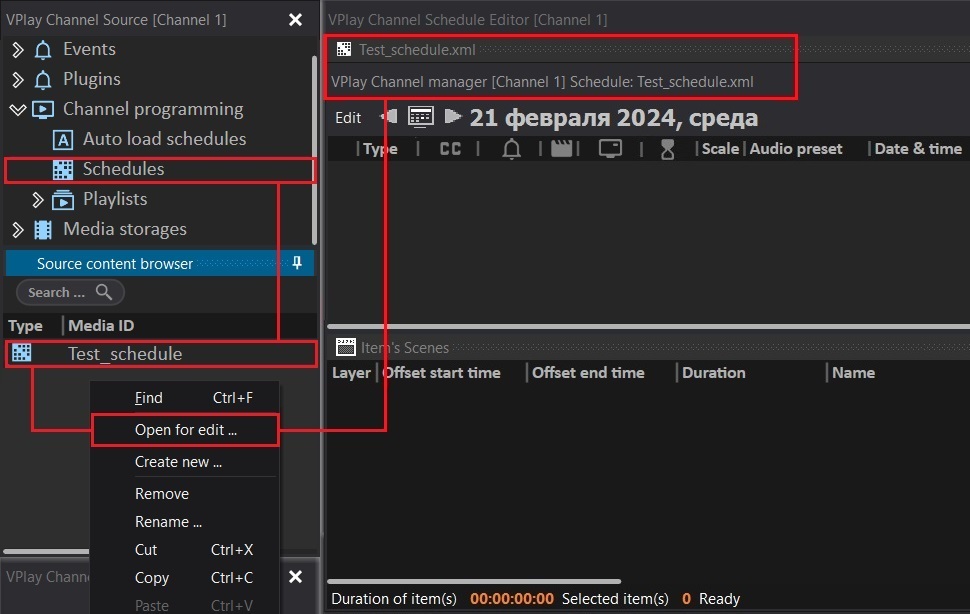
2. Double-click the schedule → it opens in Schedule Editor
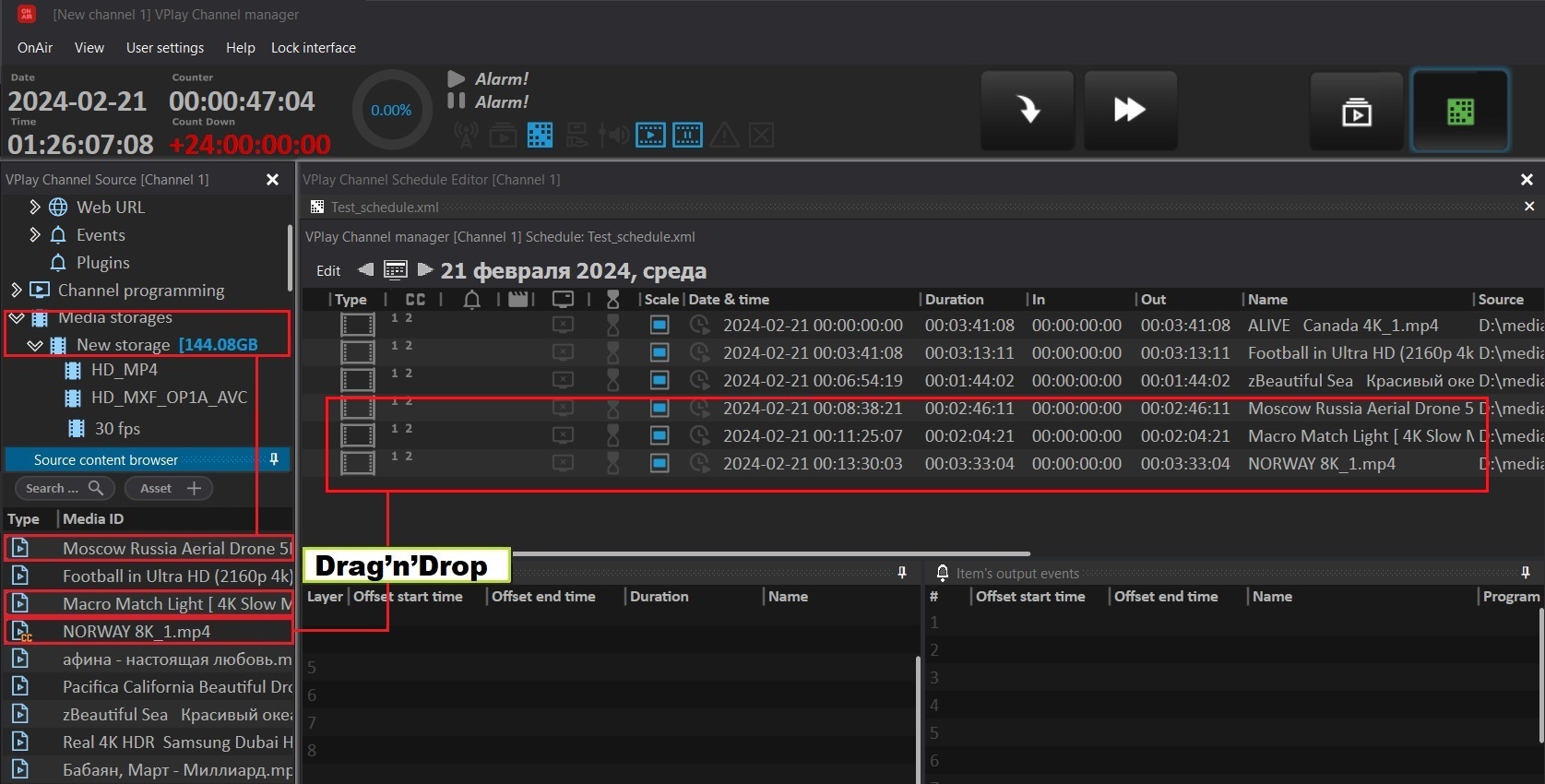
3. In the Media Storages section of the resource tree, select a storage → the files appear in Source content browser
4. Drag and drop the required assets into the schedule window
→ right-click → Create new → enter a name
2. Double-click the schedule → it opens in Schedule Editor
3. In the Media Storages section of the resource tree, select a storage → the files appear in Source content browser
4. Drag and drop the required assets into the schedule window
Editing duration
Method 1 — using the In/Out/Duration fields:
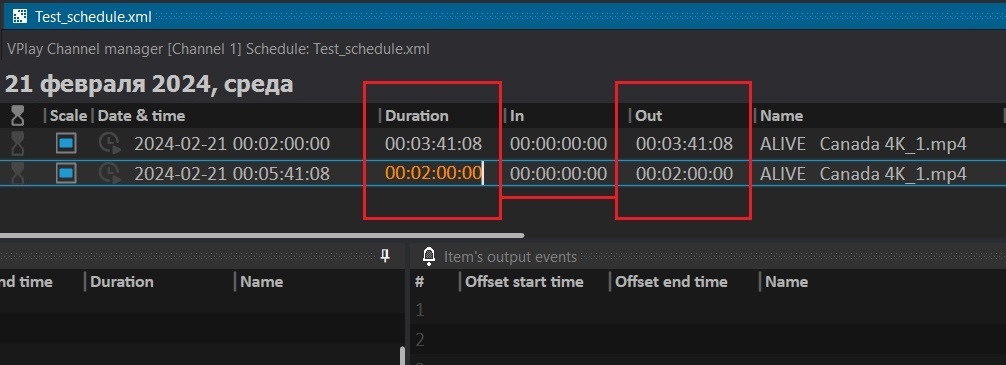
- Double-click the Duration field → enter the required duration (Out is recalculated automatically)
- Edit Timecode In and Timecode Out for precise trimming
Method 2 — using Channel Player:
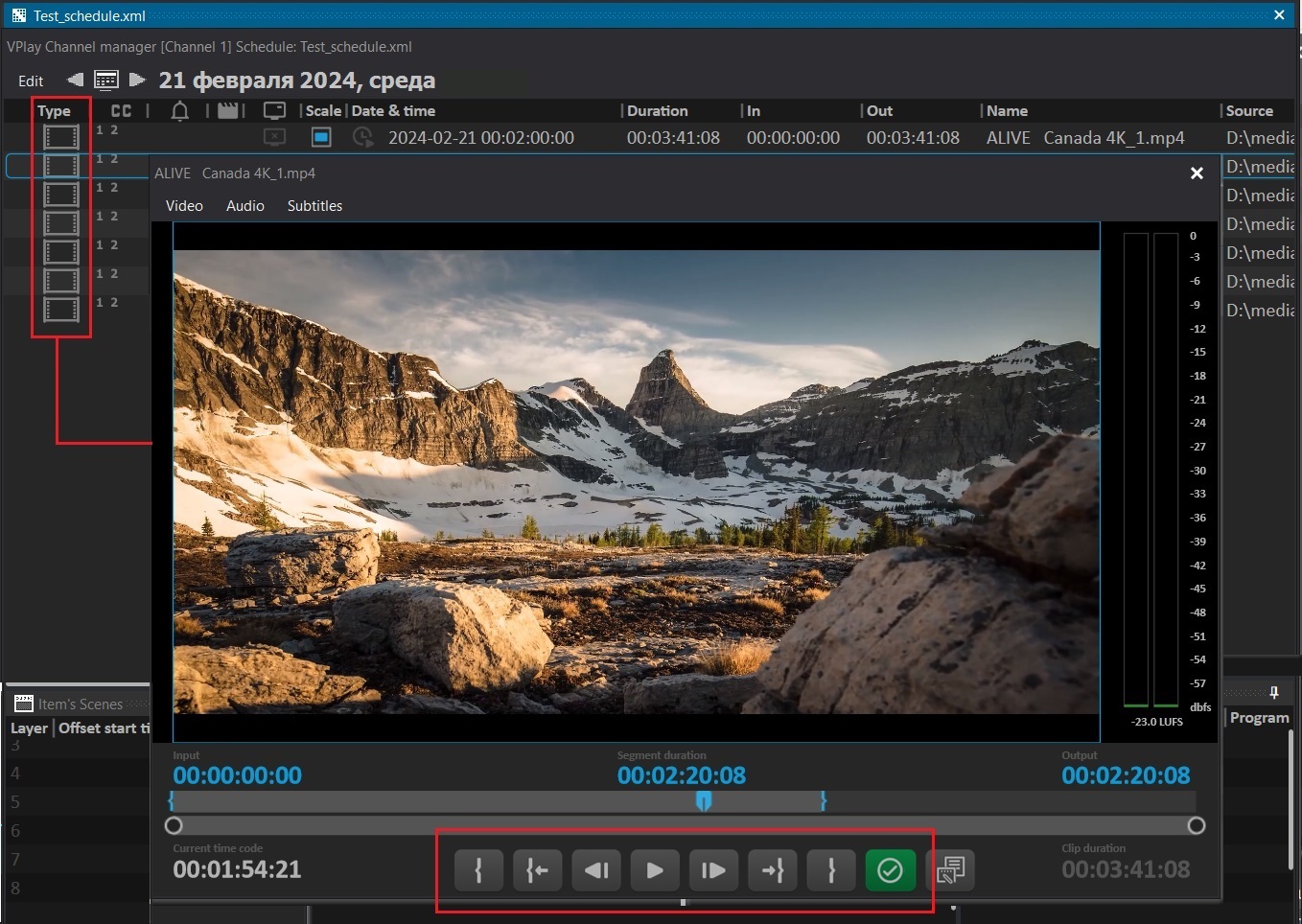
- Double-click the icon in the Type column → the video player opens
- Set the timecode markers on the timeline → click Apply changes to item
Setting a fixed time (Fixed Time)
For key events (the start of the broadcast day, programs at a specific time):
- Select a schedule item
- In the Schedule Item Property window → select the Fixed Time checkbox
- Enter the exact start time
When you edit the schedule around a Fixed Time event, the items below it are not shifted.
Importing a schedule
Manual: Channel OnAir → Edit → Export/Import → select an XML file
Automatic: configured in vpControl → Channel → Media storages and content replacement → Content auto download and schedule auto import settings:
- Import source schedule folder — the folder for files from the traffic system (VPlay polls it continuously)
- Auto import schedule folder — the folder the schedule is moved to after loading
- Check next ... days — how many days ahead to check the folder (3 by default)
- Schedule file — format: XML, XLS, CSV
- Update mode — Replace (replace the current schedule) or Append (add after it)
- Skip items for ... mins — how many minutes of the current schedule are guaranteed to air before the new one is applied (5 minutes by default)
Auto-load file names: the required format is year.month.day.xml (for example, 2026.04.10.xml). If the format is not followed, the schedule is not loaded.
Running the schedule
- Open the finished schedule and move it to Channel OnAir (drag and drop from Source content browser)
- Playback starts automatically after 1 minute (can be changed in OnAir Options → Schedule start delay time)
- Click ▶ Play to start immediately
Studio broadcast (with studio sources)
Scenario: live sources in the schedule, frequently changing running times, Overrun mode.
Adding a Live to the schedule
- In the resource tree → Lives → the available sources are displayed in Source content browser
- Drag the required Live into the schedule
- In Schedule Item Property, set Manual Exit — the Live plays until it receives a switch command from the operator or an external event
Fixed Time for the start of the next block
- Set Fixed Time on the first item after the Live
- VPlay waits for the specified time regardless of the Live duration
Underrun mode
If the Live ends before the Fixed Time, backup content is played automatically (configured in vpControl → Media storages and content replacement → Filling the empty block content): - Black field (default) - A placeholder media file (looped playback) - Another Live input
Overrun mode and quick edits
If the Live runs long, the schedule runs past the Fixed Time of the next block (Overrun). Rows in Overrun are highlighted in red.
Quick adjustment: - Shorten the schedule items before the Fixed Time (change Duration) - Delete unnecessary items - Shift a group: select several items → right-click → Shift Time (shifts all of them relative to each other)
Working with a growing file
VPlay supports playback of a file that is still being recorded (growing file). In the schedule, such files are marked with a red marker on the left. All standard functions apply to them: Fixed Time, GFX scenes, external events.
Live broadcasts with supplementary material
Scenario: a main schedule (Schedule) that includes Live events. During the live broadcast, the operator controls an additional playlist.
How it works
- The channel runs in Schedule mode, and the schedule contains a Live position (live broadcast)
- The operator prepares an additional playlist in Schedule Editor in advance (commercials, bumpers, lead-ins)
-
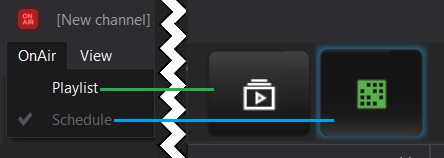
The finished playlist is moved to Channel OnAir Playlist
-
At the right moment, the operator clicks Switch to Playlist mode — the channel switches to the playlist
- While the playlist is on air, the operator adjusts the main schedule (for example, fits the duration of the Live event)
- When ready, click Switch to Schedule mode — the channel returns to the schedule at the current point in time
Advantage of this approach
This lets you fix the schedule without interrupting the broadcast and avoid Overrun when the running time of a live broadcast is unpredictable.
Command Control for quick switching
Set up the Command Control panel with these buttons: - OnAir switch to playlist — switch to the playlist - OnAir switch to schedule — return to the schedule - Manual GFX buttons for lower thirds during interviews
Insert / replacement mode
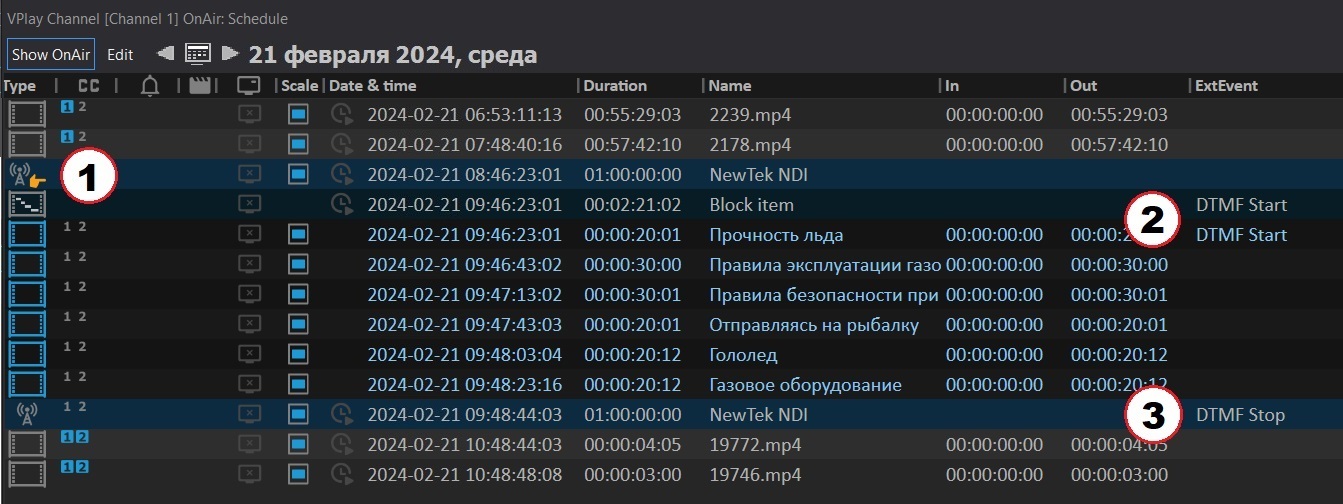
Scenario: rebroadcasting an incoming stream with local content inserted on SCTE-35/104 or DTMF cues.
How it works
- The channel receives an incoming stream (Live) with insert cues
- In the schedule: a Live with Manual Exit (waits for an external event)
- After the Live — an insert block with an ExtEvent (SCTE or DTMF type, "start")
- After the block — a Live with an ExtEvent ("stop" type)
When the "start" cue is received, VPlay switches to the insert block. When the "stop" cue is received, or when the block ends, it returns to the Live.
Configuring a source with cues
In vpControl → Assigned Lives section → select the required input → enable DTMF or SCTE-35/104:
DTMF: - Select Enable the search for DTMF labels in the audio stream - Set Symbol duration and Pause duration - Specify the audio track (Search in audio channels 1–8) - Enter the DTMF Items mask (obtain it from the upstream broadcaster)
SCTE-104 / SCTE-35: - Click Add → select the cue type: - SCTE splice — standard insert cues - SCTE Chapter — provider cues (cannot be replaced, used for viewership accounting) - SCTE Program placement opportunity — local/personalized cues
Configuring the schedule for inserts
In Channel Manager, in the ExtEvent column for the required row: - For the insert block: select the "start" input event - To return to the Live: select the "stop" input event
Schedule file format for inserts
- Formats:
*.xml,*.xls,*.csv - Auto-load file name: strictly
year.month.day.xml
Input signal redundancy
If the main signal is lost in insert mode, VPlay waits 3 seconds for it to recover, then switches to the backup input (configured in Media storages and content replacement → Auto replace failed element → Enable failed live autoreplace).
Multi-selection control
For bulk schedule operations:
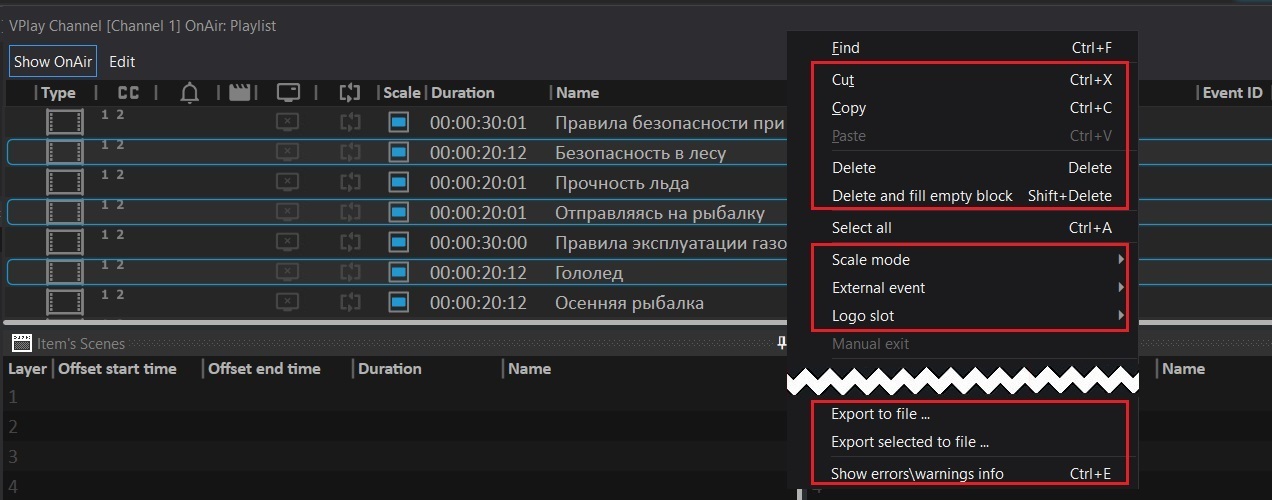
| Keys | Action |
|---|---|
|
| Shift + click | Select a continuous range | | Ctrl + click | Add individual items to the selection | | Ctrl + A | Select all |
Available group actions:
| Action | Description |
|---|---|
| Cut / Copy / Paste | Standard operations (when pasting with Ctrl, items are added without gaps) |
| Delete | Delete the selected items |
| Delete and fill empty block | Delete and fill the position with an Empty Block (Shift+Delete) |
| Scale mode | Set the scaling mode for the whole group |
| External event | Assign/remove an input event (Turn OFF, Start/Stop SCTE-35) |
| Logo slot | Assign a single logo to the whole group |
| Export selected to file | Save a fragment as a separate XML file (Shift selection only) |
| Set loop area | Set looped playback for the group (Playlist only). A number of repetitions or infinite |
| Group GFX addition | Drag a scene onto the group — it is added with the same parameters to all items |
| Group event addition | External commands are added with the same Offset start/end time |