Server configuration
All broadcast server settings are configured in the vpControl application (Server Settings). The interface opens from VPlay Launcher: the Server Settings button.
The configuration cannot be changed from a client
Server settings are stored in configuration files on the server itself. The Channel Manager client application cannot change the configuration — only vpControl can, running directly on the server or with access rights to it.
Initial system state
On first launch after installation, the VPlay server runs with default settings. The recommended initial configuration order:
- Activate the license
- Create users and assign roles
- Connect content storages (Storages)
- Create broadcast channels
- Configure the input sources and output signals of each channel
- Save the configuration
Creating a broadcast channel
Performance calculation
Before you create a channel, make sure you have enough GPU resources. VPlay displays the video adapter load in the Channels section — green/yellow/red indication for each GPU.
General load rule:
- 1 HD channel with 2–3 IP outputs ≈ 60–70% of the resources of an RTX 4060
- A UHD channel requires a dedicated Quadro/Tesla-class GPU
Channel parameters
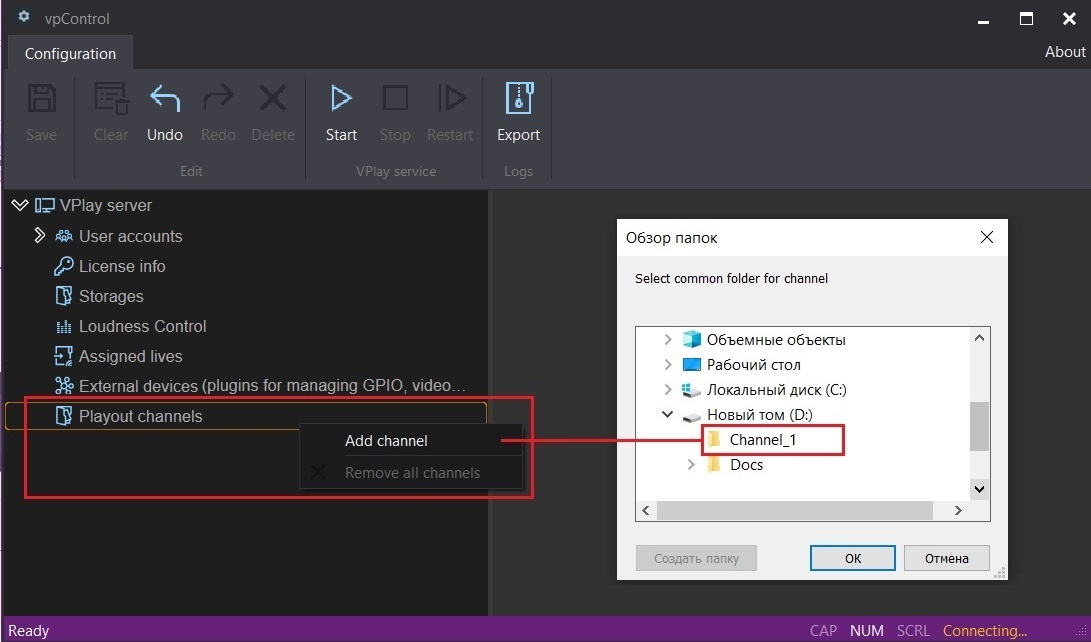
- In vpControl, go to Channels → Add Channel (right-click)
- Fill in the main fields:
| Field | Description |
|---|---|
| Name | Channel name (displayed in Channel Manager) |
| Format | Broadcast format: SD 625/50i, HD 1080i/25, HD 720p/50, UHD 2160p/25, etc. |
| GPU | The video adapter that processes the video for this channel |
| Color Space | SDR or HDR HLG |
| Loudness | Enable loudness normalization (recommended) |
- Click Save
After it is created, the channel appears in the resource tree. Expand it to see the sections: Inputs, Outputs, Live Sources, External Devices, Users.
Configuring channel parameters
Redundancy (1+1 redundancy)
To enable hot redundancy between two servers:
- Create identical channels on both servers
- On the primary server: Channel → Channel Redundancy → Enable
- Specify the IP address of the backup server and the channel name on it
- Select the role: Primary or Backup
After synchronization, both servers display the same schedule. If the primary server fails, the backup server takes over automatically.
Schedule synchronization
Schedule changes made on either server are automatically replicated to the paired server in real time.
Media Storages (content storages)
A storage is a network or local folder with media files. VPlay indexes its contents and displays them in the Channel Manager content browser.
Adding a storage:
- Channel → Media Storages → Add
- Enter a UNC path (
\\server\share) or a local path - If necessary, specify the credentials for accessing the network folder
- Click Save
VPlay supports several storages per channel, including a backup storage (Backup Storage) — if the primary storage is unavailable, content is taken from the backup automatically.
Automatic content and schedule loading
| Parameter | Description |
|---|---|
| Content auto download | Automatically download new files from the remote storage |
| Schedule auto import | Automatically import the schedule from the specified folder on a timer |
| Import interval | Interval for checking for new schedule files (in minutes) |
Channel TAGs and EPG
Channel tags are used to link to the EPG system and for automatic content routing:
- Channel → Channel TAGs → add a tag
- The tag is applied during schedule import for automatic matching
Channel Internal Inputs
Internal inputs are signals generated by VPlay itself:
- Color Bar — color bars for technical checks
- Black — black screen
- Slate — identification slate
- Test Tone — test tone signal
They are used as fallback sources when there is no content or live signal.
User management
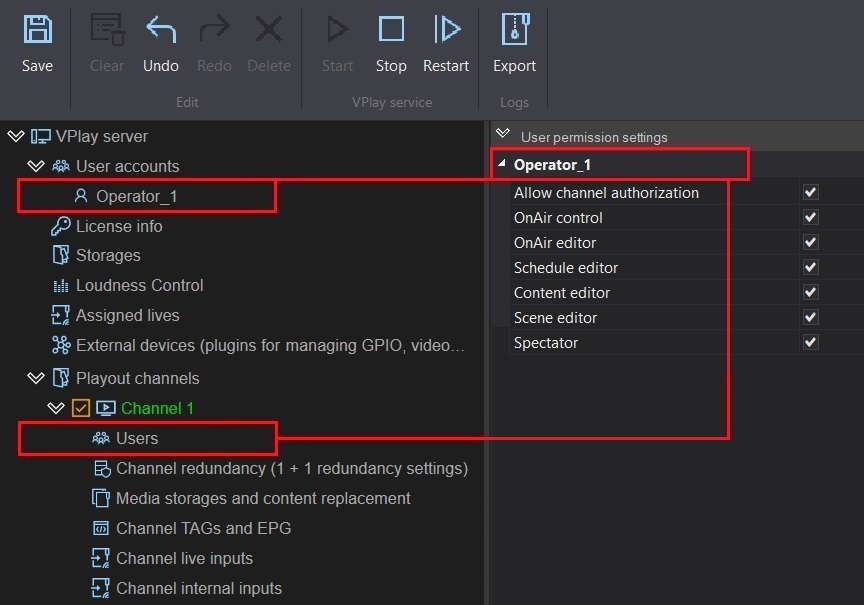
Creating users
- Server Settings → Users → Add User
- Fill in the user name, password, and display name
- Assign a role (see below)
User roles
| Role | Capabilities |
|---|---|
| Administrator | Full access: server configuration, channel management, users |
| Operator | Schedule and on-air control, without server configuration |
| Viewer | View-only access to channel status |
Roles are assigned globally and at the level of individual channels — an operator can have access to specific channels only.
Storages — PAM configuration
PlayOut Asset Manager (PAM) is the VPlay media content management system. It lets you organize storages (Storage) and assets (Asset):
- Storage — a physical folder with media files
- Asset — a logical resource: a single file or a group of files combined under one name
For details, see PAM: Storage and Asset.
Saving and importing the configuration
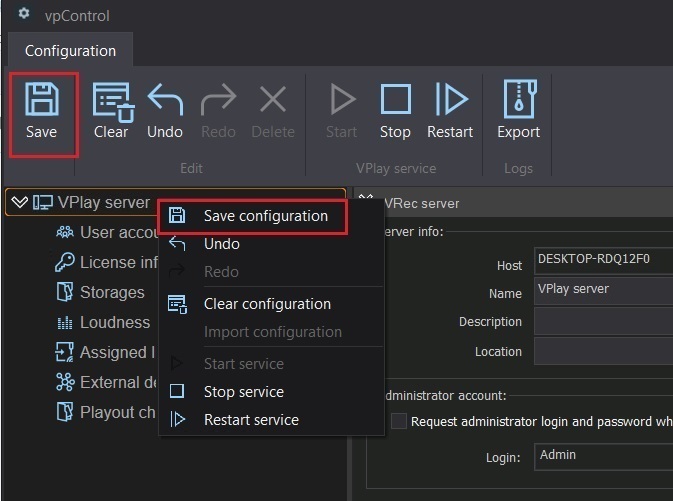
Exporting the configuration
Server Settings → Export Configuration — saves all server settings to an XML file. Use it for backup or to transfer the settings to a new server.
Importing the configuration
Server Settings → Import Configuration — loads a previously saved XML file. After the import, the VPlay service restarts automatically.
Configuration backup
We recommend exporting the configuration after every significant change and keeping a backup copy on a separate disk or network share.
System logs
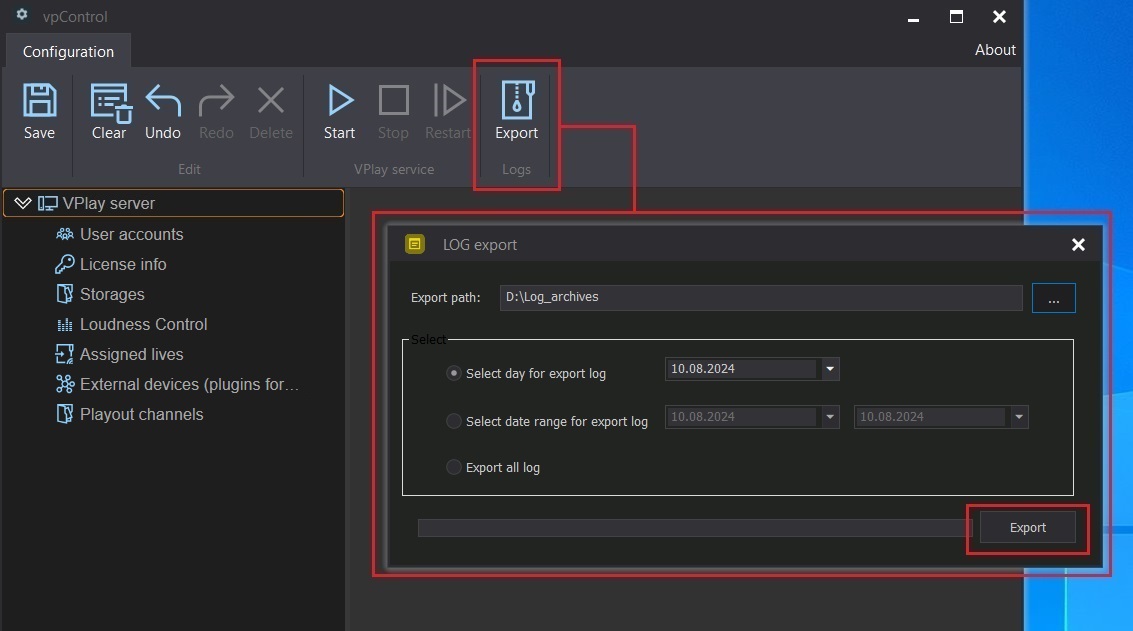
VPlay server logs are located at C:\ProgramData\StreamLabs\VPlay\Logs\. To view them in the interface: Server Settings → Logs.
The logs record: service starts and stops, playback errors, redundancy switchovers, and input and output events.
The Troubleshooting section describes typical errors and how to resolve them.