Loudness Control — volume management
Loudness Control is the integrated loudness normalization feature for broadcasts. It lets you create normalization profiles (audio presets) and apply them to any schedule item — video files, live sources, and blocks.
It requires an ALC (Automatic Loudness Control) license for each broadcast channel.
Setup
1. Check the license
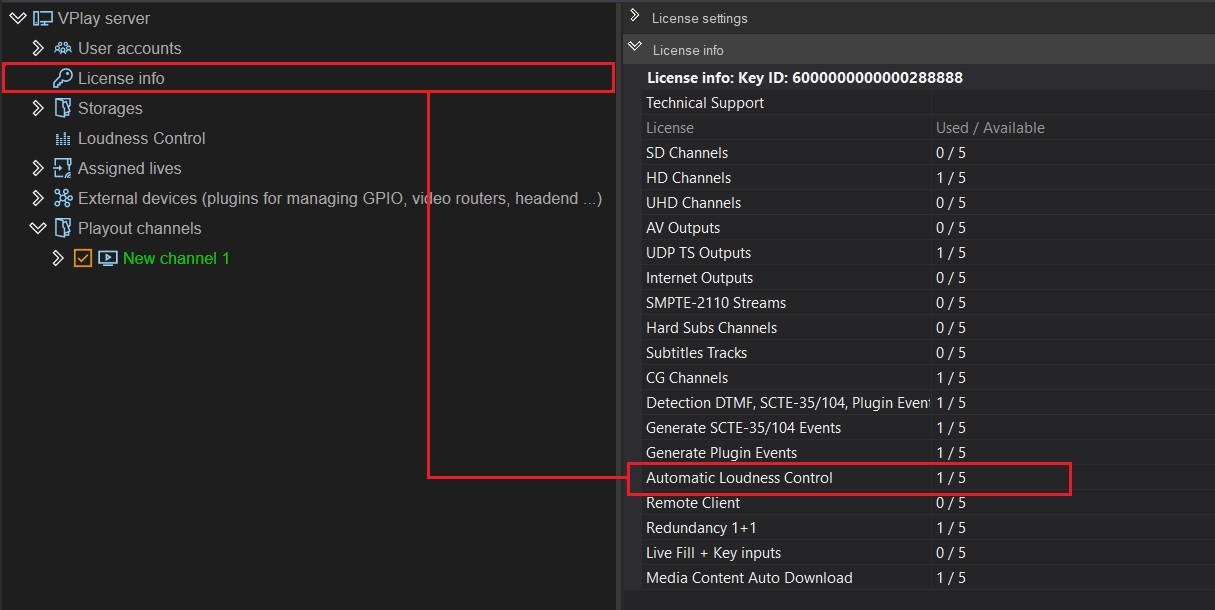
In vpControl → License info, the Automatic Loudness Control line must be greater than zero.
2. Create audio presets
In vpControl, open the Loudness Control section on the left side of the window:
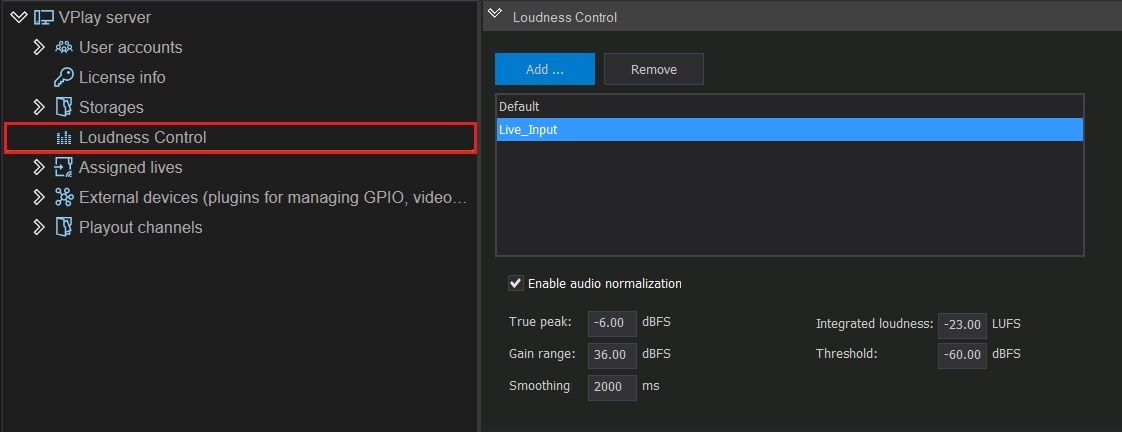
- The Default preset exists by default — it is applied to all items when a license is present
- Click Add → enter a name for the new preset
- Configure the parameters:
| Parameter | Description |
|---|---|
| Integrated loudness | Target integrated loudness level (dB LUFS). EBU R128 standard: -23 LUFS; ATSC A/85: -24 LKFS |
| True peak | Maximum allowed peak value (dBTP). EBU recommendation: -1 dBTP |
| Gain range | Gain/attenuation range (dB) |
| Smoothing | Integration time — how quickly the system reacts to loudness changes |
| Threshold | A signal below this level is considered silence and is ignored during normalization |
- Select the Enable audio normalization checkbox
- Click Save
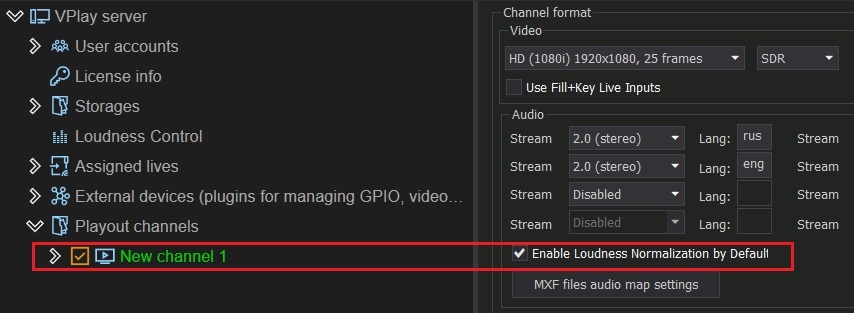
3. Enable normalization on the channel
In vpControl → channel settings, select the Enable Loudness Normalization by Default checkbox.
Use in the schedule
Starting with VPlay 5.6, Channel Manager has an Audio preset column.
To assign a preset to an item:
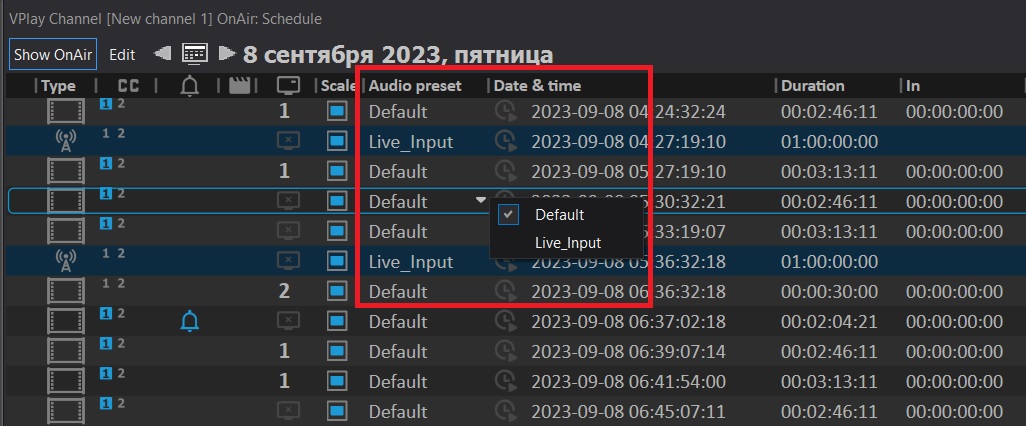
- Select a schedule row
- In the Audio preset column, open the drop-down list
- Select the preset you need
If no preset is selected, Default is applied. If the same item appears in the schedule several times, the preset is set independently for each occurrence.
Setting a preset for an individual asset in PAM
Starting with VPlay 5.6, you can set an audio preset directly in the asset metadata — it is then used automatically every time the asset is added to the schedule.
- In Channel Manager
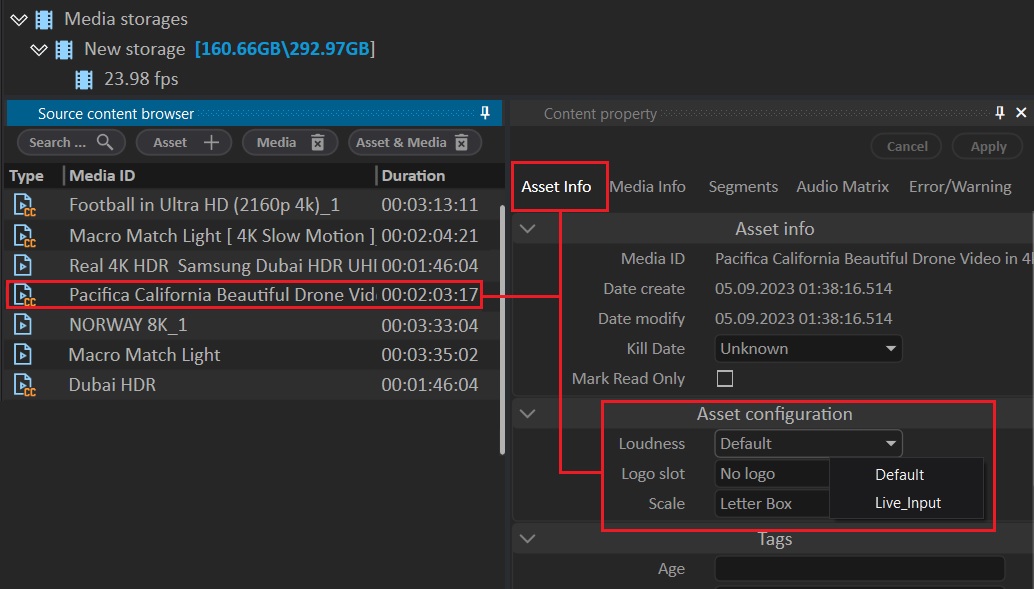
select the asset in Source content browser 2. In the Content property window → Asset Info tab → Asset configuration section 3. In the Loudness field, select a preset from the drop-down list
Typical values
| Standard | Integrated loudness | True peak |
|---|---|---|
| EBU R128 (Europe) | -23 LUFS | -1 dBTP |
| ATSC A/85 (USA) | -24 LKFS | -2 dBTP |
| Streaming (YouTube) | -14 LUFS | -1 dBTP |