Installing VPlay
VPlay has a client-server architecture: server components are installed on the broadcast machine, and client components on the operator workstation. There is a single installer — you choose the components during installation.
Requirements
Broadcast Server
Operating systems:
- Windows 10 x64 (build 1909 or later) — for workstations and servers
- Windows Server 2019 x64 (build 1909 or later) — recommended for production servers
OS preparation:
- Install the latest motherboard drivers
- Update Windows (apply all current patches)
- Set the power plan to High performance and disable turning off the disks and display
- Check the local NTP server settings — VPlay uses NTP for time synchronization
- Remove unnecessary programs from startup
Recommended driver versions:
| Component | Version |
|---|---|
| NVIDIA GeForce | 32.0.15.7602 |
| NVIDIA Quadro / RTX | 32.0.15.7602 |
| Blackmagic DeckLink | 12.2.2 |
| DekTec DTA | 4.28.0 |
| AJA | 16.2.6 |
| Intel Arc | 101.57.68 |
| AMD | 24.7.1 |
Minimum hardware requirements:
| Configuration | CPU | RAM | GPU |
|---|---|---|---|
| 1 SD channel | Intel Core i5 (10th gen) | 16 GB | NVIDIA GTX 1060 |
| 2 HD channels or 4 SD | Intel Core i7 (10th gen) | 16–32 GB | NVIDIA RTX 4060 / Quadro A2000 |
| 3–5 HD channels or 1 UHD | Intel Xeon Silver 4214R | 24–48 GB | NVIDIA Quadro P4000 / RTX A4000 |
Important: RAM
Use memory in multichannel mode: 4×4 GB, 6×8 GB, or 8×8 GB. A single memory module reduces performance.
Content storage
For the media library, a separate RAID array (RAID 5, 6, or 10) of 7200 rpm SATA-III drives or SSDs is recommended. Allocate two separate networks: one for file operations and the other for streaming.
Operator Workstation
- Windows 10/11 x64 or Windows Server 2019 x64
- Intel Core i5 8th generation or higher
- 16 GB RAM
- GPU with DirectX 11 support (Intel UHD Graphics or NVIDIA)
- 1920×1080 or higher monitor
- Local administrator rights
Installing Server Components
Get the installation file VPlaySetup 5.26.1.12.xxxxx.exe from technical support (support@stream-labs.com).
Run the installer as administrator. In the User Account Control dialog, click Yes.
Read the license agreement, select the checkbox to accept it, and click Next.
In the component selection window, select the following for the broadcast server:
- ✅ NTP client — time synchronization
- ✅ VPlay services — server broadcast components
Optional modules (install as needed):
- ⬜ VRec services — recording server
- ⬜ Time Delay Channel — delay channel
- ⬜ Encoder Channel — software decoder/encoder
Click Next → Install. A window with the installation progress opens.
When the installation is complete, start VPlay Launcher to begin working.
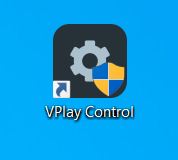
After installation, the VPlay Launcher icon appears on the desktop.
After installation completes, the VPlay service starts automatically — no additional action is required.
Installing Client Components
On the operator workstation, run the same installer and select:
- ✅ VPlay client components — Channel Manager, Scene Editor, VPlay Launcher
Server components are not needed on the client
On a remote workstation, install only the client components. The VPlay server is not required on the operator's machine.
License Activation
The VPlay license is activated through the built-in License Server.
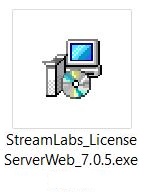
Install License Server (the file StreamLabs_LicenseServer_Setup.exe is included in the delivery package):
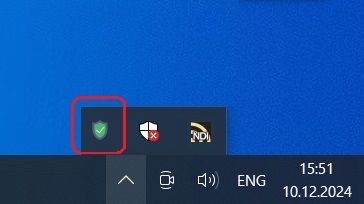
After installation, License Server starts automatically as a Windows service. Its icon appears in the system tray.
Open the License Server interface in a browser at http://localhost:7070 (or the server address on your network).
Click Start Server to start the License Server.

After it starts, the server enters its working state.

Click Add License Key and enter the key you received.
The key appears in the list of active licenses with information about the number of channels and the expiration date.
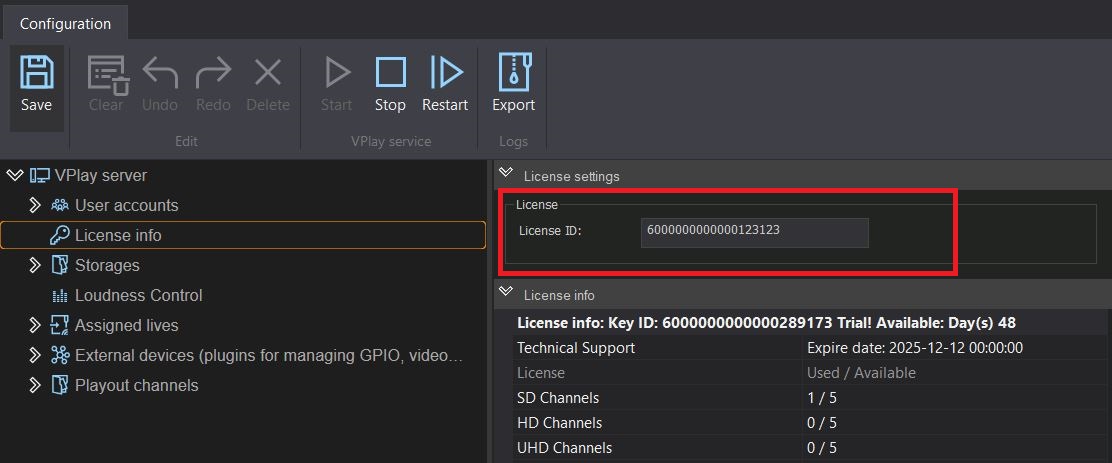
In vpControl, the license key number is displayed in the License info section.
Enter the Key ID in the vpControl field → License → Add Key.
The system is activated instantly; no restart is required.
Demo mode
If no license key is present, VPlay automatically runs in demo mode. A watermark is present on the output signal, while all system functions remain fully available.
License renewal
When you receive a new or extended key, enter it in the same License Server interface — the update is applied without stopping the broadcast.