External devices
VPlay supports control of external devices through a plugin system. Connecting a device is a two-step process: first you add the device to the general server configuration, then you assign it to channels.
To add a device: vpControl → External devices → right-click → Add external device.
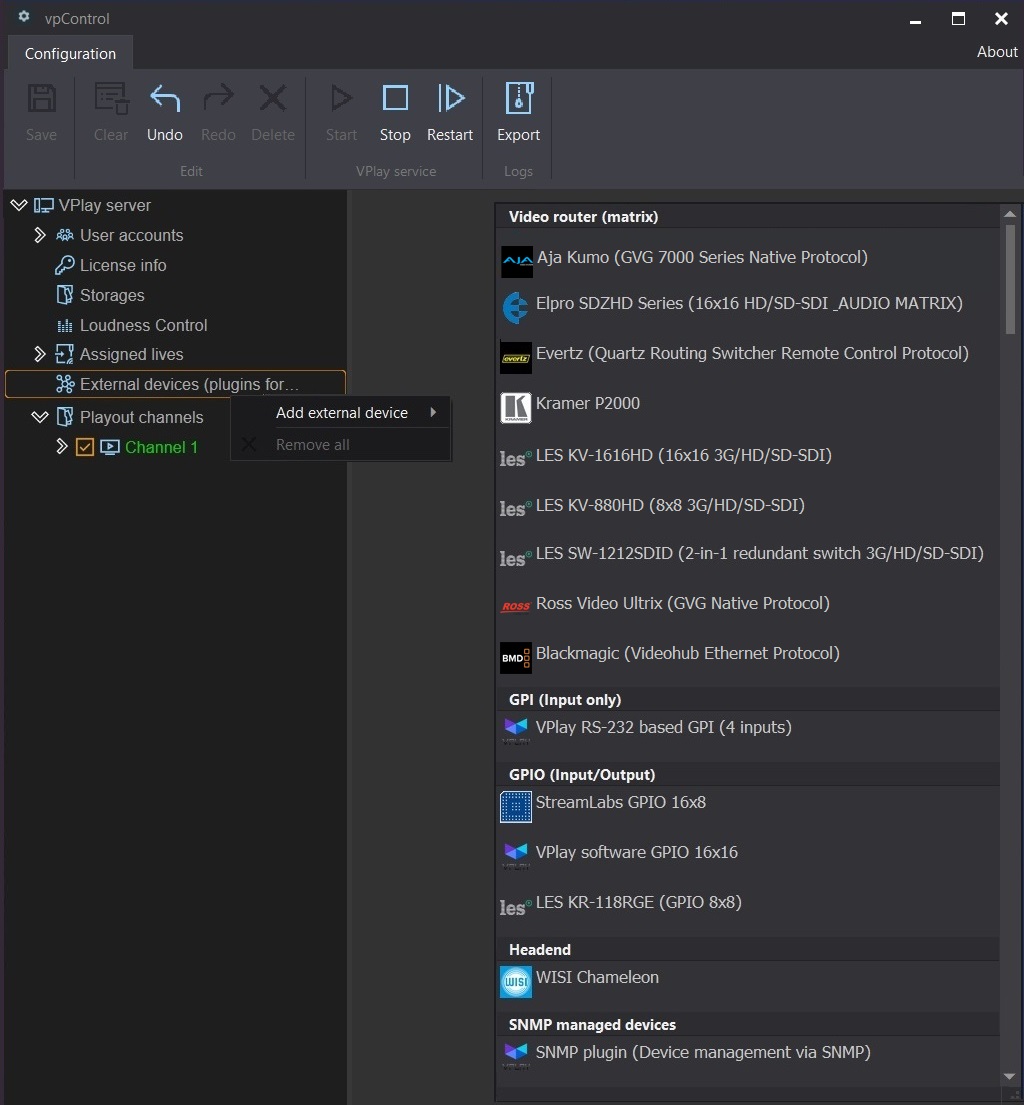
Each external device can be controlled from any channel on the server at the same time.
External device types
| Device | Protocol | Purpose |
|---|---|---|
| Video Router (Evertz, others) | LAN / COM | Switching the routing matrix on schedule events |
| Headend (WISI Chameleon, others) | LAN | Controlling the headend from the schedule |
| GPI/GPO | LAN / COM (RS-232/422) | Receiving and sending contact-closure control signals |
| Soft GPI | Inside the server | Exchanging commands between VPlay and VRec within a single server |
| SNMP | LAN | Controlling network devices (routers, switches) |
Video Router
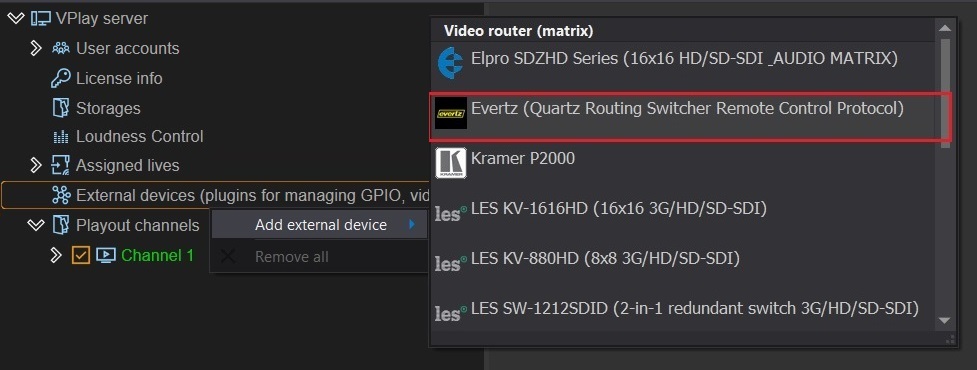
Example: Evertz video router. Other routers are configured in the same way.
Configuration:
- External devices → Add external device → select the router you need
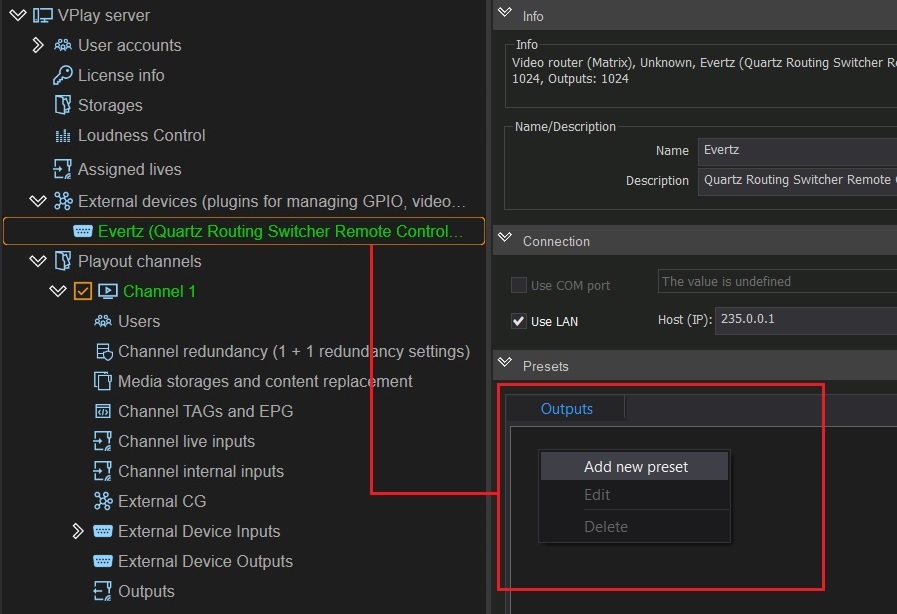
- In the settings panel:
- Name/Description — a unique device name in the system
- Connection → Use LAN — enter the Host (IP) and Port
-
In the Presets → Outputs section → right-click → Add new preset:
-
Enter an event name (for example, "Switch to SDI 1")
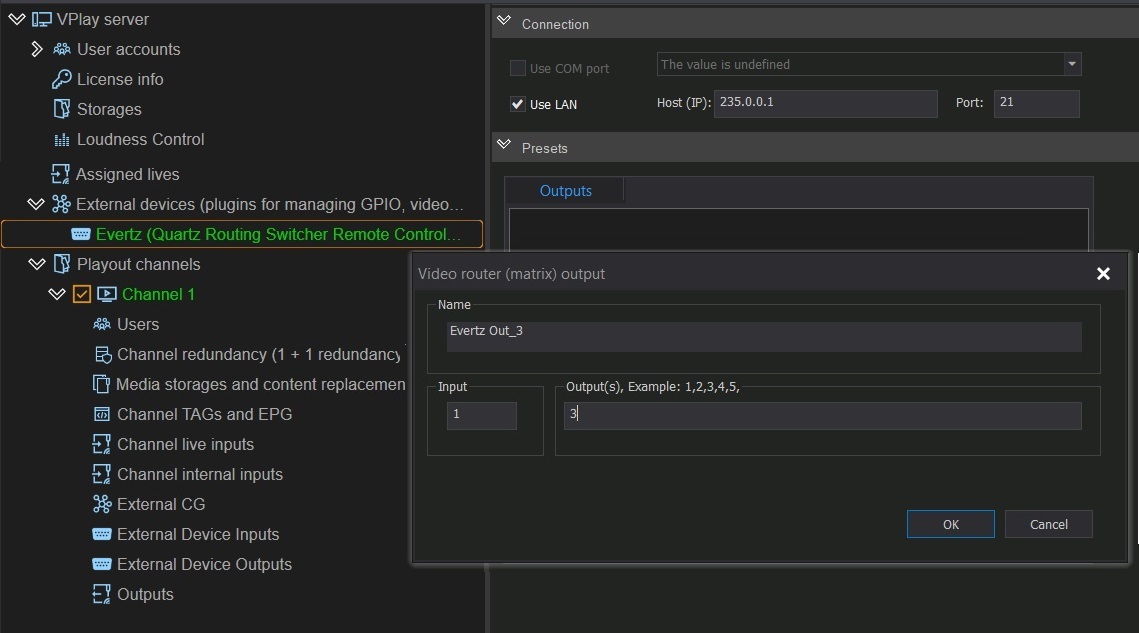 - Specify the input and output numbers of the matrix
4. Save → Restart
- Specify the input and output numbers of the matrix
4. Save → Restart
Connecting to a channel:
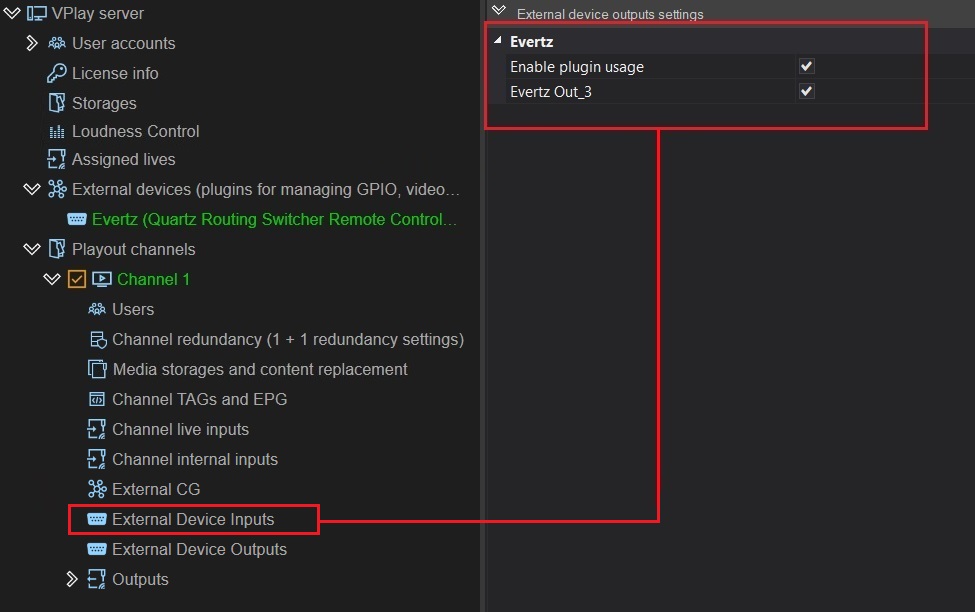
- In the channel resource tree → External Device Outputs
- Select the Enable plugin usage check box
- Select the check boxes for the presets you need
- Save
Using in the schedule:
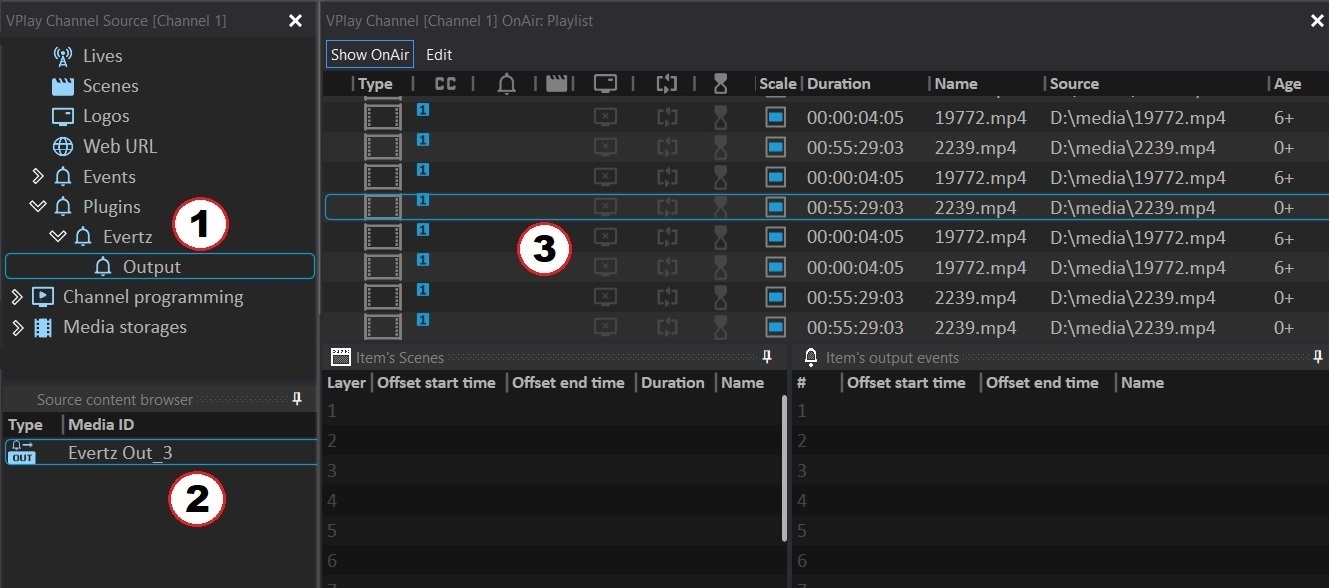
- In Channel Manager → resource tree → External devices section → the available presets are displayed in the Source content browser window
- Select the schedule row at which the command should be sent
-
Drag the preset from Source content browser to the Item's output events window (drag & drop)
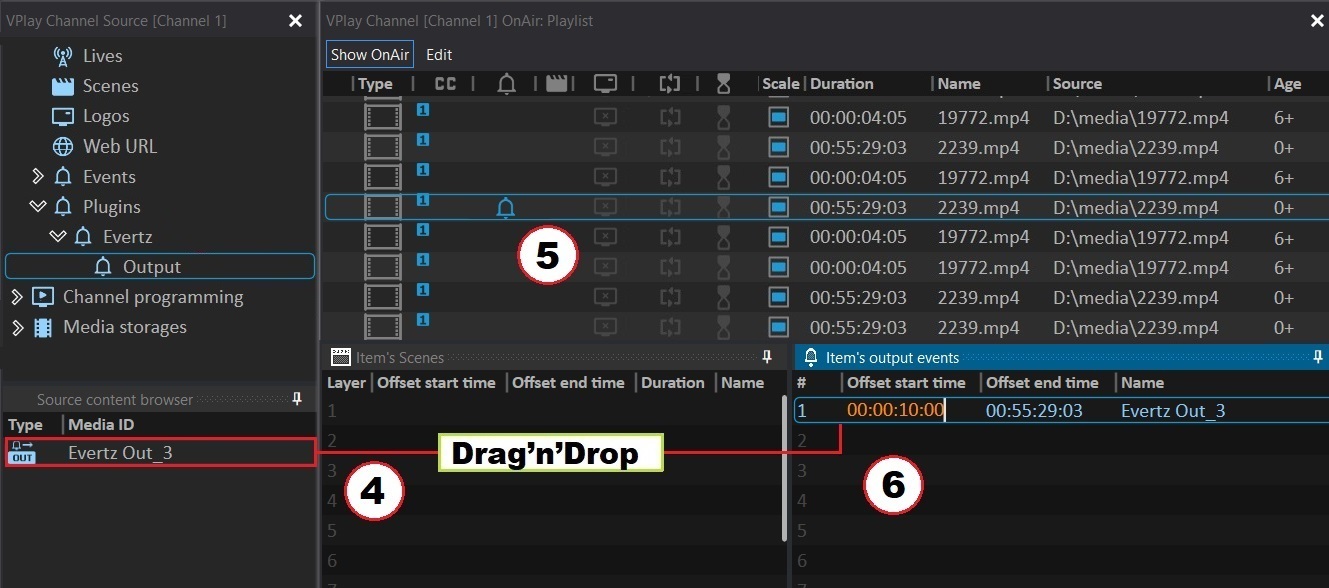
-
A 🔔 bell icon appears on the schedule row, indicating an external event
- If necessary, edit the time offset for sending the command
Headend (WISI Chameleon and others)
Configuration and usage are the same as for Video Router:
- External devices → Add external device → WISI Chameleon (or another headend)
- Connection → Use LAN → IP + Port
- Configure the presets in the Outputs section
- Save → Restart
- Connect the device to the channel through External Device Outputs
- Add presets to the schedule through Item's output events
GPI/GPO
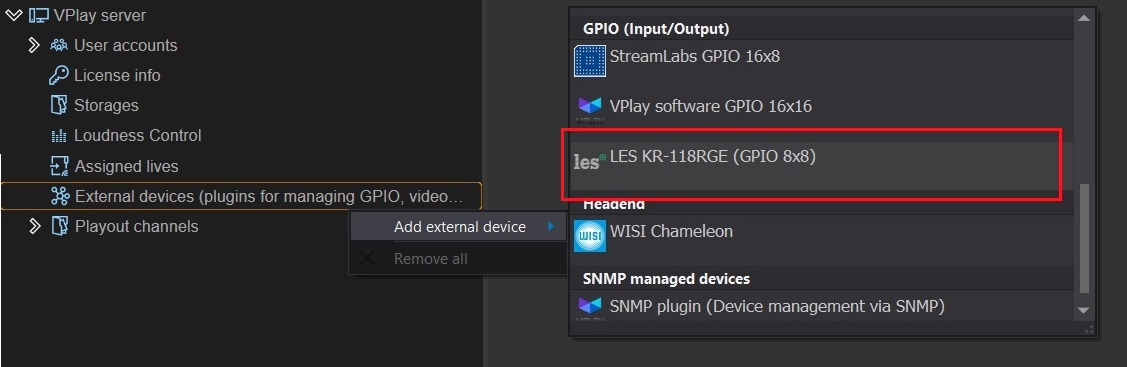
GPI (General Purpose Input) — input control signals (an external device controls VPlay). GPO (General Purpose Output) — output control signals (VPlay controls an external device).
Adding a device:
- External devices → Add external device → select a GPI device (for example, an Ethernet GPI converter)
- In the settings panel:
- Name/Description — the device name
- Connection → Use LAN → Host + Port (default: 8020)
Creating GPI input presets (Inputs):
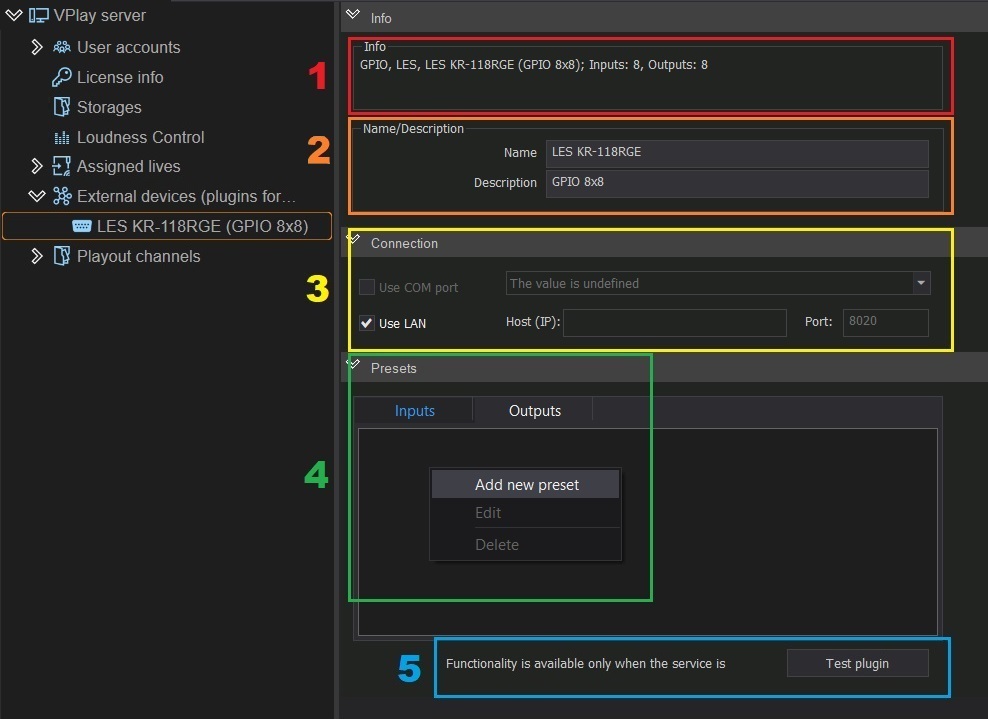
Used to control VPlay playback with an external device.
- In the Presets → Inputs section → right-click → Add new preset
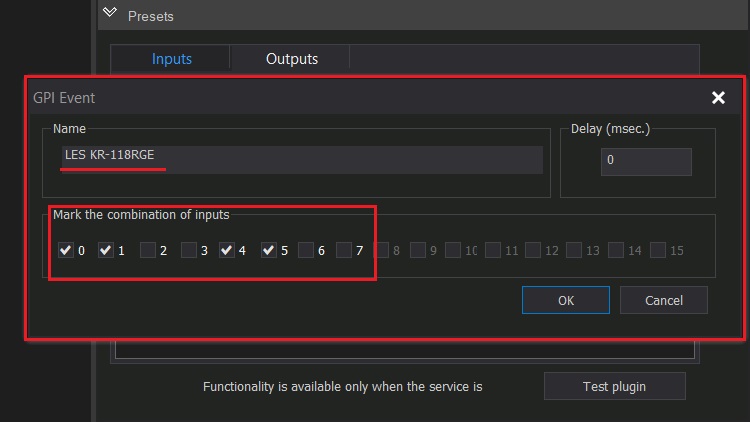 2. Enter an event name
3. Select the check boxes for the input signal mask
4. OK
2. Enter an event name
3. Select the check boxes for the input signal mask
4. OK
Creating GPO output presets (Outputs):
Used to send commands to an external device from the VPlay schedule.
- In the Presets → Outputs section → right-click → Add new preset
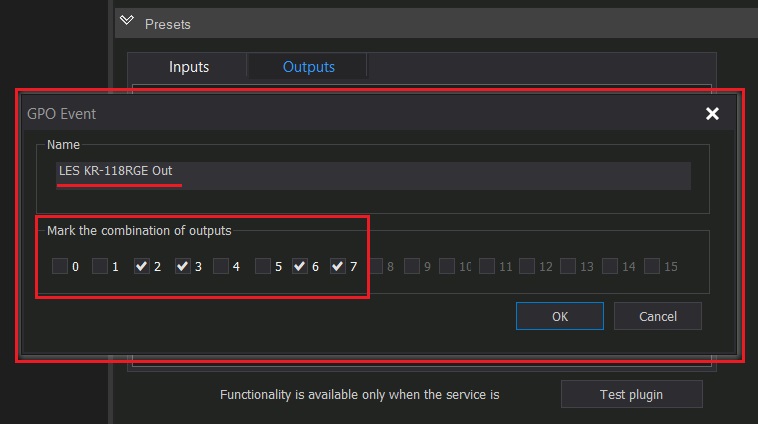 2. Enter an event name
3. Select the check boxes for the output signal mask
4. OK
2. Enter an event name
3. Select the check boxes for the output signal mask
4. OK
- Save → Restart
Testing GPI
The Test plugin button is available only when the VPlay services are stopped.
Connecting to a channel:
- To send commands from VPlay → External Device Outputs → Enable plugin usage → select the GPO presets you need
- To receive commands from an external device → External Device Inputs → Enable plugin usage → select the GPI presets you need
Receiving a GPI command in the schedule:
- In Channel Manager, select a schedule row
- In the ExtEvent column, open the drop-down list → select the GPI event you need
- While the schedule is playing, VPlay waits for the control command to arrive. When it is received, VPlay jumps to the nearest schedule row marked with ExtEvent
Soft GPI
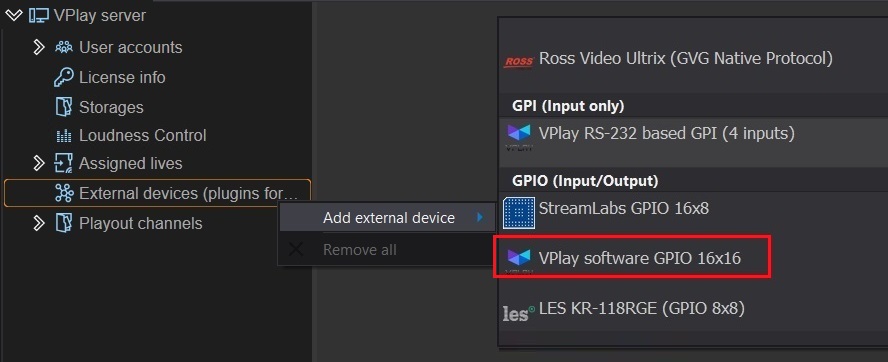
Soft GPI (VPlay software GPIO) — an internal virtual GPI for exchanging commands between VPlay and VRec within a single server. Main use: starting and stopping VRec recording on VPlay schedule events.
Step-by-step configuration:
-
External devices → Add external device → VPlay software GPIO 16x16
-
Create a pair of presets:
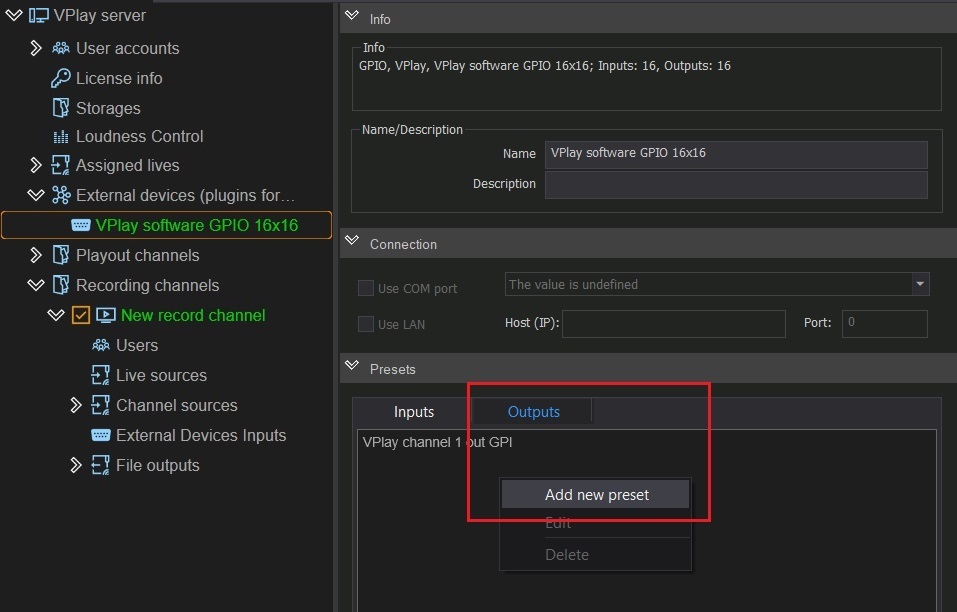
- In the Outputs section → Add new preset → name + mask (for example, "Start Record")
-
In the Inputs section → Add new preset → the same mask (for the VRec receiver)
-
Save → Restart (required!)
-
After you save, Soft GPI appears automatically in the VPlay and VRec channels — you do not need to add it manually, only enable it with the check box.
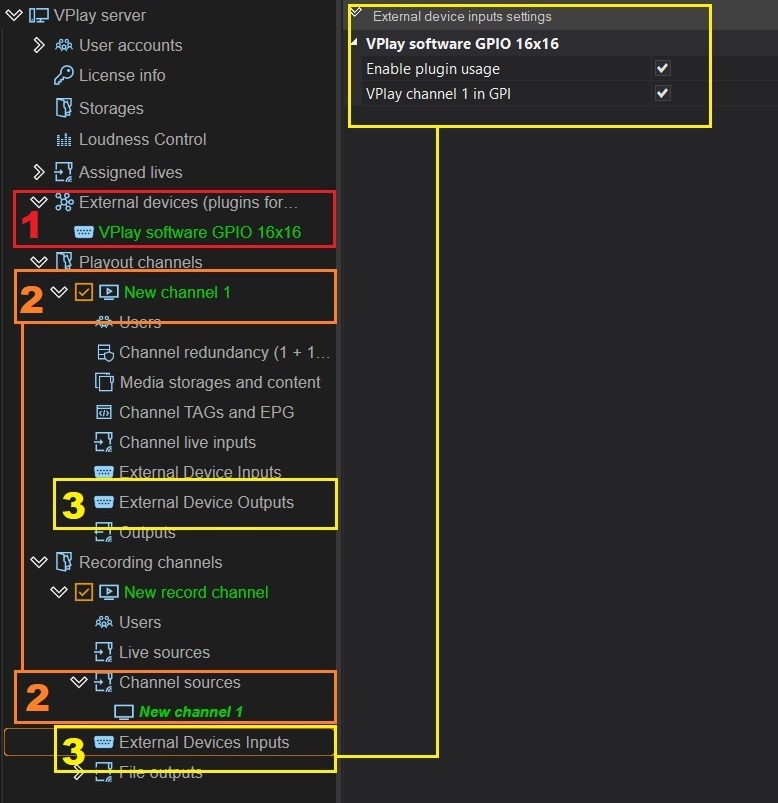
- Activate it for the channels:
- VPlay channel → External Device Outputs → Enable plugin usage → select the presets you need
- VRec channel → External Device Inputs → Enable plugin usage → select the same presets
Required condition
The VPlay broadcast channel must be set up as a live source for the VRec recording channel.
How it works:
The GPO control marker leaves the VPlay channel together with the content at the specified schedule time. VRec, configured to receive this GPI marker, starts recording automatically.
SNMP
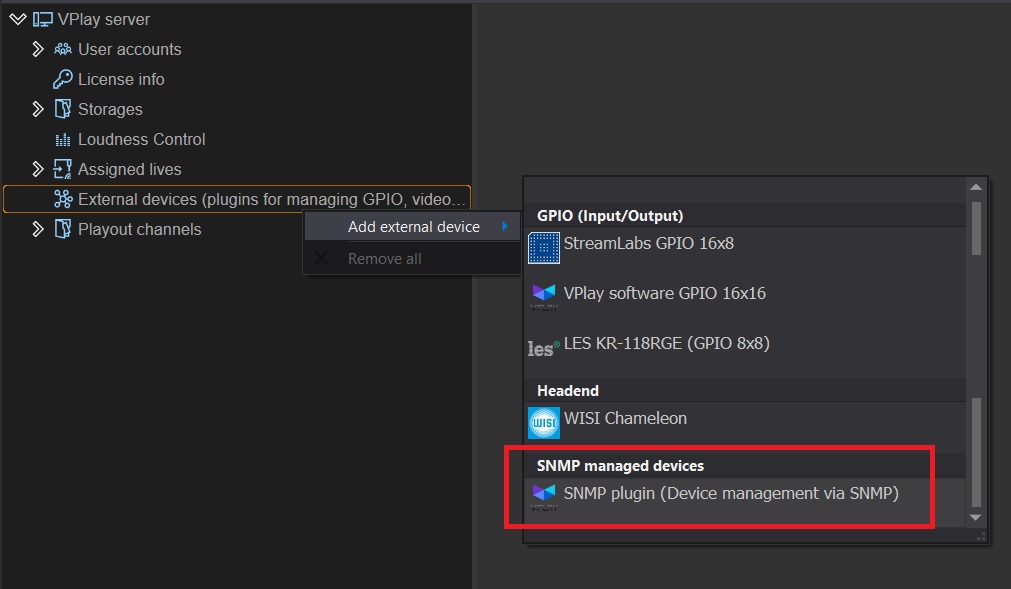
SNMP (Simple Network Management Protocol) — control of network devices (routers, switches, servers).
Adding:
- External devices → Add external device → SNMP managed devices (SNMP plugin)
Configuring the connection:
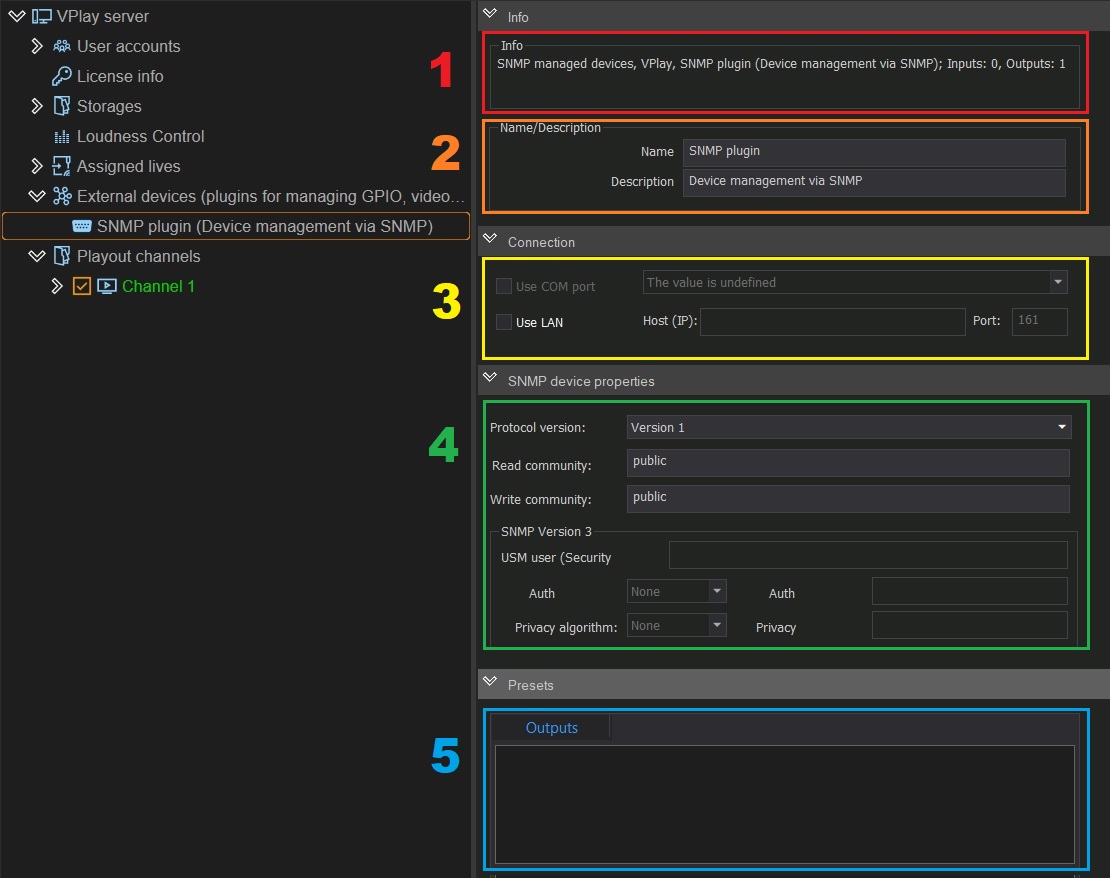
- Connection → Use LAN → IP + Port
- Protocol version — drop-down list (v1, v2c, v3)
- Read community / Write community — SNMP access passwords
- SNMP Version 3 — an additional panel with advanced security settings (appears when you select v3)
Creating presets:
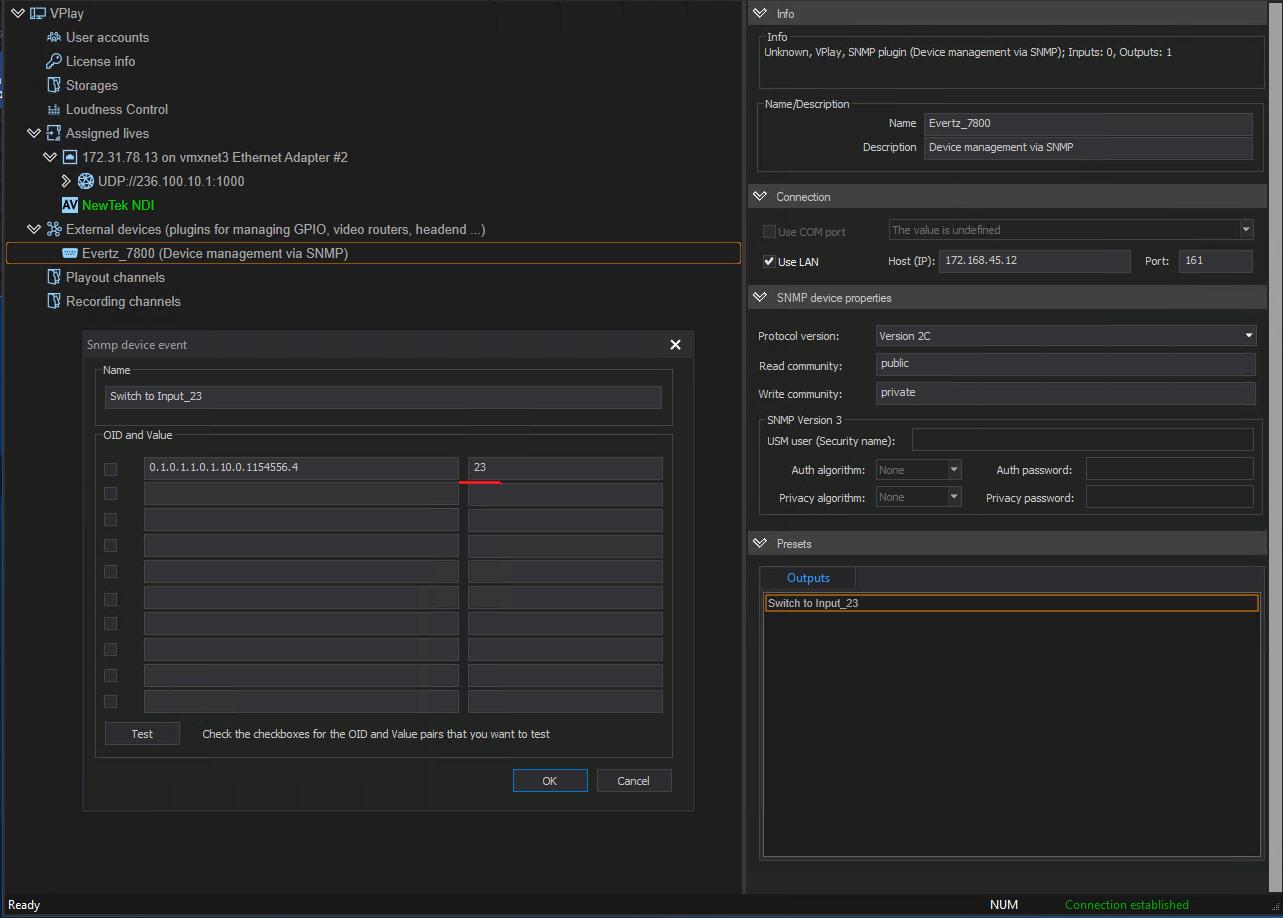
In the Presets → Outputs section → Add new preset → enter a name → configure the switching parameters.
Evertz value type
Starting with VPlay 5.8, the SNMP plugin supports Integer values for Evertz devices (previously only String was supported). The type is detected automatically by polling the equipment.
Save → Restart, then connect the device to the channels and add presets to the schedule in the same way as for Video Router.
Displaying control commands in the schedule
In Channel Manager, a 🔔 icon is displayed on the schedule row to which an external event is attached (a GPO, an SNMP command, or a Router preset).
To edit the command parameters: click the 🔔 icon in the schedule row → the Item's output events panel opens with the event time and type settings.