PAM — PlayOut Asset Manager
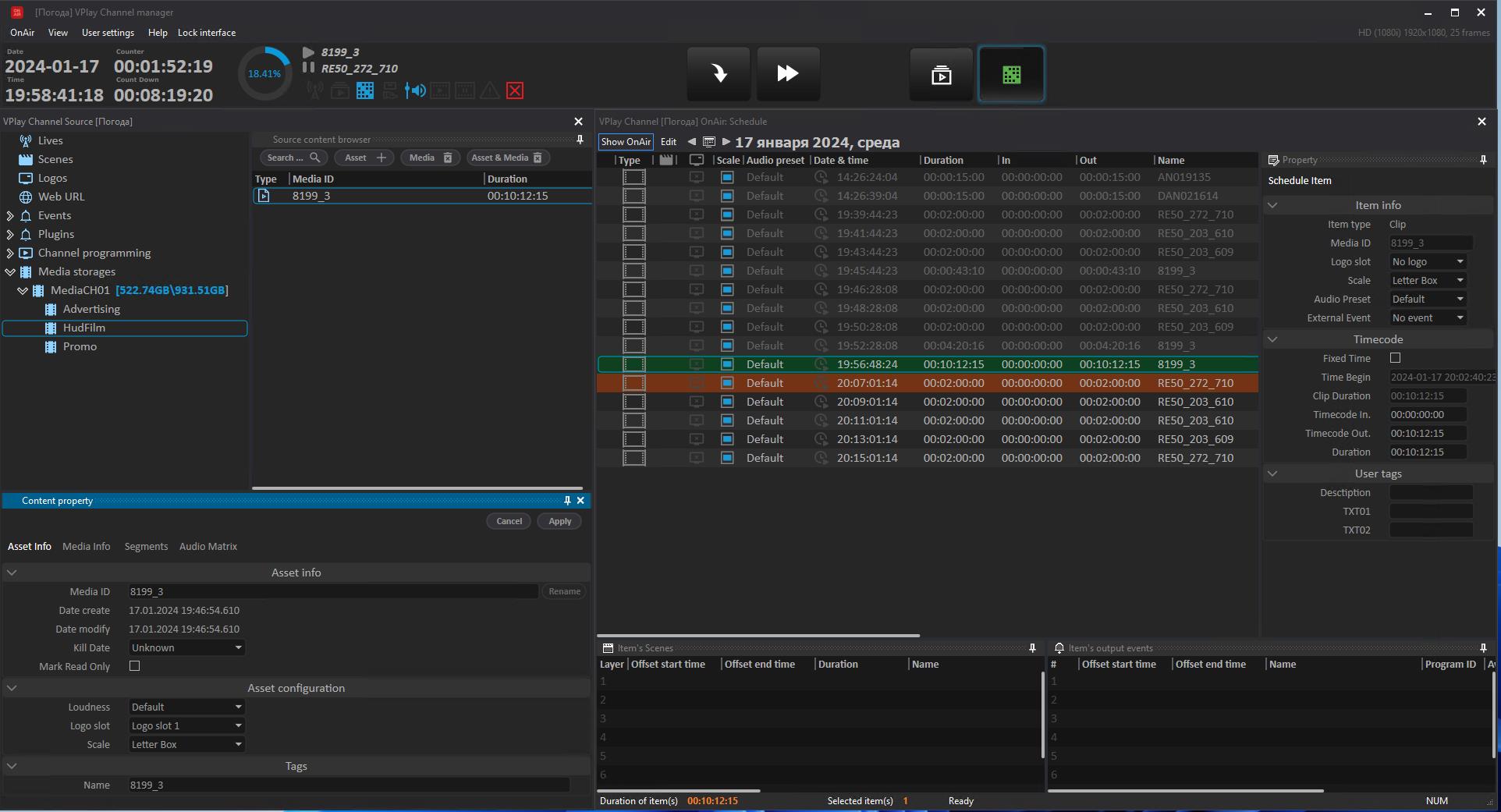
PAM (PlayOut Asset Manager) is an advanced media content management system added in VPlay 5.7. It replaced the standard media folders (Media Folder) with a two-level structure: Storage (media space) + Asset.
PAM simplifies working with large media libraries, speeds up schedule creation, and reduces the likelihood of operator error. It supports up to 100,000 assets. It is required for integrating VPlay with external MAM and traffic management systems.
Storage — media space
Storage is an extended media folder with metadata and advanced automation.
Storage setup
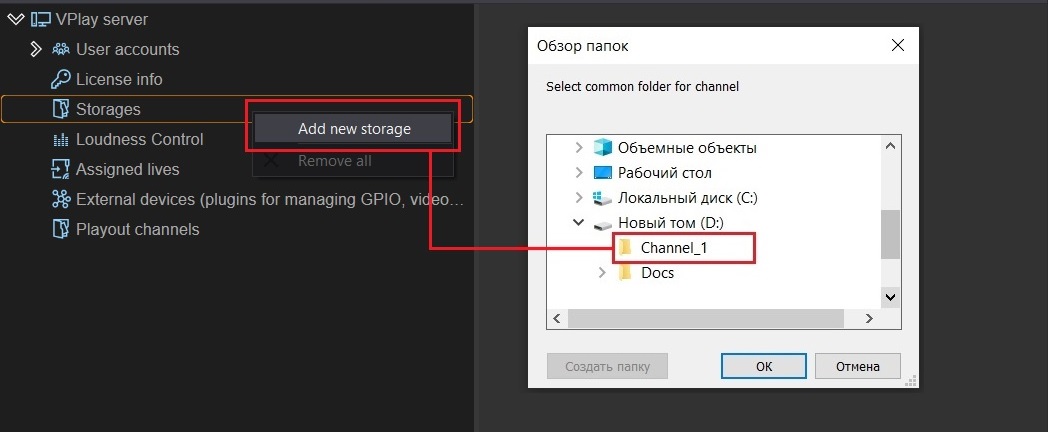
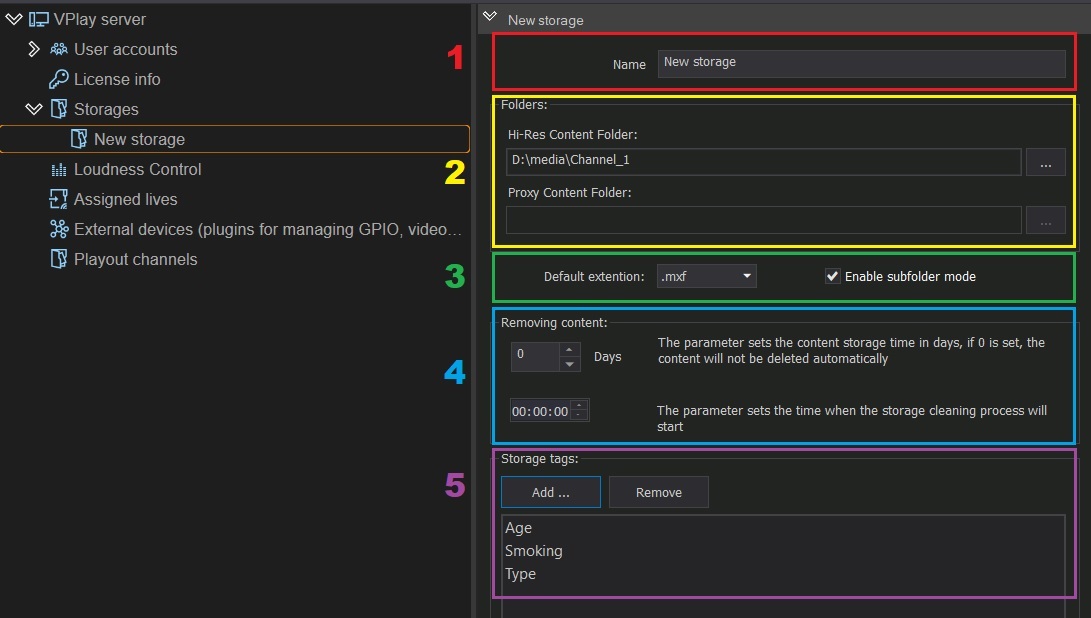
In vpControl → Storages, PAM setup:
- Click Add Storage
- Specify the folder path (UNC or local)
- If necessary, enter the credentials for network access
- Configure the tags (TAGs) — they must match the channel tags
- Save
Prohibited in Storage
It is strictly prohibited to store installers, documentation, or any files other than on-air media files in the Storage folder.
Fill level monitoring
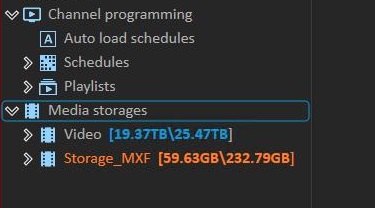
In Channel Manager, in the channel resource tree → Media Storages, the fill level of each Storage is displayed with color coding:
| Color | Fill level |
|---|---|
| 🔵 Light blue | 0–49% |
| 🟠 Orange | 50–79% |
| 🔴 Red | 80–99% |
Asset
Asset is the basic logical unit of content. It is not just a file, but a data structure that includes:
| Field | Description |
|---|---|
| Media Info | Metadata from the media file (codec, resolution, duration) — read-only |
| Media ID | End-to-end unique file identifier |
| Kill Date | Date on which the file is scheduled to be deleted from the storage |
| Read Only | Locks the asset against changes |
| Audio Preset | Loudness normalization profile |
| Logo Slot | Logo slot from the graphics template bank |
| Scale | Frame conversion mode: LetterBox, Anamorph, Pan & Scan |
| TC In / TC Out | Timecode-based markup (segmentation) |
| Mapping | Audio track remapping |
| Tags | Up to 8 custom tags for metadata, search, and programming |
When a media file is deleted, the asset is retained. This lets you work on the schedule in advance while waiting for the file to arrive. The schedule row shows an error until the file appears.
Creating an asset
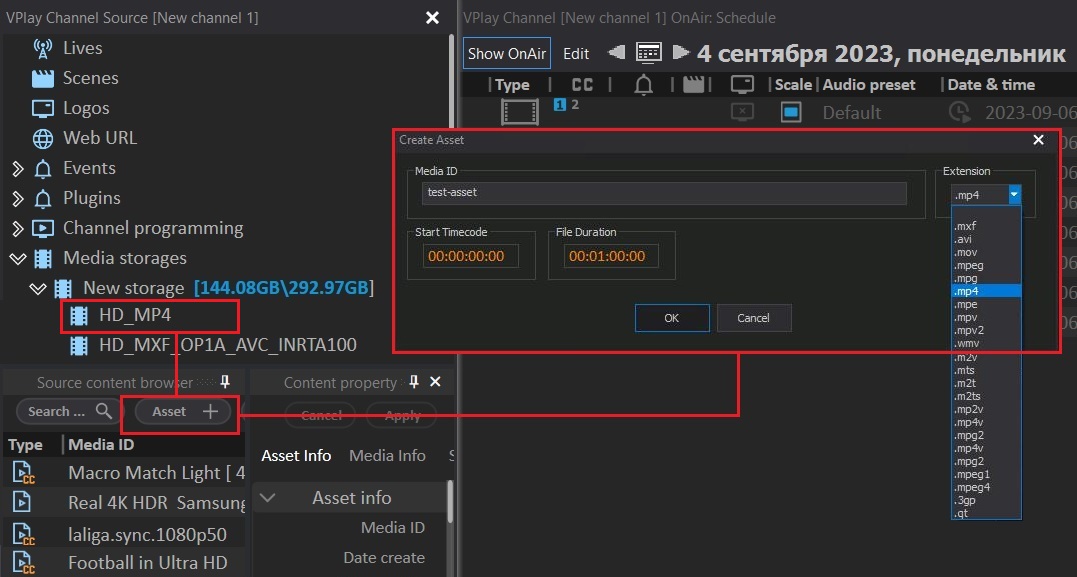
In Channel Manager:
- Select the required Storage in the resource tree
- In the Source content browser window, click Asset +
- In the Create Asset window, enter:
- Media ID — unique identifier (the name without the extension)
- Start Timecode — start timecode
- File Duration — duration
- Extension — file extension (mp4, mxf, mov, etc.)
- Click OK
An empty asset is displayed in red until the media file appears in the storage.
Empty asset (Placeholder)
You can add an empty asset to the schedule in advance as a placeholder for material that will arrive later. All settings apply to it: Fixed Time, ExtEvent, audio preset, scene, logo.
If an empty asset reaches the playback position without a file, the output is a black field (or a filler — depending on the auto-replace settings).
Renaming an asset
Starting with VPlay 5.8, you can rename an asset together with the physical file.
Important: When you rename an asset, the media file in the Storage is renamed too. All previous occurrences in the schedule with the old name are marked as erroneous.
Ways to rename: - In Source content browser → right-click the asset → Rename - In the Content property window — the corresponding field
Asset segmentation
You can split a media file into named segments directly in PAM, without editing the physical file.
- In Source content browser, double-click the asset — Channel Player opens
- Click Enable/Disable Multi Segment Mode
- Use the buttons:
- Add new segment — add a segment
- Split Current Segment — split the current segment
- Remove Current Segment — delete a segment
- Set the In/Out timecodes of each segment on the timeline or manually
- Apply changes to item — save the segments to the asset metadata
After saving, when you add the asset to the schedule, it is automatically added as a sequence of segments.
Segmentation from the schedule vs. from PAM
When you open Channel Player from the schedule (rather than from Source content browser), the segments are NOT saved to the asset metadata — they apply only to that particular occurrence.
Tags and EPG
Channel TAGs
Tags are custom metadata fields. Example: the Age tag for age rating labels.
For a tag to work, it must be added: 1. In vpControl → Channel TAGs → Add → tag name → Save 2. In the properties of the corresponding Storage (the same tag)
After that, a column with the tag appears in the Channel Manager schedule.
EPG
Configured in vpControl → Channel TAGs and EPG → Channel EPG → Enable.
- Language — language (for example,
eng) - The Name, Description, and Age fields are taken from the asset metadata in the corresponding schedule columns
Auto-replacement of damaged items
In vpControl → Channel → Media storages and content replacement:
Filling empty blocks (Empty Block)
When an empty block in the schedule is played: - Black field — black field (default) - Media file — a specified filler file (looped until the next event) - Live input — switch to a live source
Auto-replacement of a damaged item
- Black field / Media file / Live input — same as above
- Enable failed live autoreplace — extend auto-replacement to damaged Live sources as well
- Skip failed item — skip the damaged item and go to the next one (use with caution — it shifts the schedule)
Automatic content deletion
In the Settings for automatic deletion of media content section (enabled when VMedia is on):
| Mode | Description |
|---|---|
| Disabled | Automatic deletion is disabled (default) |
| Manual | Generates a list of deletion candidates — the user deletes them manually |
| Auto | Unused files are deleted automatically |
- Turn on deletion when disk is more ... percent full — disk fill threshold that triggers automatic deletion
- Include scene and animation files — include scenes and animations in the deletion list
Integration with MAM and traffic systems
PAM is the integration point between VPlay and external systems:
- An external traffic system generates a schedule using the asset Media IDs
- A MAM system manages the physical movement of files into the Storage
- VPlay applies the schedule automatically through the schedule auto-import mechanism and Watch Folder
A description of the schedule format for integration is available from Stream Labs on request.