Working in 1+1 redundancy mode
The 1+1 redundancy feature is based on the independent synchronous operation of two channels, controlled from a single client workstation in Channel Manager.
It requires a separate license for each redundant channel.
Operating principle
Two servers (A and B) are synchronized through an external local NTP server. The servers do not interact with each other — they are linked only by the setup in the client application.
- To the client, both servers look like a single channel broadcast from two servers
- All operator commands (playback, jump, schedule changes) are sent to both servers simultaneously
- The synchronization point is the Channel Manager client application
- Schedules, files, and Storage paths must be identical on both servers
- Both servers broadcast 100% of the time, fully duplicating each other
If one server goes down, the other continues broadcasting. There is no switchover moment as such — the signal is not disrupted.
Identical settings
The basic server settings, channel names and formats, Storage structure, and asset files must be identical on both servers. A mismatch leads to desynchronization.
States in Channel Manager
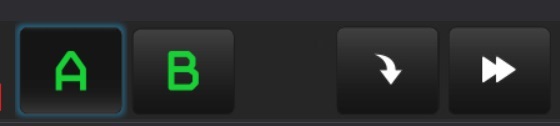
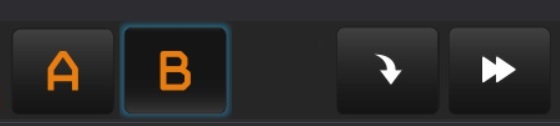
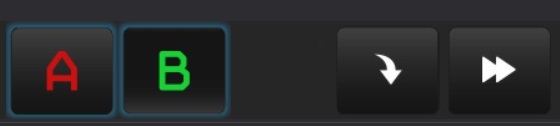
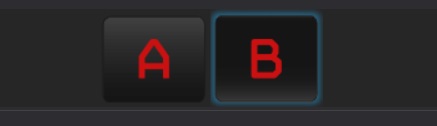
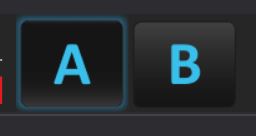
The state of the server pair is shown by the color of the schedule switch buttons:
| Button color | State | Action |
|---|---|---|
| 🟢 Green | The servers run synchronously, the time difference is within the norm | — |
| 🟠 Orange | Schedule desynchronization or temporary desynchronization (no more than 5 frames) | Perform manual synchronization |
| 🔴 Red (one) | One server is unavailable | Diagnose the unavailable server |
| 🔴 Red (both) | Both servers are unavailable | Run a comprehensive check of the automation system |
| 🔵 Light blue (both) | The link between the servers was forcibly broken by the operator | Maintenance — to relink, use Join channels |
Schedule synchronization
In normal mode, the servers are synchronized automatically: the built-in time comparison function runs continuously and corrects the schedule when the desynchronization exceeds 12 frames.
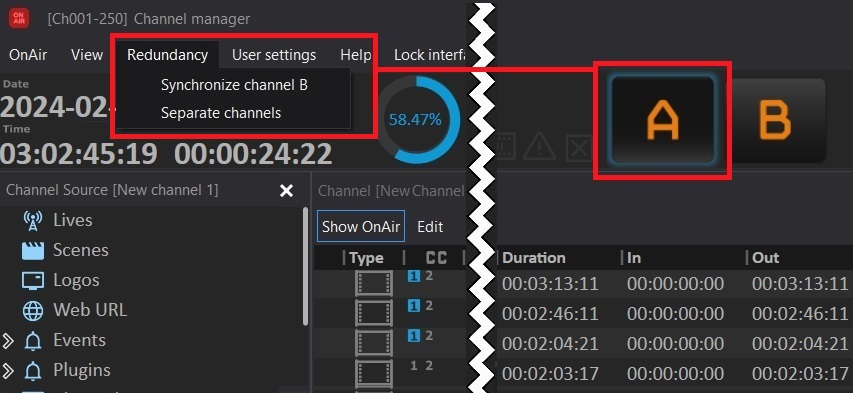
Manual synchronization (when the status is orange):
- Select schedule A or B — the one that is the reference
- Channel Manager menu → Redundancy → Synchronize channel
- Confirm — the schedule of the channel being synchronized will be replaced with the reference schedule
- During synchronization, the button shows a circular progress bar
- When it finishes, both buttons are green
Separating and joining servers
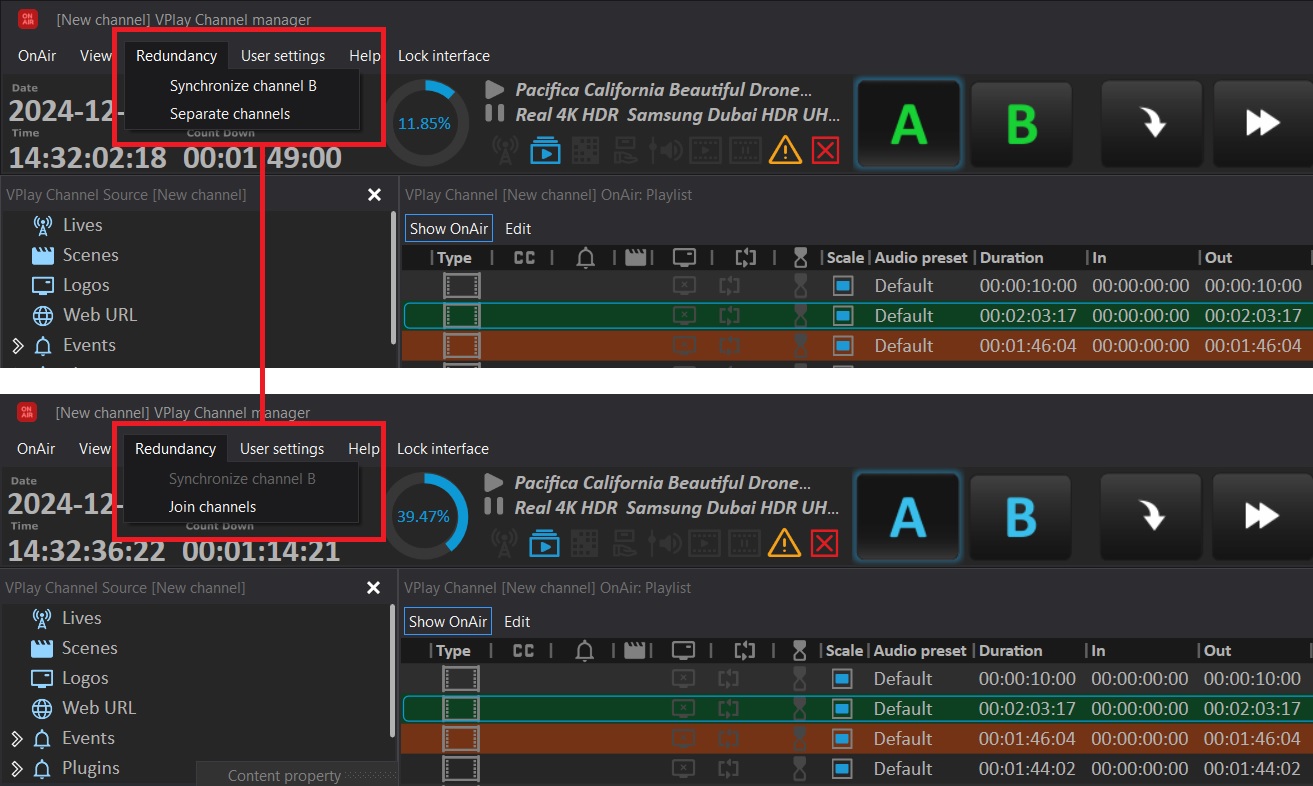
To perform maintenance on one of the servers without reconfiguring redundancy:
- Separate: Channel Manager → Redundancy → Separate channels (the buttons turn light blue)
- Join back: Channel Manager → Redundancy → Join channels
Schedule errors in redundancy mode
Important: Schedule errors (missing files, damaged assets, unavailable scenes) do not change the color of the synchronization buttons — the buttons show only the time synchronization of the servers, not the quality of the schedule.
Schedule errors are shown by icons in the schedule rows of each channel independently. The errors on servers A and B are not identical — they are fixed separately for each channel.
Adding servers to Launcher
Client application setup is described in the User settings section.
When you add two channels in redundancy mode, Launcher assigns them the names A and B in random order — this does not mean that A is the primary and B is the backup. Both channels are fully equivalent.
Protocol improvements (VPlay 5.8)
Starting with VPlay 5.8, the server control protocol in redundancy mode has been improved:
- Synchronization when working with Live sources has been optimized
- Synchronization during manual jumps between schedule events has been improved