Playlist — Playlist mode
Playlist mode is looped playback of a media content queue. It is ideal for music, thematic, and information channels where the order matters more than the exact on-air time.
After the last item in the queue ends, playback automatically restarts from the first one.
Adding content
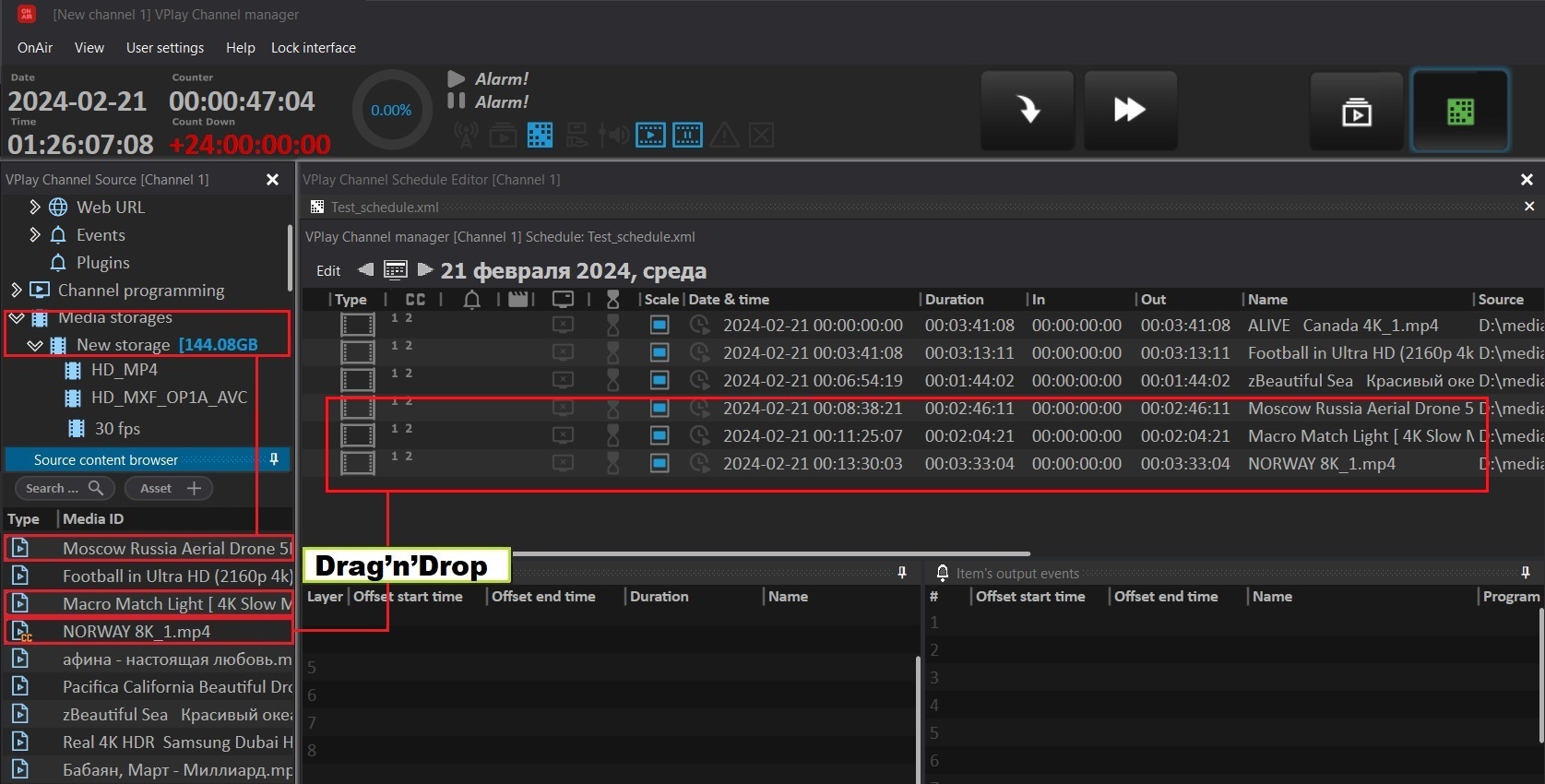
From the storage browser
- In the Source Content Browser window, find the files you need
- Select one or more files
- Drag them to the Channel OnAir window (drag & drop)
Alternatively: right-click → Add to playlist.
Supported formats
AVI, MOV, MXF, MP4, MPG, BMP, TGA, GIF, PNG, JPG, TIF
Codecs: DVCAM, DVCPRO, IMX, XDCAM, DNxHD, H.264, H.265, MPEG-2, Apple ProRes, AV1, and others. For the full list, see the Codec Reference.
Working with playlist items
Changing the order
Drag an item to a new position in the queue. The change is applied instantly, even during broadcast.
Deleting an item
Select the item → press Delete or right-click → Remove.
The current item cannot be deleted
The item that is currently playing (the "Green" status) is protected from deletion. Move to the next item with Next, then delete.
Renaming
Right-click → Rename — sets the display name of the item in the schedule without renaming the file itself.
Clip segmentation and markup
VPlay lets you play only part of a file without physically trimming it.
In/Out points
- Select an item in the playlist
- Open Content Property
- In the Trim section, set:
- In Point — playback start point (timecode or duration from the beginning)
- Out Point — end point
The duration is recalculated automatically.
Content markup
Within a single file, you can add internal markers to split it into logical parts. Each part is displayed in the schedule as a separate item with independent graphics and event settings.
Blocks
A block is a container for grouping playlist items. It is used to organize commercial breaks, thematic packages, or any logical group of content.
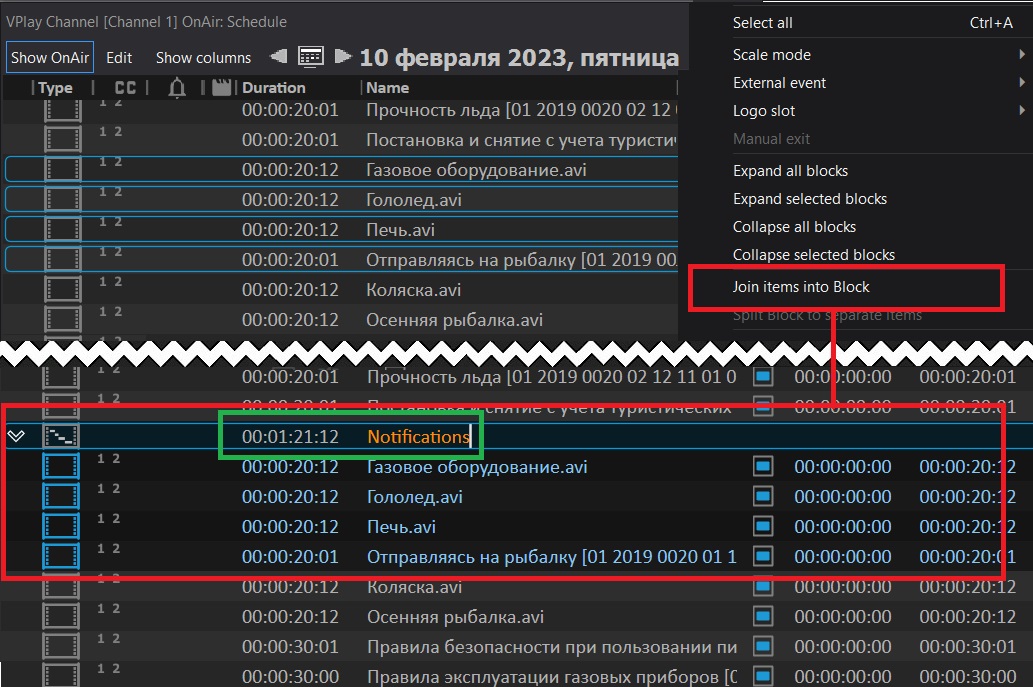
Creating a block
Right-click an empty area of the playlist → Add Block → enter a name.
Drag the required items into the block. The block plays as a unit: first all the items inside it, then the next item outside the block.
Expanding and collapsing
Click the block header to collapse or expand its contents. When collapsed, the block occupies a single row in the playlist.
Item graphics
You can set individual GFX for each playlist item.
Item's Scenes
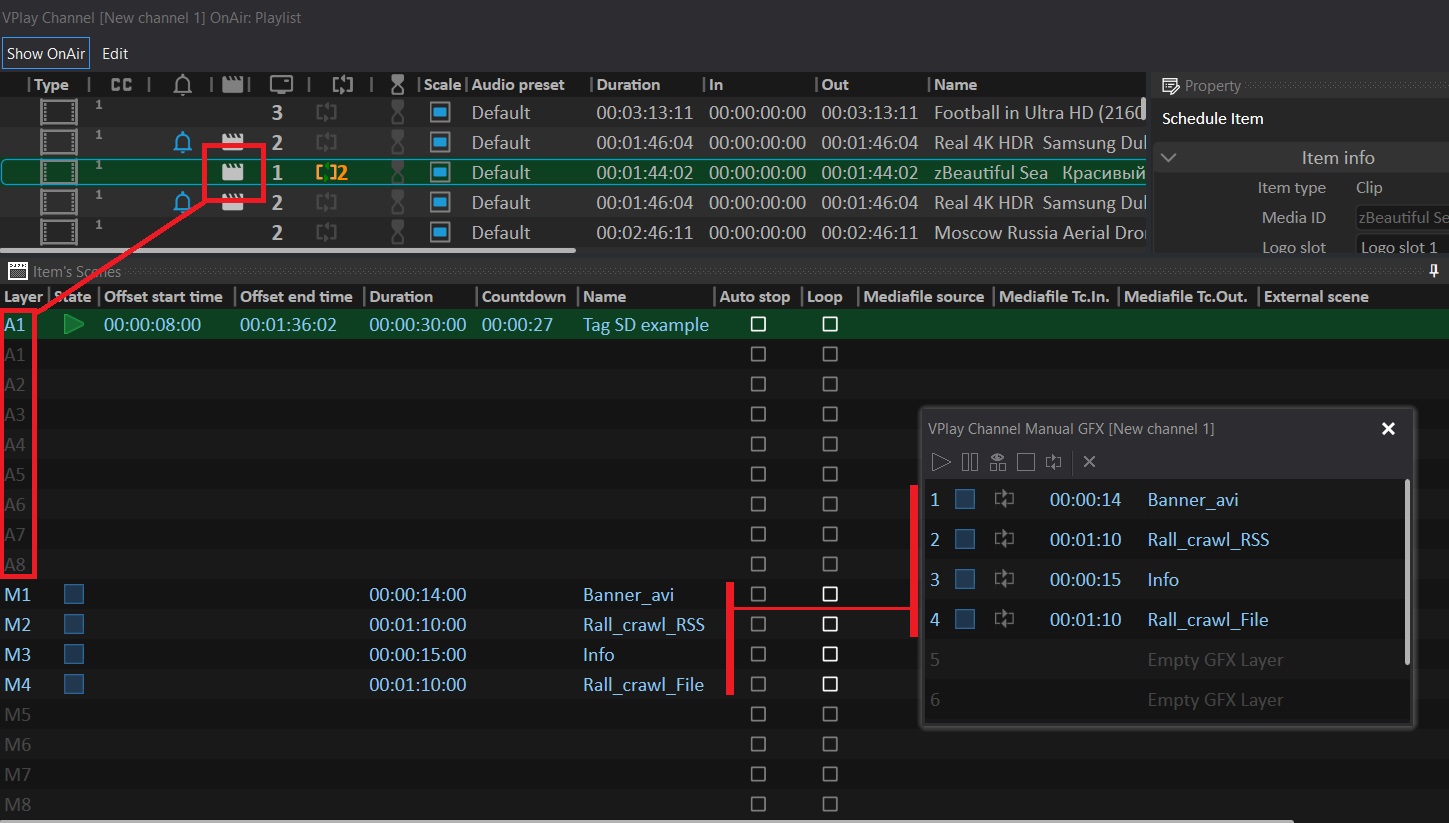
- Select an item in the playlist
- Open the Item's Scenes window
- Click Add Scene and select a scene from the Scene Editor library
- Set the appearance and disappearance time of the scene (relative to the start of the clip)
You can assign up to 8 scenes to one item — they are overlaid simultaneously.
Item's Output Events
In the Item's Output Events window, you set the control signals that VPlay sends to external devices while this item is playing:
- GPI pulses (RS-232, SlxUSB)
- SCTE-35/104 markers
- Video Router and Headend commands
- Telnet commands
Subtitles
Adding a subtitle file
- Select an item in the playlist
- Content Property → Subtitles → Add
- Select a subtitle file: SRT, STL, or TBS
- Set the output parameters: language, encoding, output signal format
Supported subtitle output formats: OP-42/47, EIA-608/708, DVB, TTML.
Overlaying subtitles on a live source
Subtitles from a file can be overlaid not only on VOD but also on a live signal:
- In the channel's Live source settings, enable Subtitle Overlay
- Specify the subtitle file or configure subtitle reception over the network
Schedule import
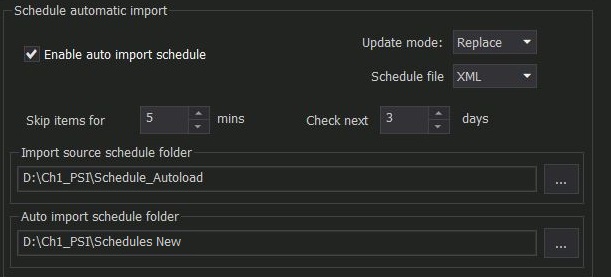
VPlay supports importing a playlist from external planning systems.
Manual import
Channel OnAir → Import → select a file in XML or CSV format, or in the specific format of your planning system.
Automatic import
Configured in Server Settings: VPlay periodically polls the specified folder and automatically applies new schedule files. The check interval is set in minutes.
Saving a schedule fragment
You can save any part of a playlist as a template for reuse:
- Select the required items (Ctrl+Click or Shift+Click)
- Right-click → Save as Template
- Enter a template name
The template is saved in the Schedule Editor library and is available for insertion into any playlist.
Schedule execution
Starting the broadcast
Click ▶ Play in Channel Manager. Playback starts from the current (selected) item, or from the first one if nothing is selected.
Underrun — end of the queue
If the playlist has ended and there are no new items, VPlay switches to Underrun mode — a pre-assigned backup content (for example, Color Bar or a slate) plays automatically. It is configured in the channel parameters.
Multi-select
For bulk operations on playlist items:
Ctrl + Click— add to the selectionShift + Click— select a rangeCtrl + A— select all
Actions available for a multi-selection: delete, move, assign a GFX scene, change the status.